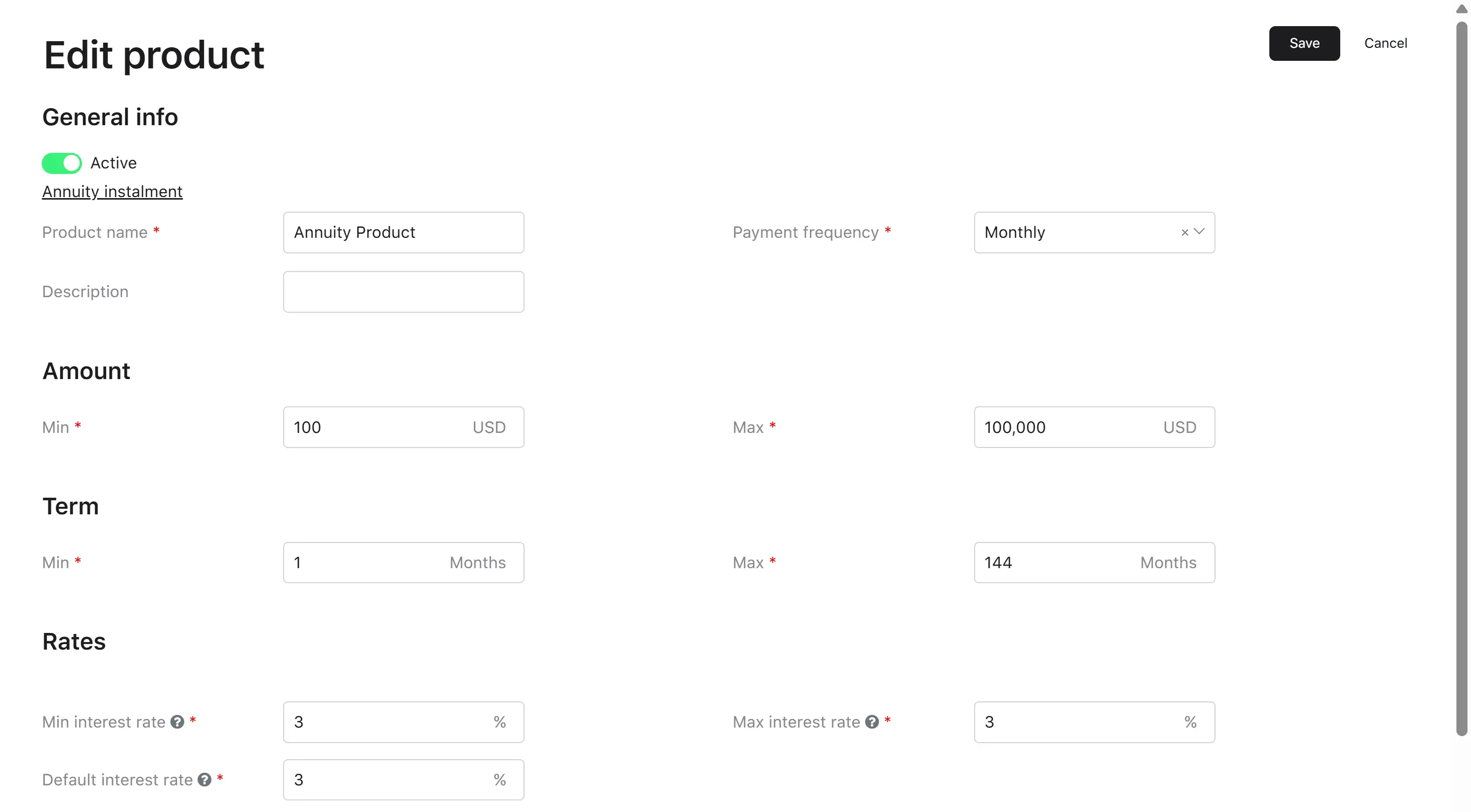
Editing a product
Process
Product editing is available at any time to users with the Credit Officer role. Any modifications will apply exclusively to newly created loan applications and loans. Existing loans will continue to operate under the product conditions effective at the time of their creation, as HES LoanBox adheres to the product snapshot principle.
Step 1. Navigating to editing
The user opens the product card and clicks the “Edit” button. The system opens the product editing form indicating the parent group.
Step 2. Editing parameters
The user edit all required fields of the form. The set of visible fields depends on the parent product group’s settings (loan type, interest rate type, calculation type).
Step 3. Saving
The system validates the data while the fields are being edited, including verifying that the product’s ranges fall within the group’s ranges. If all fields are filled in correctly, the “Save” button becomes active. If errors are found, the system displays messages next to the corresponding fields. When a user clicks the “Save” button, the system saves the updated product.
Result: the product is updated and is active by default (the “Active” flag is on).