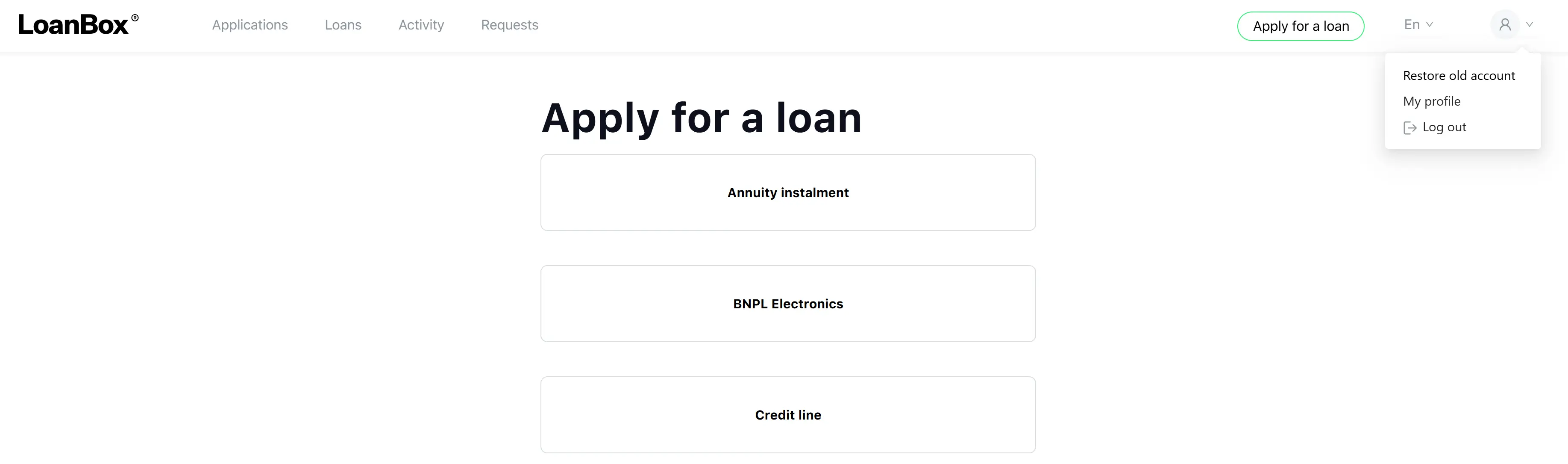
Modules
Applications
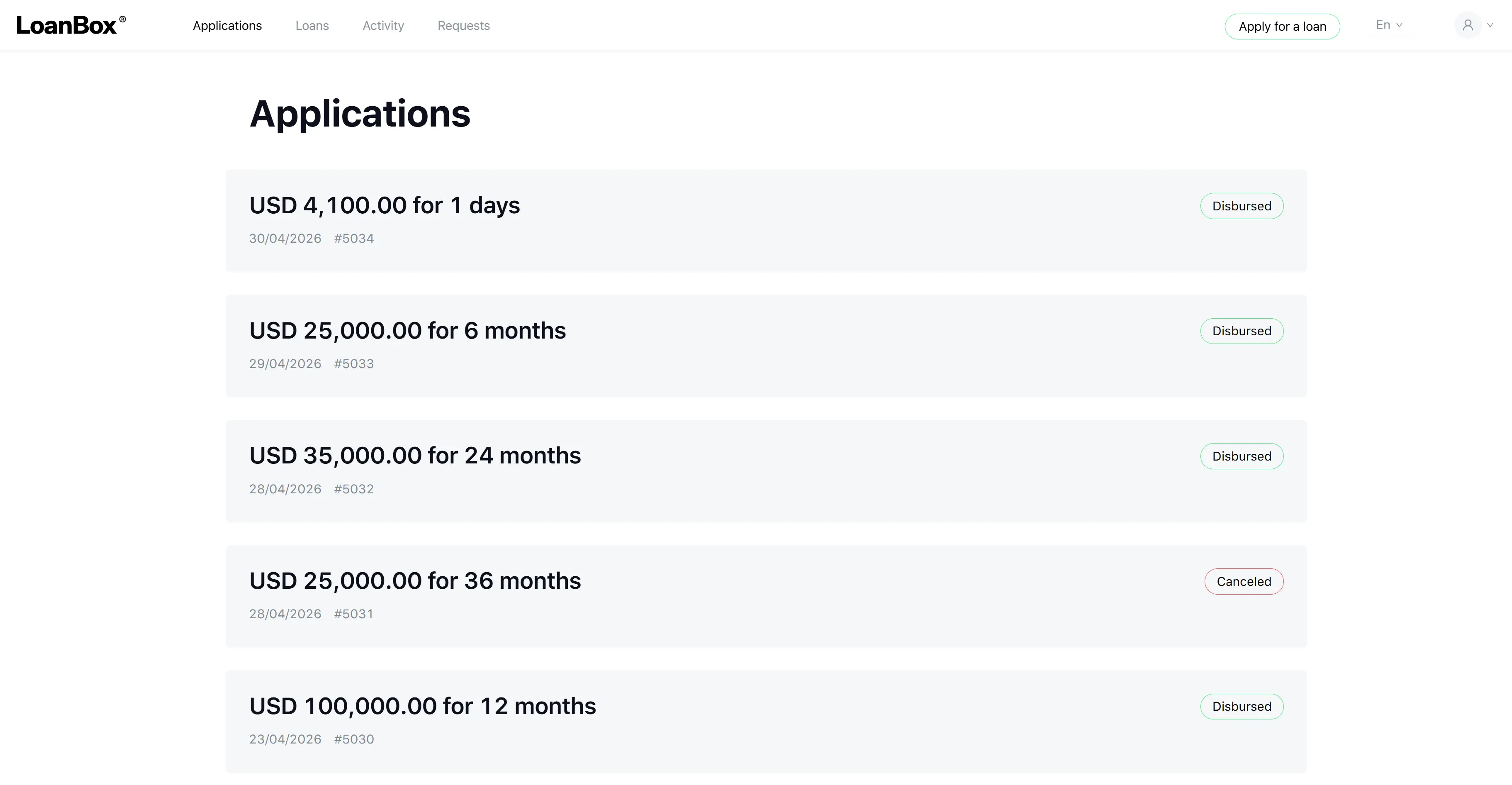
The Applications module displays all loan applications submitted by the borrower. Applications are listed in reverse chronological order by submission date.
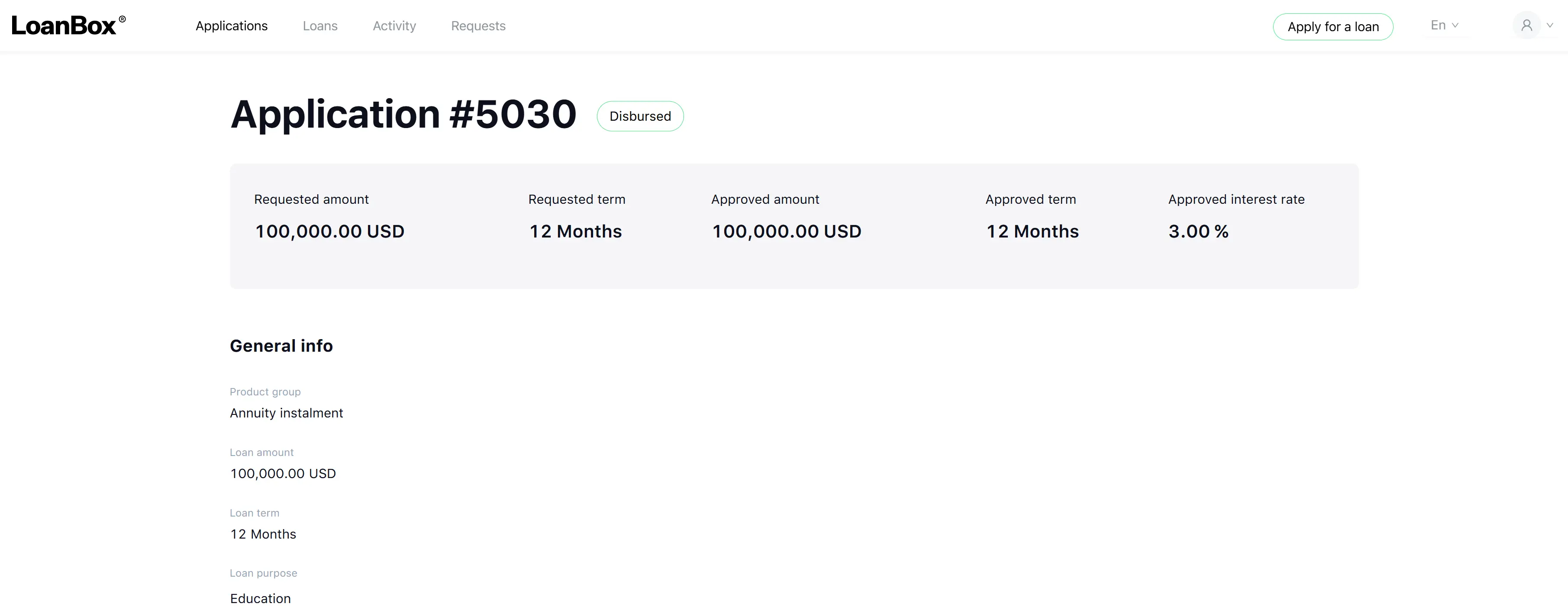
Each application shows:
- Application number — a unique human-readable identifier
- Status — current stage in the application lifecycle
- Requested amount and Requested term
- Approved amount and Approved term (once a decision is made)
- Interest rate (approved)
- Product group
Application statuses visible to borrowers:
| Status | Meaning |
|---|---|
| On KYC | Identity verification in progress |
| Account verification | Bank account verification in progress |
| Verification | Manual review of borrower data by the lender |
| Update requested | The borrower must provide additional or corrected information |
| Underwriting | Manual credit decision in progress |
| Approved | Application approved; contract is ready for signing |
| Declined | Application rejected |
| Canceled | Application withdrawn by the borrower or timed out |
| Disbursed | Loan has been issued |
When an application reaches Approved status, the borrower can view the contract document and proceed to signing. While the application is in “Update requested” status, the borrower must update the flagged sections and resubmit by the given deadline; otherwise, the application is automatically declined.
The borrower can cancel an active application at any time before a final decision is reached.
Loans
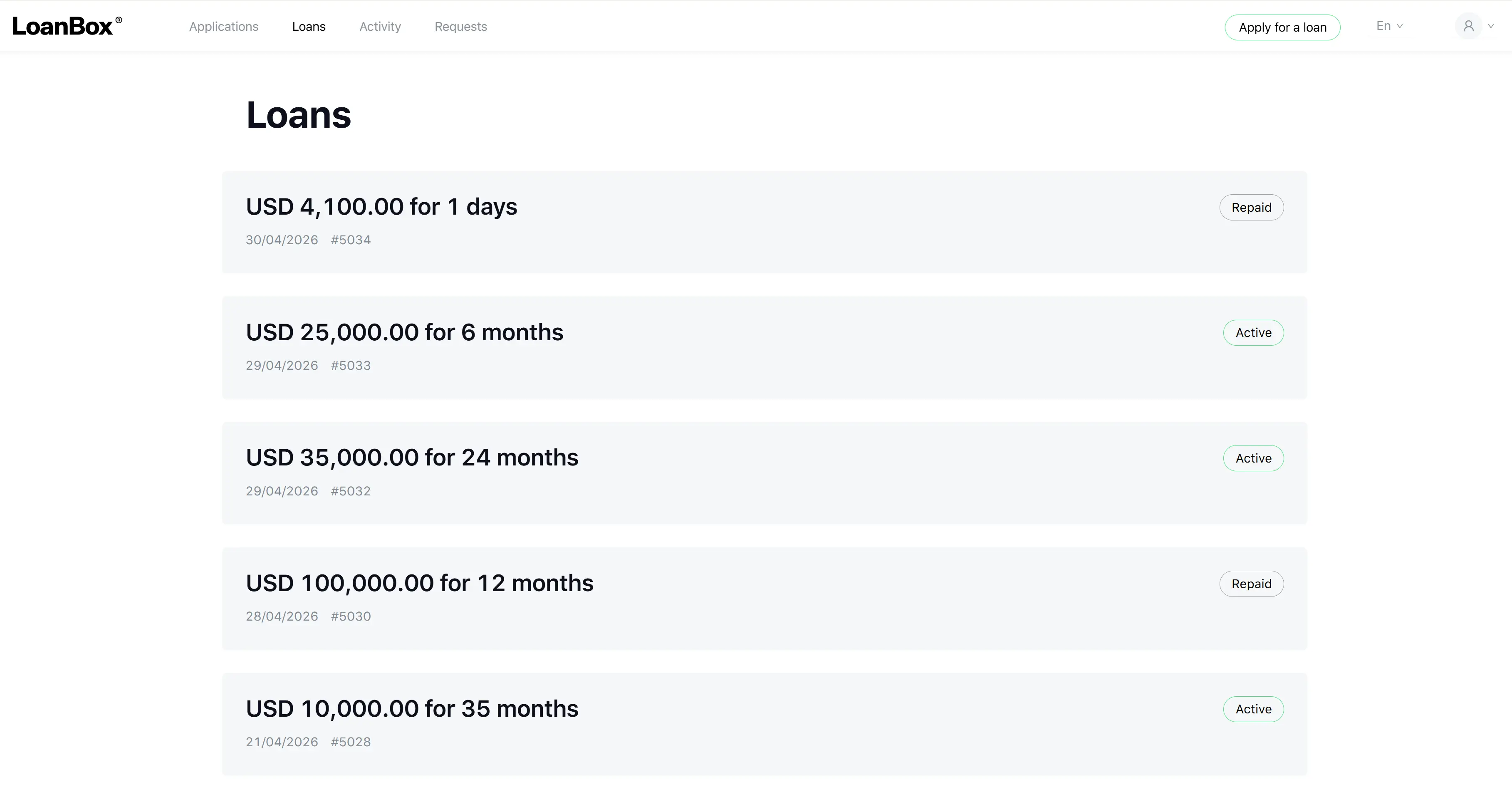
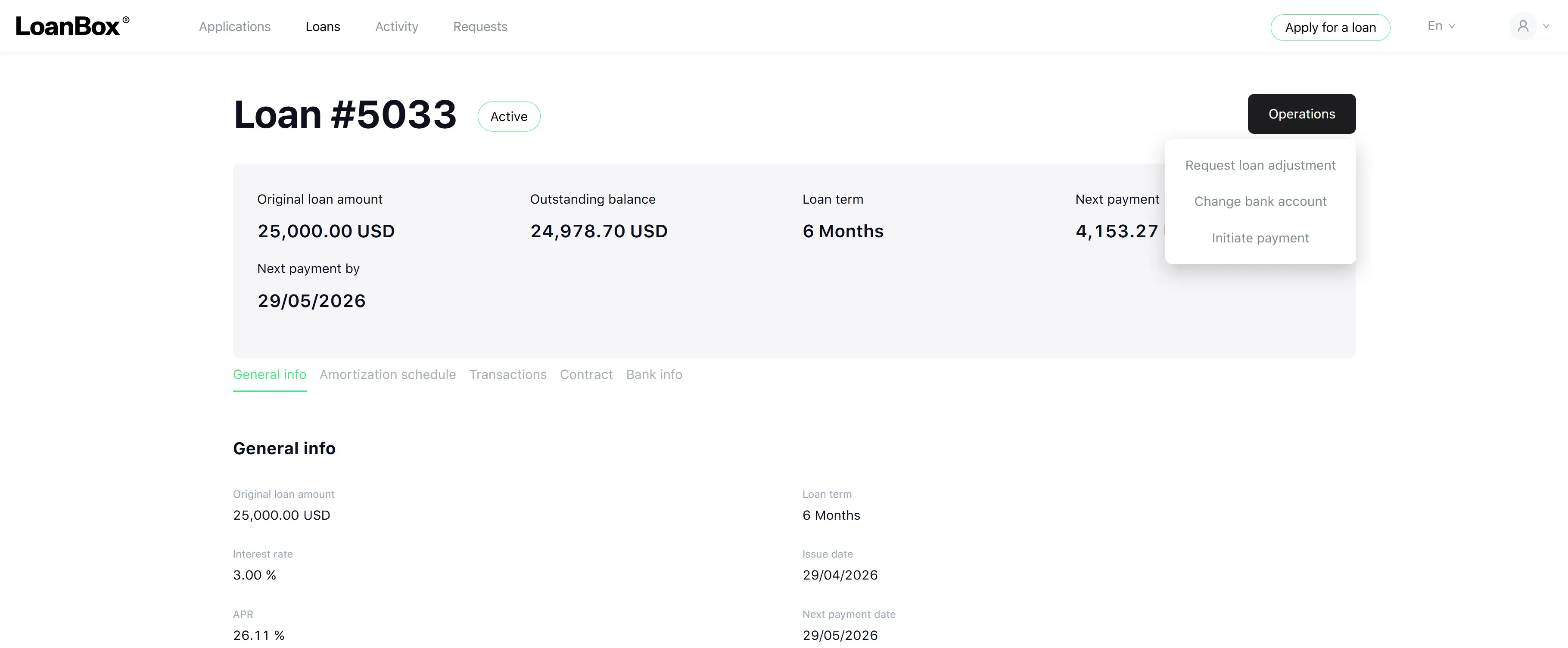
The Loans module displays all loans issued to the borrower. Two loan types are supported: fixed-term loans and credit lines.
Fixed-term loans — loans with a defined repayment schedule and maturity date.
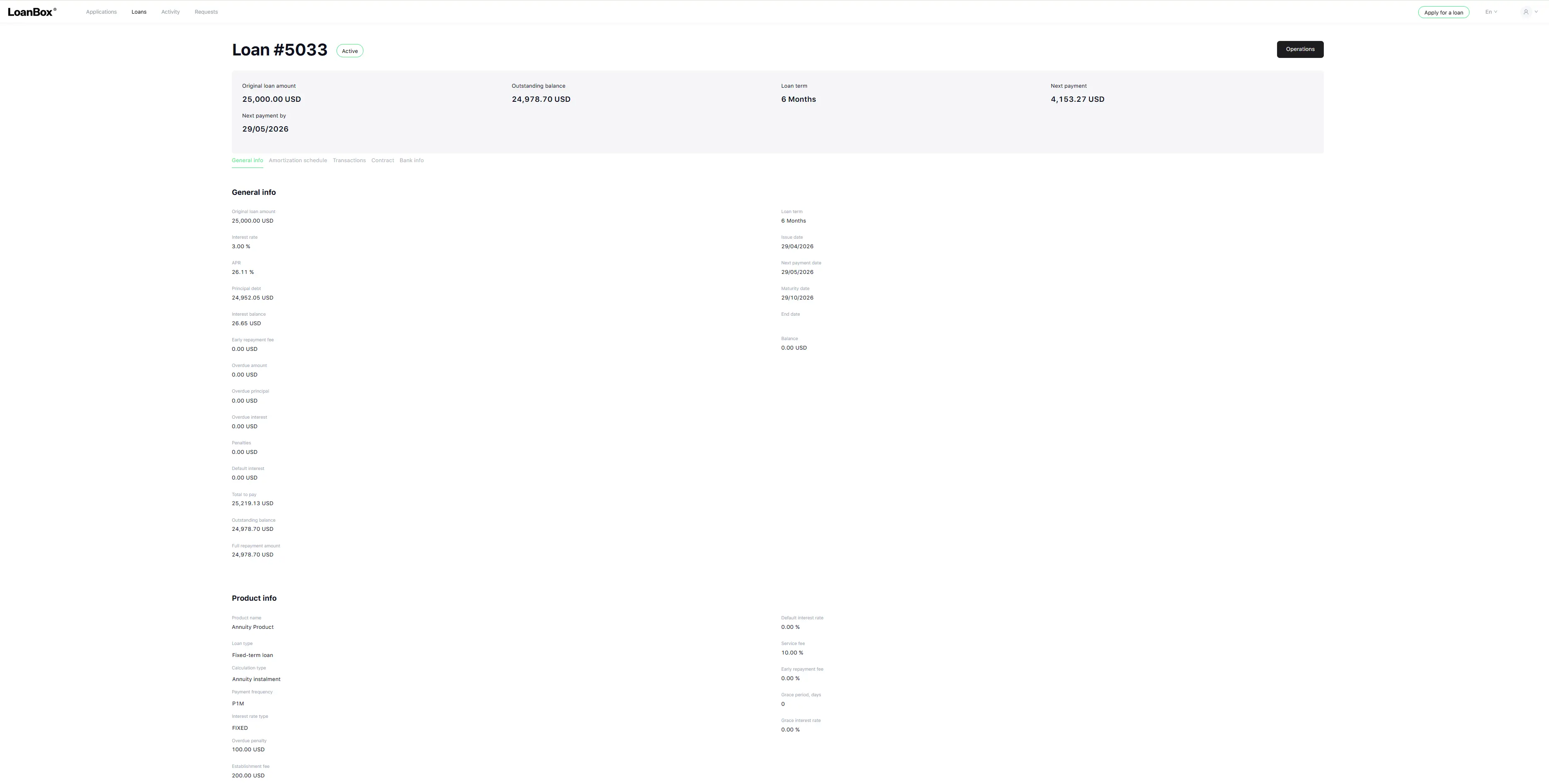
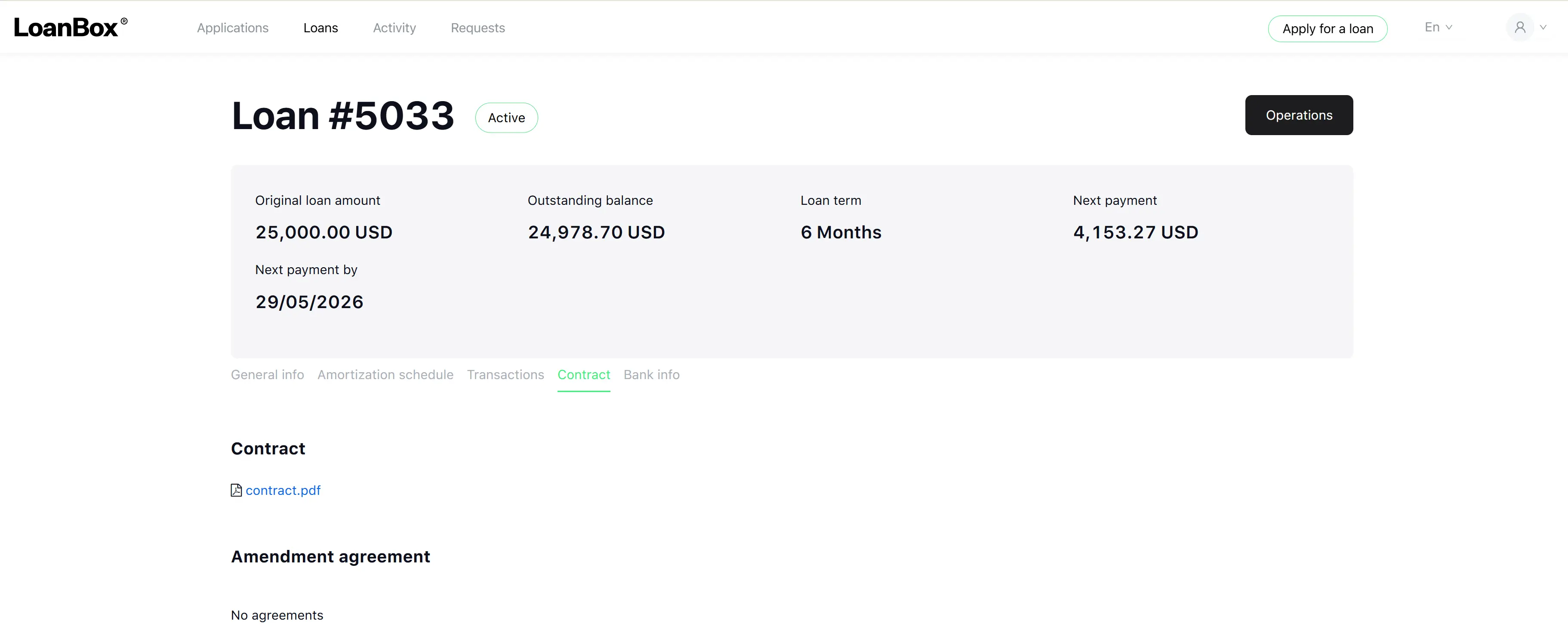
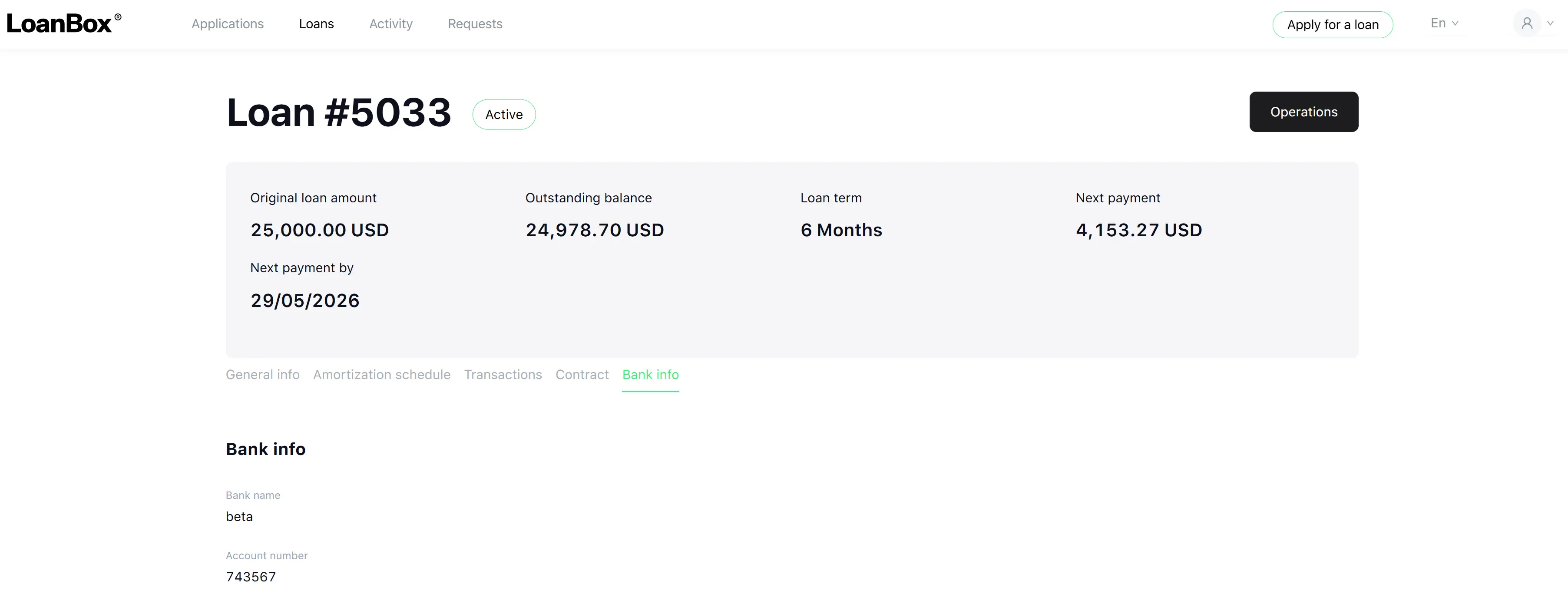
The detail view shows:
- Loan number, issue date, maturity date
- Interest rate, calculation type (e.g., Annuity, Linear)
- Current outstanding balance
- Next payment amount and next payment date
- Annual Percentage Rate (APR)
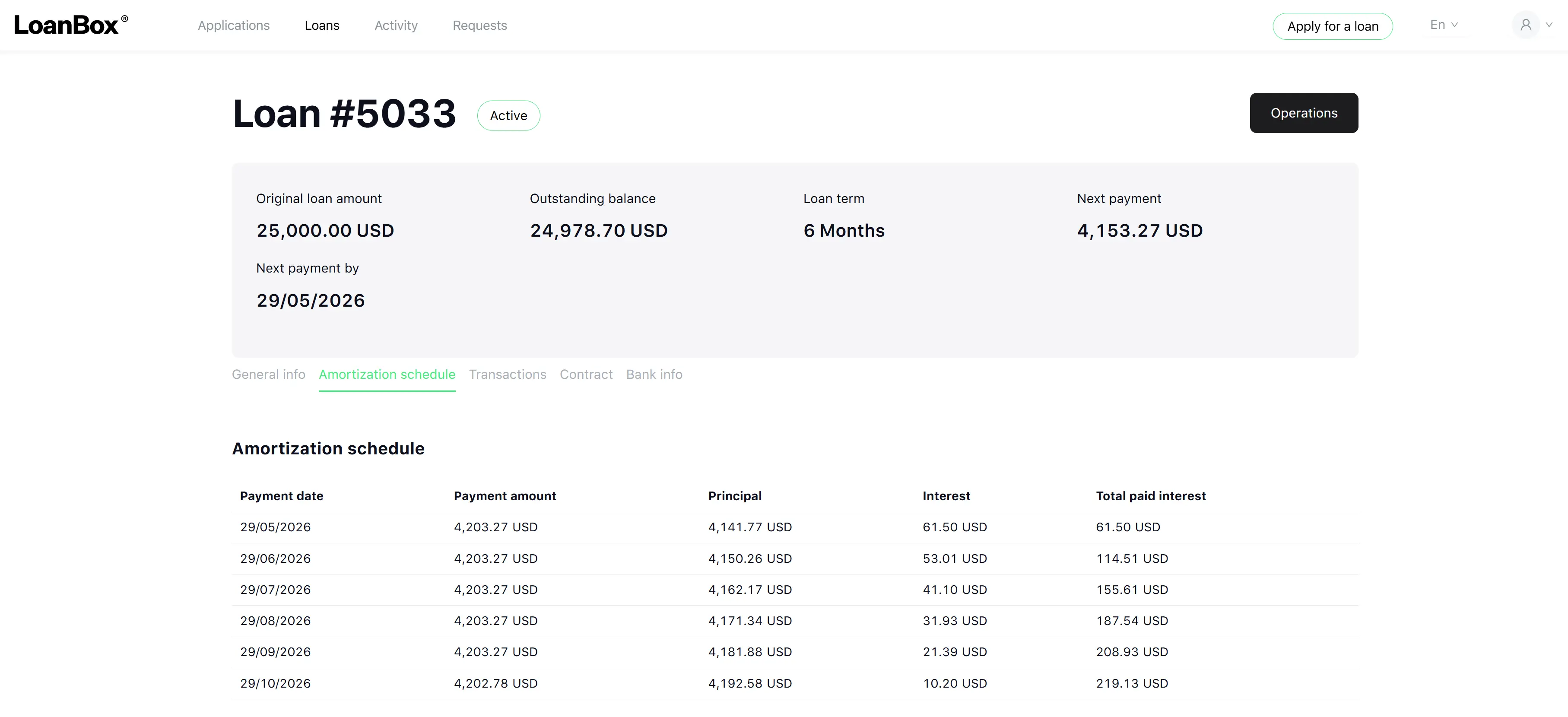
- Amortization schedule with payment dates, payment amounts, principal and interest breakdown
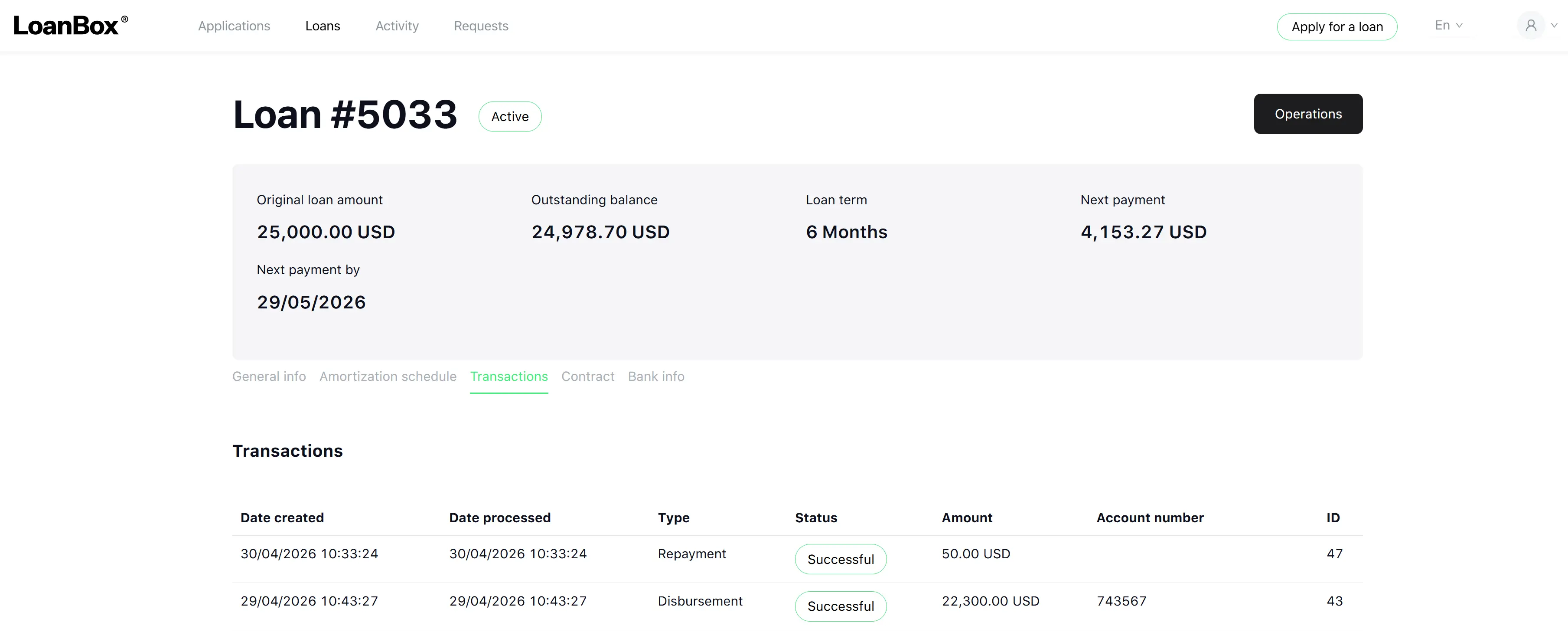
- Transaction history
- Contract document
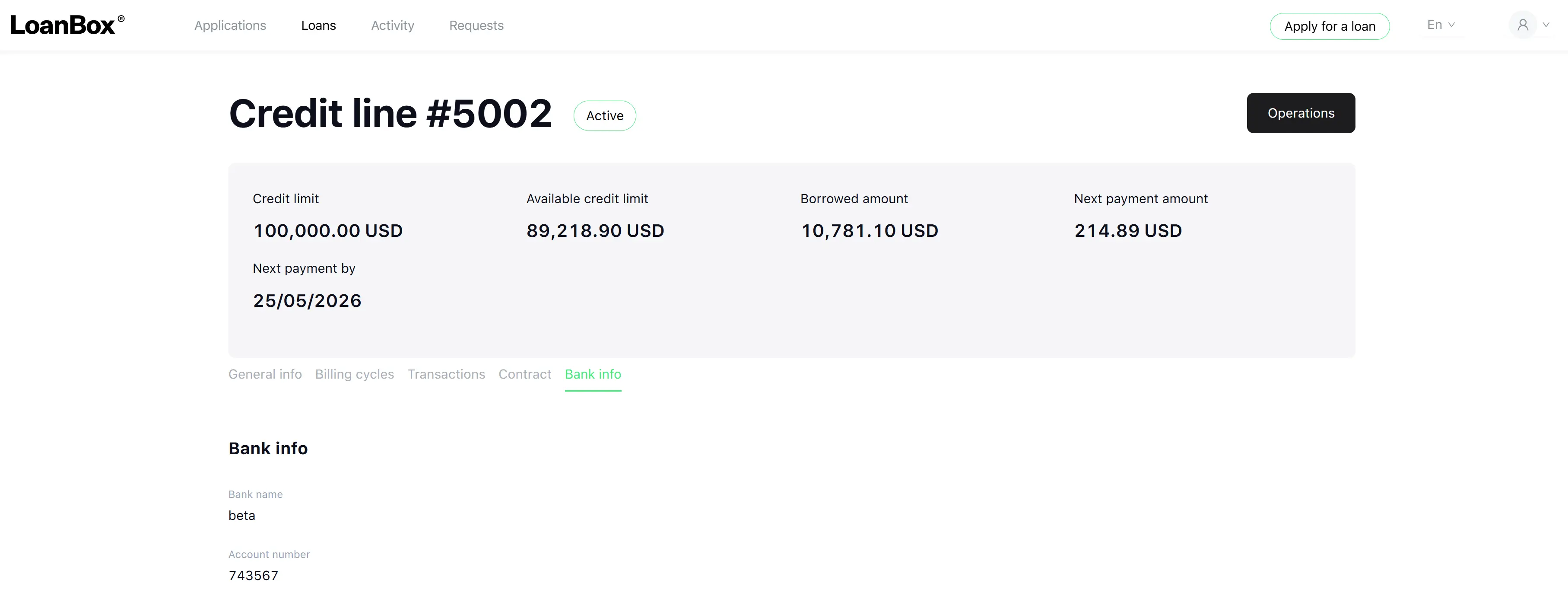
- Bank account linked for repayments
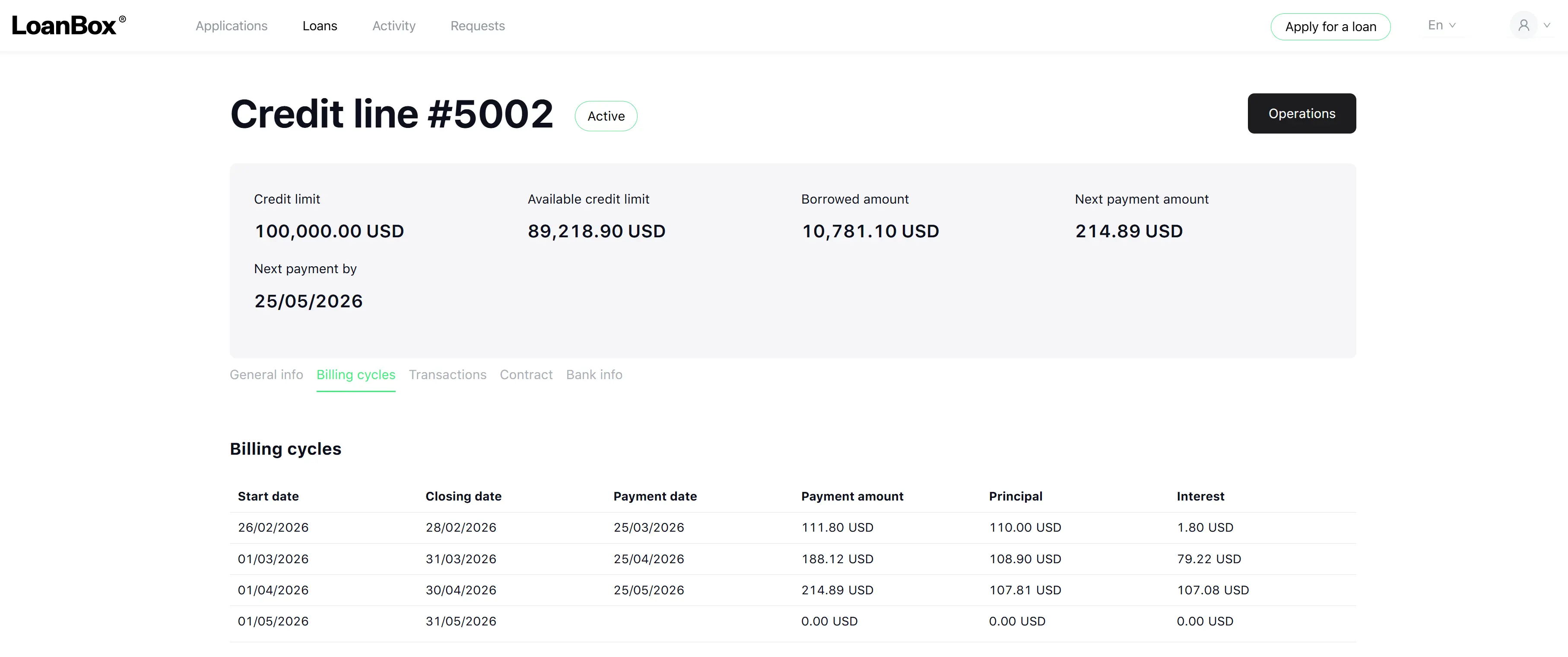
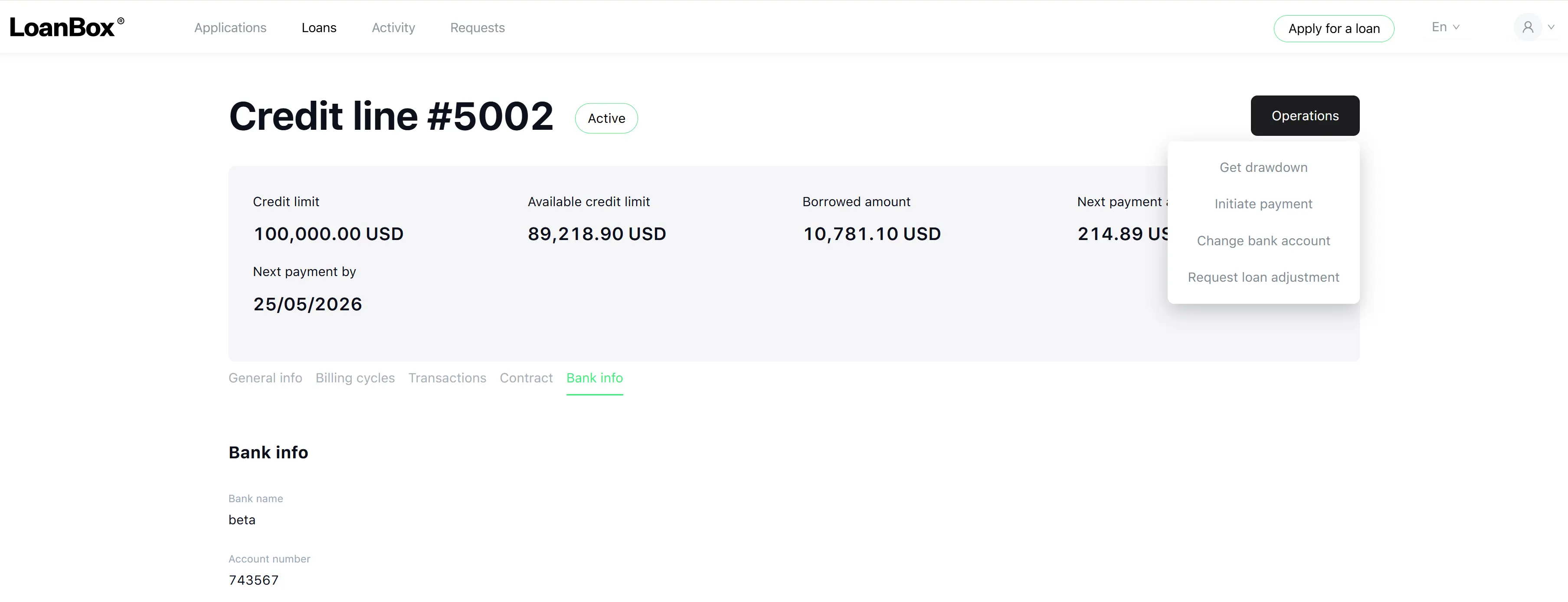
Credit lines — revolving credit facilities.
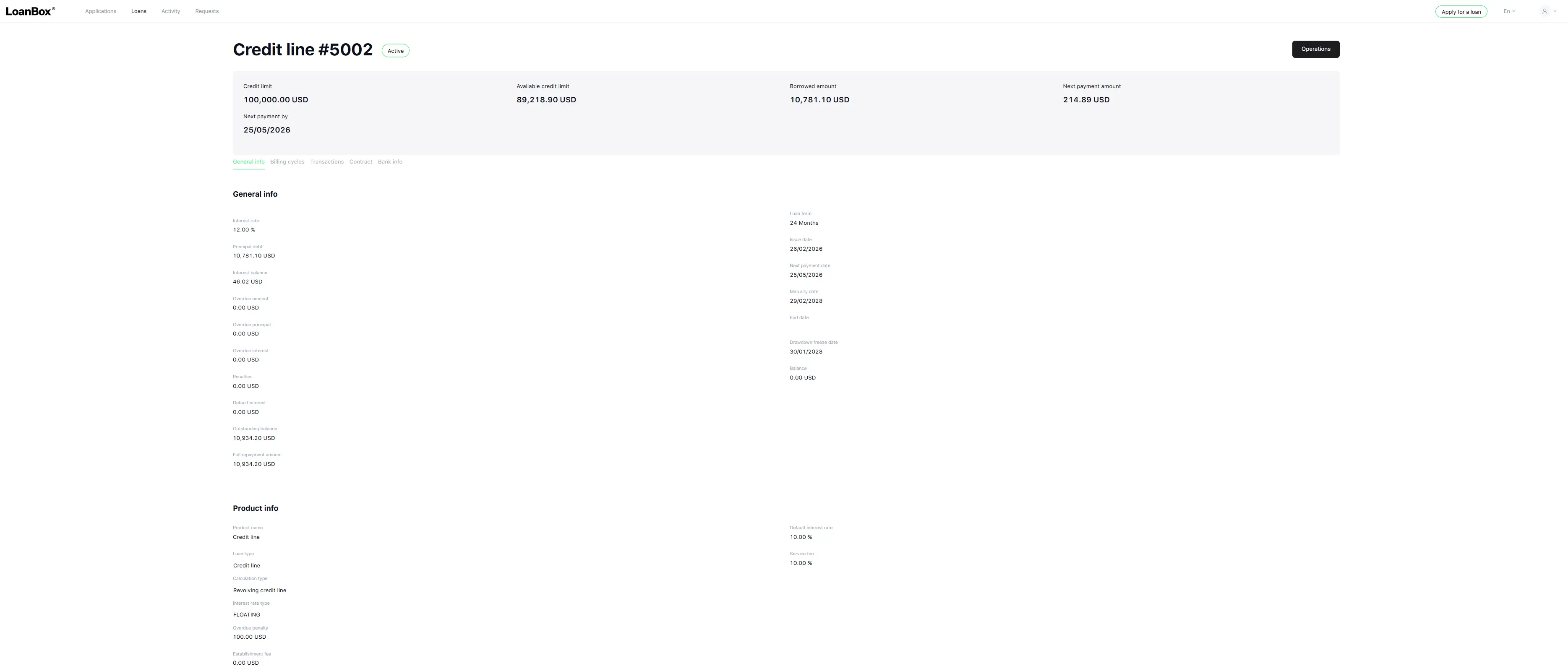
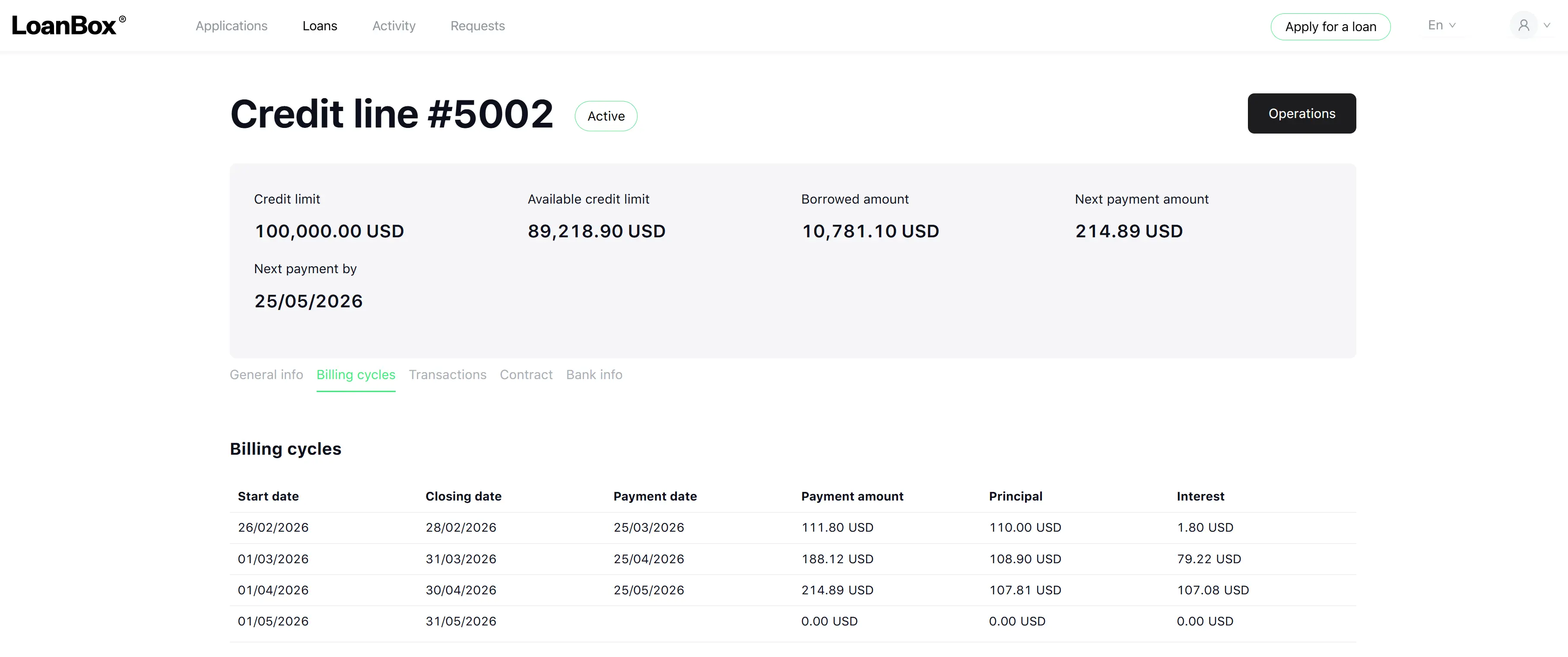
The detail view shows:
- Credit limit and available credit limit
- Borrowed amount
- Next payment amount and due date
- Billing cycles
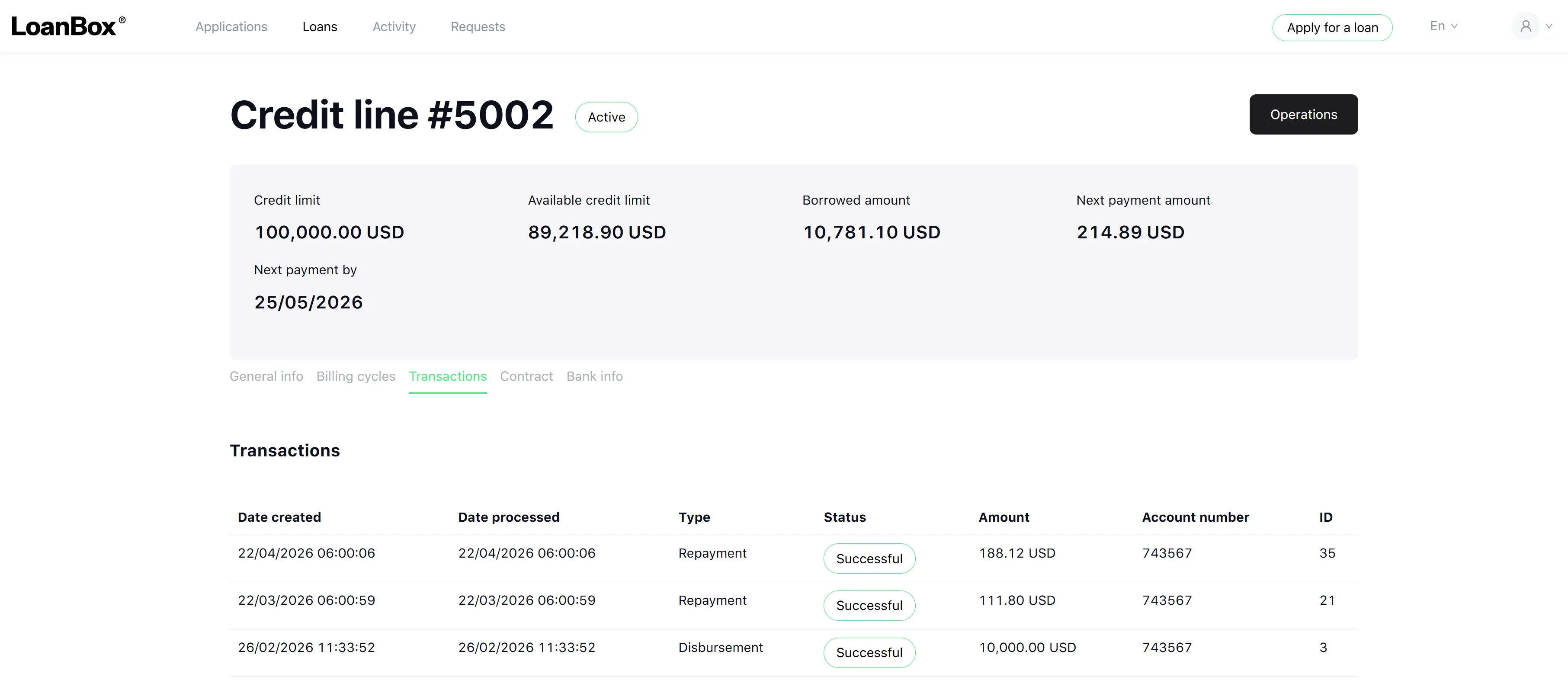
- Transaction history
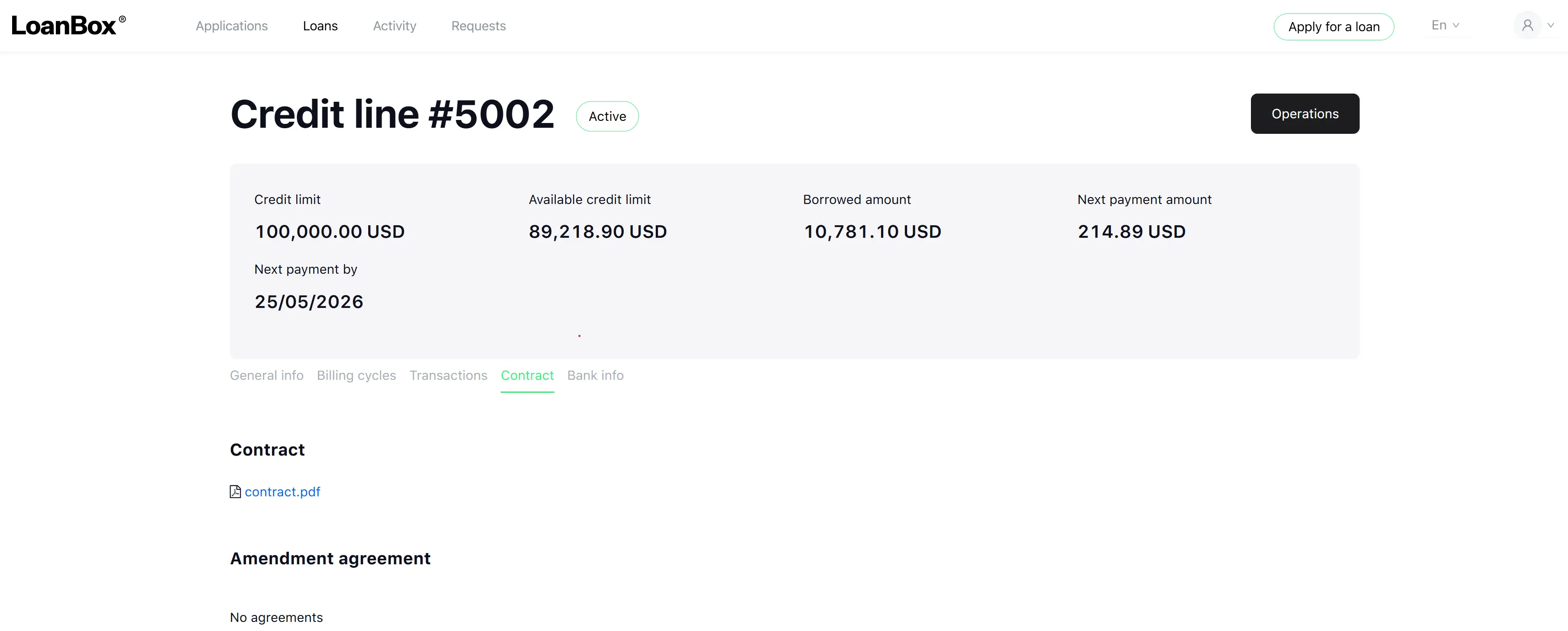
- Contract document
- Drawdown freeze date
Loan statuses visible to borrowers:
| Status | Meaning |
|---|---|
| Pending | Loan created; disbursement not yet processed |
| Active | Loan is in good standing |
| Overdue | Scheduled payment was missed |
| Repaid | All obligations have been fulfilled |
| Written-off | Loan has been written off by the lender |
| Processing | A payment or operation is currently being processed |
From the Loans module, the borrower can initiate the following operations (availability depends on loan type and status):
- Initiate payment — make a repayment toward the loan.
- Get drawdown (credit lines only) — request a disbursement from the available credit limit.
- Request loan adjustment — submit a restructuring request (see Requests module).
- Change bank account — update the bank account linked to the loan for repayments.
Transaction history entries show the date, type (Disbursement or Repayment), amount, and processing status for each monetary movement on the loan.
Activities
The Activities module surfaces pending tasks that require the borrower’s action. These tasks are generated by the platform’s process engine as part of ongoing workflows. A task appears here whenever the borrower needs to take an action to move a process forward.
Tasks that may appear in the Activities module:
| Task | When it appears |
|---|---|
| Confirm loan conditions | Before a new application is submitted, confirm the loan amount, term and payment frequency |
| Provide personal details | Data collection step during application intake |
| Provide employment info | Employment information required for individual person borrowers |
| Provide address | Address required during application |
| Provide bank info | Bank account details required for disbursement and repayments |
| Provide company info | Company information required for legal entity borrowers |
| Provide company’s representative info | Representative details required for legal entity borrowers |
| Provide further info | Additional information requested by the lender |
| Provide collateral info | Collateral details for secured loan applications |
| Verify your identity (KYC) | Identity verification via a configured KYC provider (e.g., Jumio, Ondato) |
| Verify your bank account | Bank account verification via an open banking provider |
| Track verification status | Informational waiting task during manual verification |
| Update the application | Correct or supplement application data after a verification return |
| Review the contract | Review the loan contract before signing |
| Sign contract | Sign the loan contract using OTP or e-signature |
| Wait for an offer | Waiting state while the lender prepares the contract |
| Update the loan adjustment request | Provide additional information after the lender returns an adjustment request |
| Wait for a change of bank account | Waiting state while the lender processes a bank account change |
| Initiate drawdown | Submit a credit line drawdown request |
| Initiate payment | Submit a manual loan repayment |
Tasks disappear from the Activities module once the borrower completes them or once the process engine moves the workflow past that step.

Requests
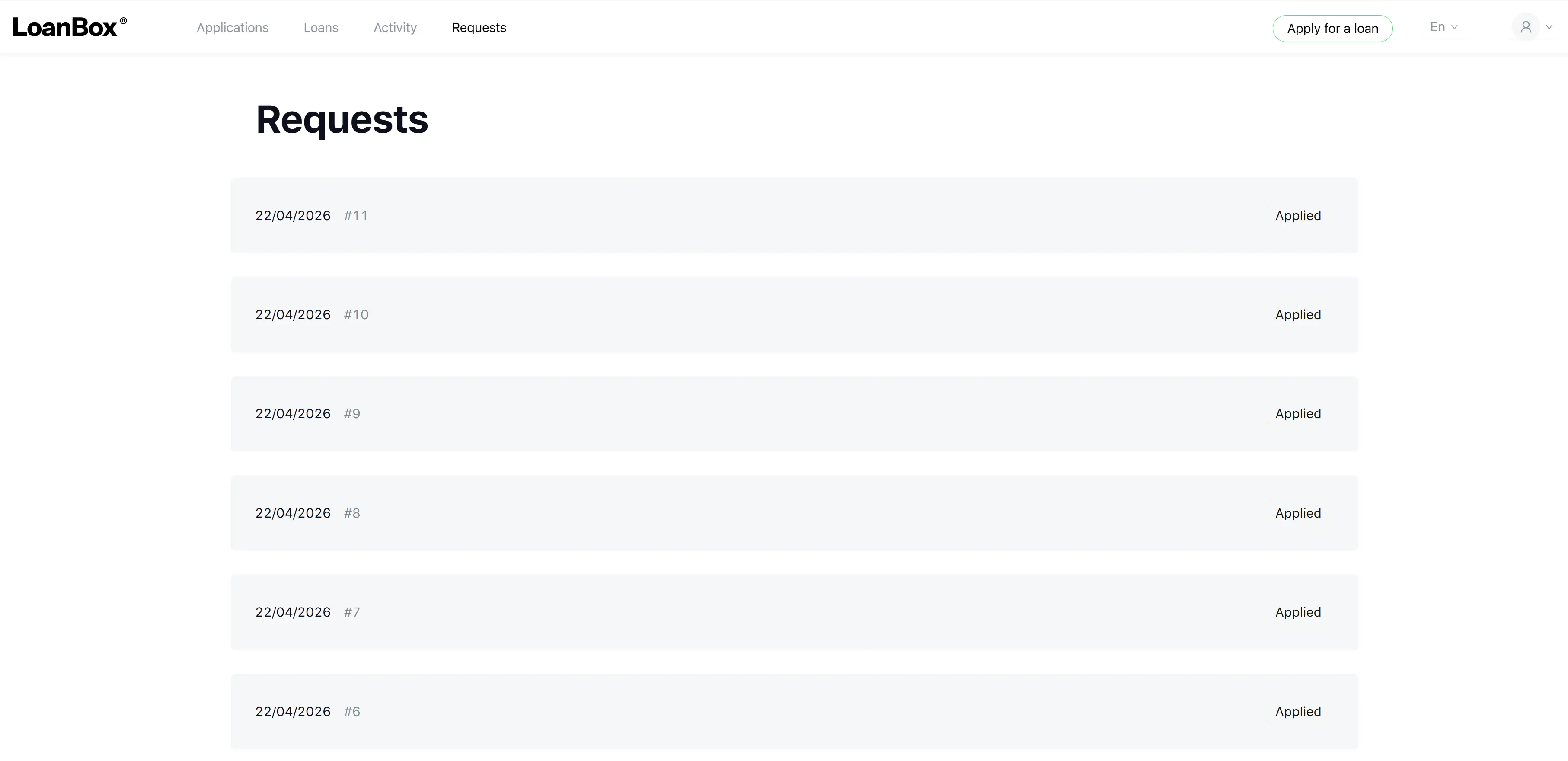
The Requests module shows all loan adjustment requests the borrower has submitted. These requests allow borrowers to apply for modifications to the terms of an active loan.
Three types of restructuring are available (subject to eligibility, decided by the lender):
| Restructuring option | Description |
|---|---|
| Extend maturity date | Extend the loan repayment period (available when future payment periods remain) |
| Amend interest rate | Apply a new interest rate to the loan |
| Apply payment holiday | Suspend payments for a specified number of periods (not available for payday-type loans) |
To submit a new request, the borrower selects a loan, describes the requested adjustment, and may attach supporting documents. Only one active (non-final) request per loan is permitted at a time.
Request statuses:
| Status | Meaning |
|---|---|
| For review | Submitted; awaiting lender review |
| Under review | Lender is currently reviewing the request |
| Update requested | Borrower must provide additional details or clarification |
| Approved | Lender has approved the restructuring; amendment agreement being prepared |
| Signing | Amendment agreement is ready for the borrower’s signature |
| Applied | Restructuring has been applied to the loan |
| Declined | Request was rejected by the lender |
Once a request reaches Signing status, the borrower must sign the amendment agreement by the specified deadline. If the deadline is missed, the request is automatically declined.
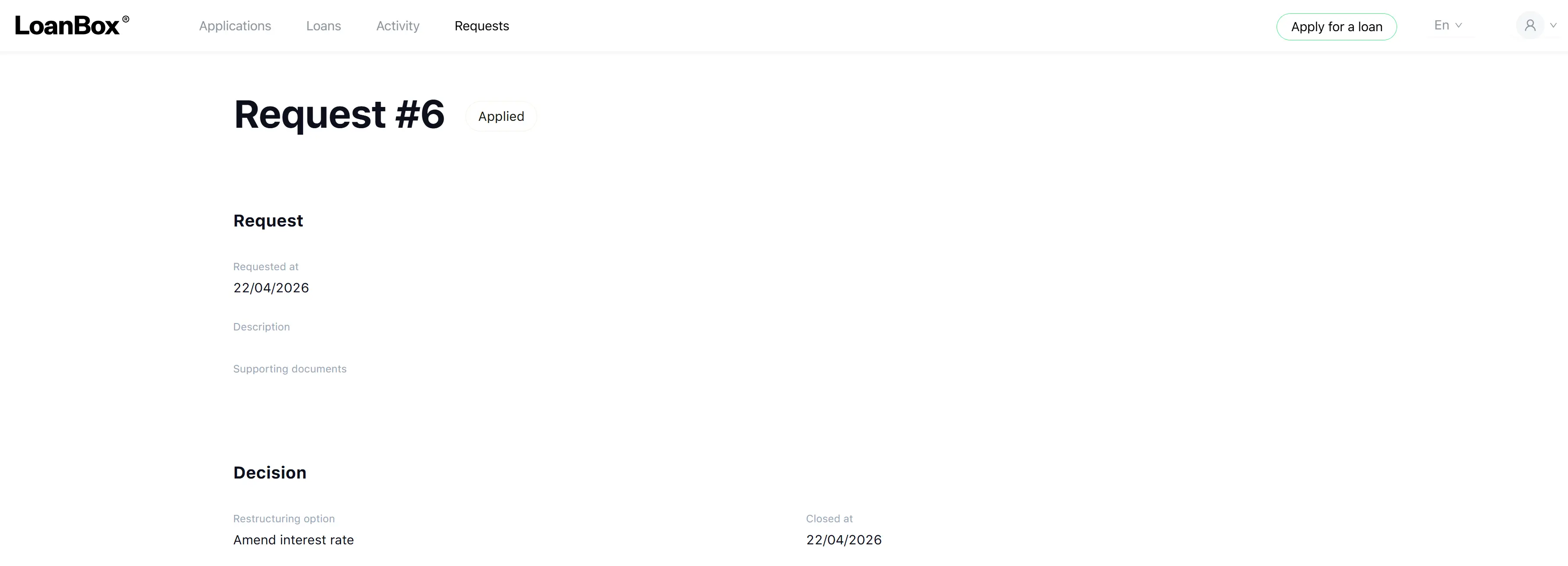
The detail view of each request shows the request number, submission date, status, restructuring option, description, any attachments, the amendment agreement document (when available), and the decline reason if applicable.
My Profile
The My Profile module shows the borrower’s personal or company information collected throughout the onboarding journey. All fields on this screen are read-only — they reflect the data the borrower provided in earlier application steps, plus any data updated by back-office staff.
The structure of the profile depends on the borrower type.
Individual person profile
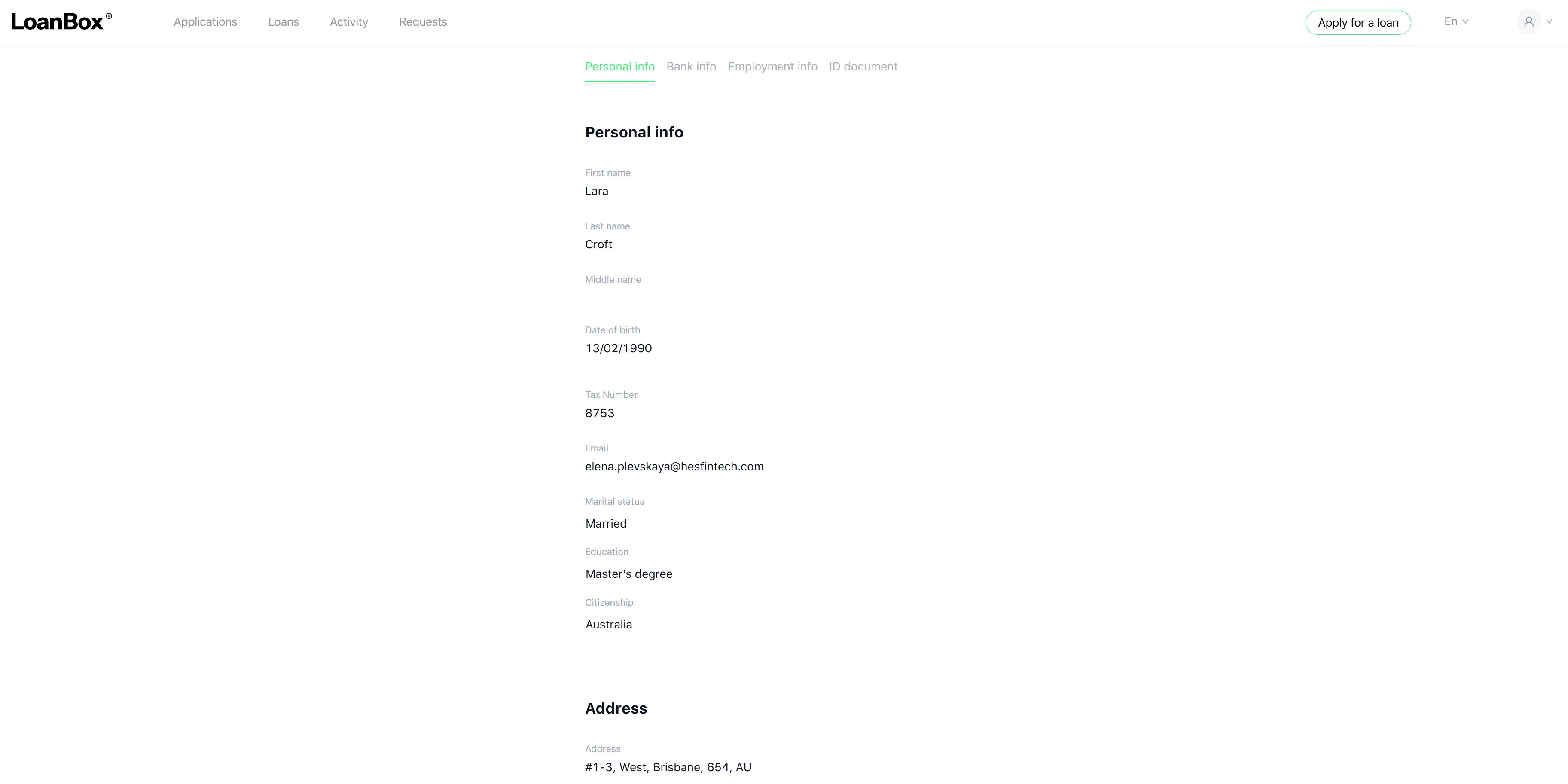
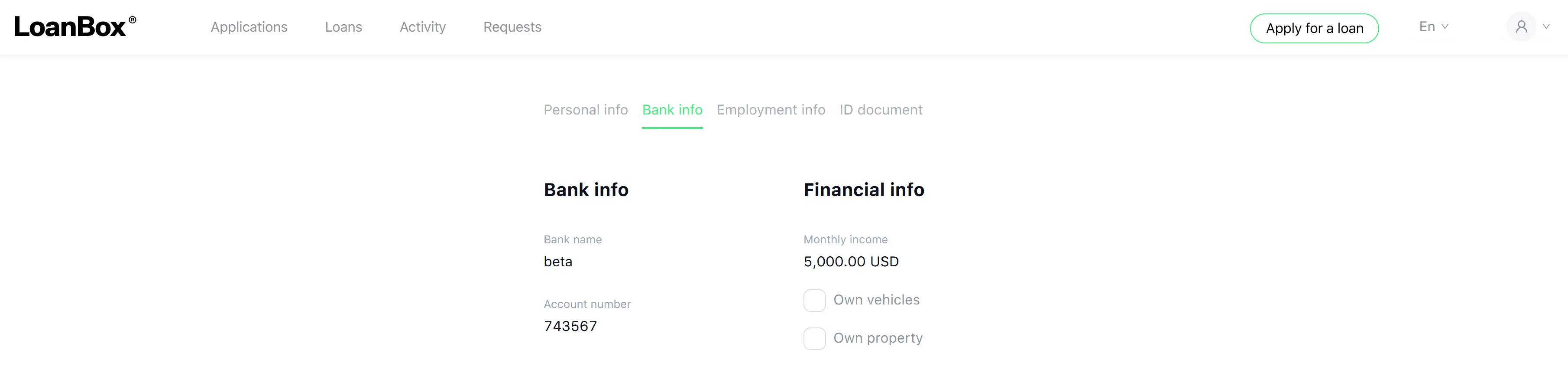
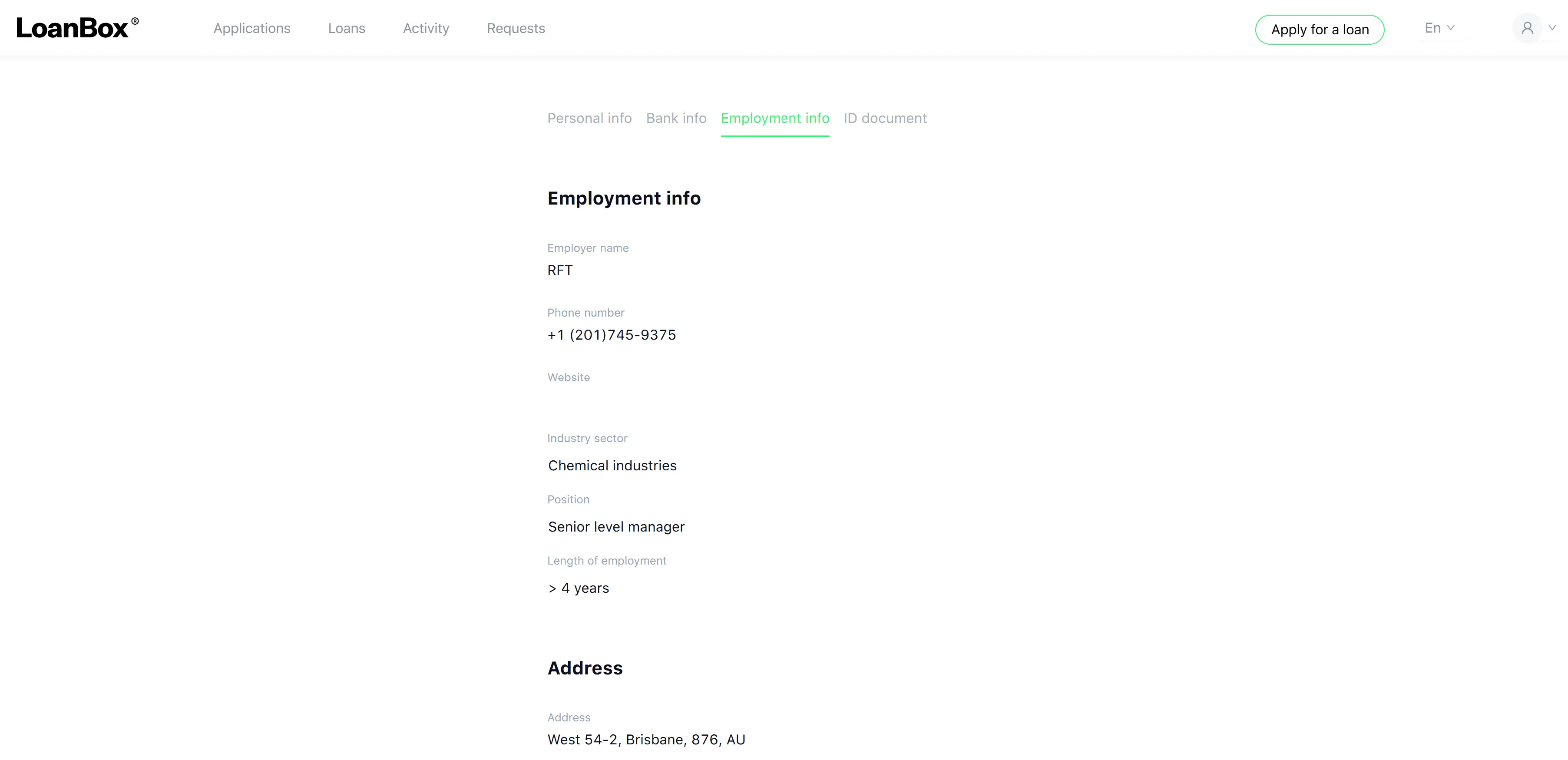
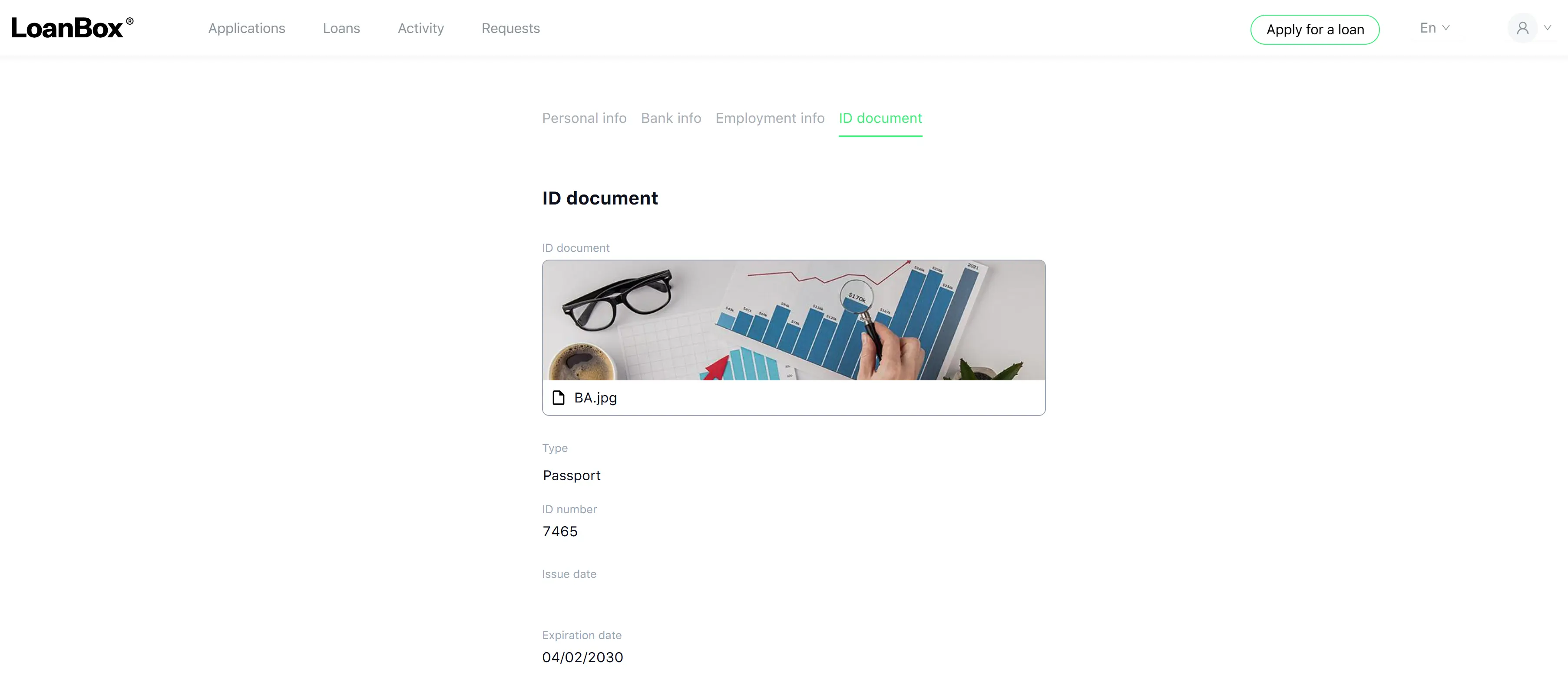
The profile is organized into four tabs:
| Tab | Content |
|---|---|
| Personal info | Full name (first name, middle name, last name), tax number, phone, email, date of birth, citizenship, residential address |
| Bank info | Bank account details linked to the borrower (bank title, account number) and general financial information |
| Employment info | Employer, position, employment status, monthly income and related employment details captured during onboarding |
| ID document | Identity document type, number, issue date, expiration date and uploaded scans/photos |
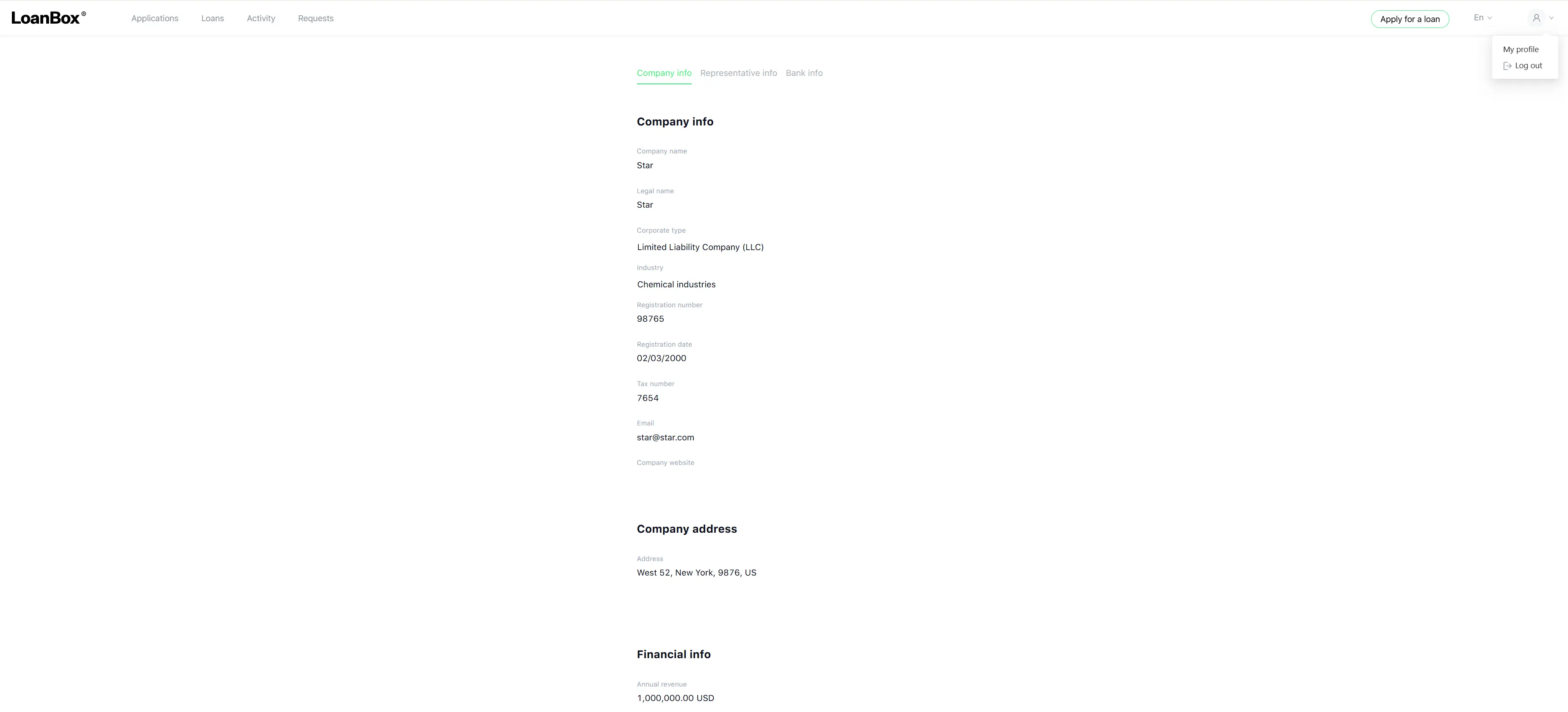
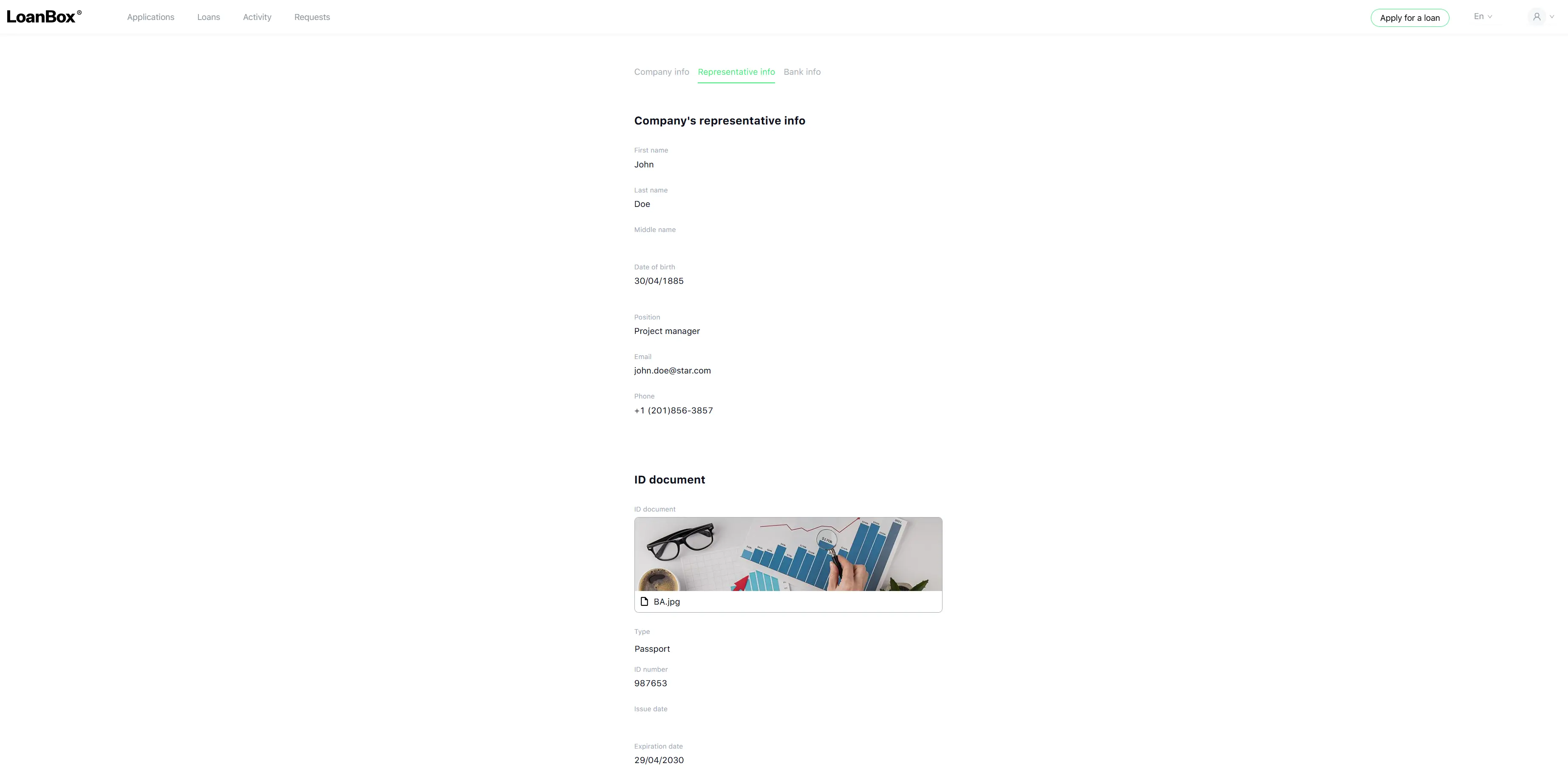
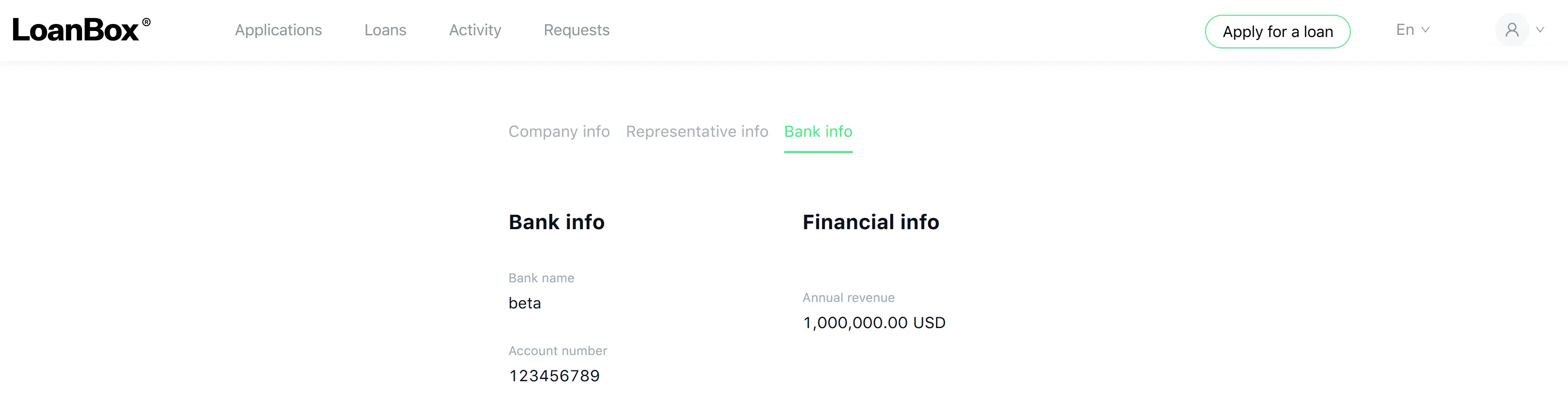
Legal entity profile
The profile is organized into three tabs:
| Tab | Content |
|---|---|
| Company info | Legal name, corporate type, industry, registration number, registration date, website, tax number, phone, email, months in operation, registered address |
| Representative info | Personal info and ID document of the company’s authorised representative |
| Bank info | Company bank account details and general financial information |
The portal does not provide an in-place edit form for profile data. If a borrower needs to correct profile information, the lender’s back-office staff applies the change on the borrower’s behalf, or the borrower is sent back to the relevant data-collection step during an application or update process. Once the changes are applied, the profile screen automatically displays the updated values.
Restore Old Account
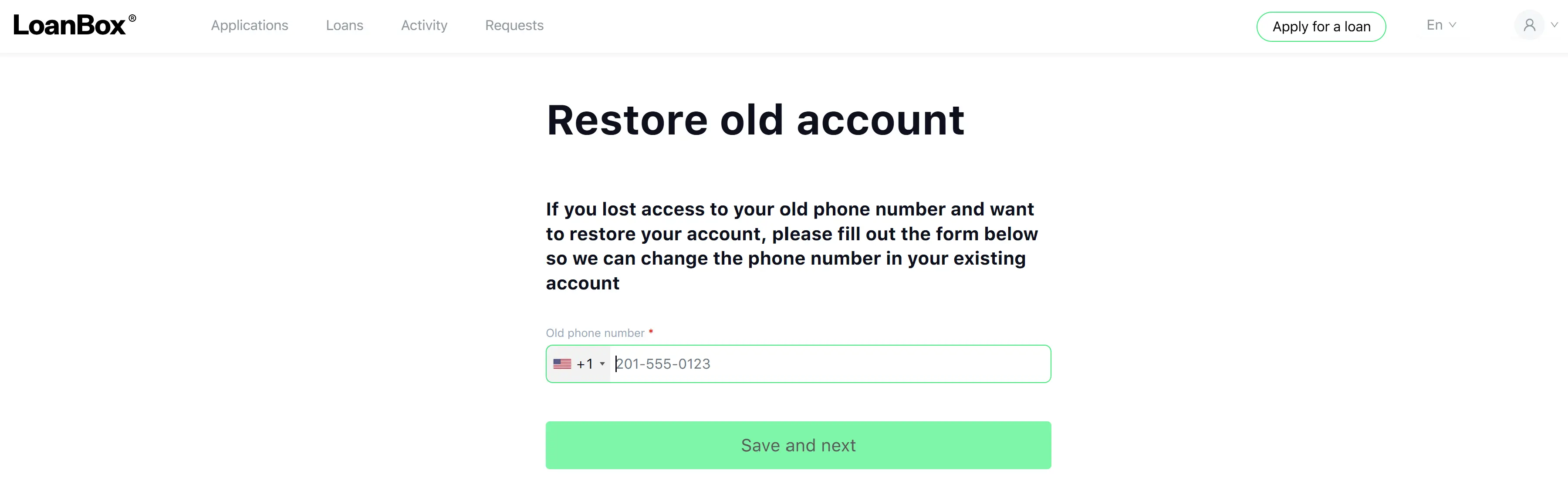
The Restore Old Account feature is available to individual borrowers who have lost access to the phone number they used to register on the platform. It lets them link their existing borrower account — including past applications and loans — to a new phone number for signing in.
The feature is offered as an option during sign-in/onboarding for individual persons only. Legal entities are not eligible.
Form fields
The restore form has a single input:
| Field | Description | Type | Required | Validation |
|---|---|---|---|---|
| Old phone number | The phone number previously used to register the account being restored | Phone number | Yes | Must contain digits only (an optional leading + is allowed). No other characters are permitted. |
The user submits the form with a Save and next button.
End-to-end process flow
Step 1. Open the restore form.
The borrower opens the Restore Old Account form in the sign-in/onboarding flow. The system shows a short explanatory message and the Old phone number field.
Step 2. Enter the old phone number.
The borrower types the phone number that was used to register the previous account and clicks Save and next. The form is validated locally; non-digit characters trigger an error.
Step 3. System checks for duplicate processes.
The system checks whether the borrower already has a Restore Old Account procedure in progress. If yes, the new attempt is silently discarded, and the existing procedure remains active.
Step 4. The system runs an identity (KYC) check.
The system runs an identity check against the configured KYC provider for the borrower’s new phone number. If the check fails, the borrower sees the message Sorry, we cannot verify your account, and the procedure ends.
Step 5. Old account lookup.
The system searches for an existing borrower record matching the supplied old phone number.
- If no account is found, the borrower sees Sorry, we cannot verify your account, and the procedure ends.
- If an account is found, the procedure continues.
Step 6. Manual verification by the lender.
The borrower sees the message Let us verify your account; we are checking your request; it may take a while. In parallel, a verification task is created for the lender’s verifier team. The verifier reviews the request and either approves or declines.
Step 7a. Verifier approves.
The system reassigns the past applications and loans of the old account to the new account. If the new account does not yet have an email address, the email address from the old account is copied over. The borrower receives a phone-number-changed notification. The procedure completes with Old account has been restored.
Step 7b. Verifier declines.
The new account is added to the blacklist. The borrower’s access restoration request is rejected. The procedure ends with Old account has not been restored.
Step 8. The result.
When the procedure completes successfully, the borrower signs in with the new phone number and immediately sees the full history (applications, loans, contracts) of the previous account.