
Creating users in Keycloak
How a user is created depends on which portal they need to use. Some flows happen automatically inside LoanBox; others are performed by an administrator directly in Keycloak.
BackofficeRealm
Backoffice users (internal staff such as credit officers, underwriters, verifiers, collection managers, partner managers, analytics users, and administrators) are not created by LoanBox. They are created directly in Keycloak by an administrator.
Step 1. Sign in to Keycloak.
The administrator opens the Keycloak Administration Console and selects the Backoffice realm.
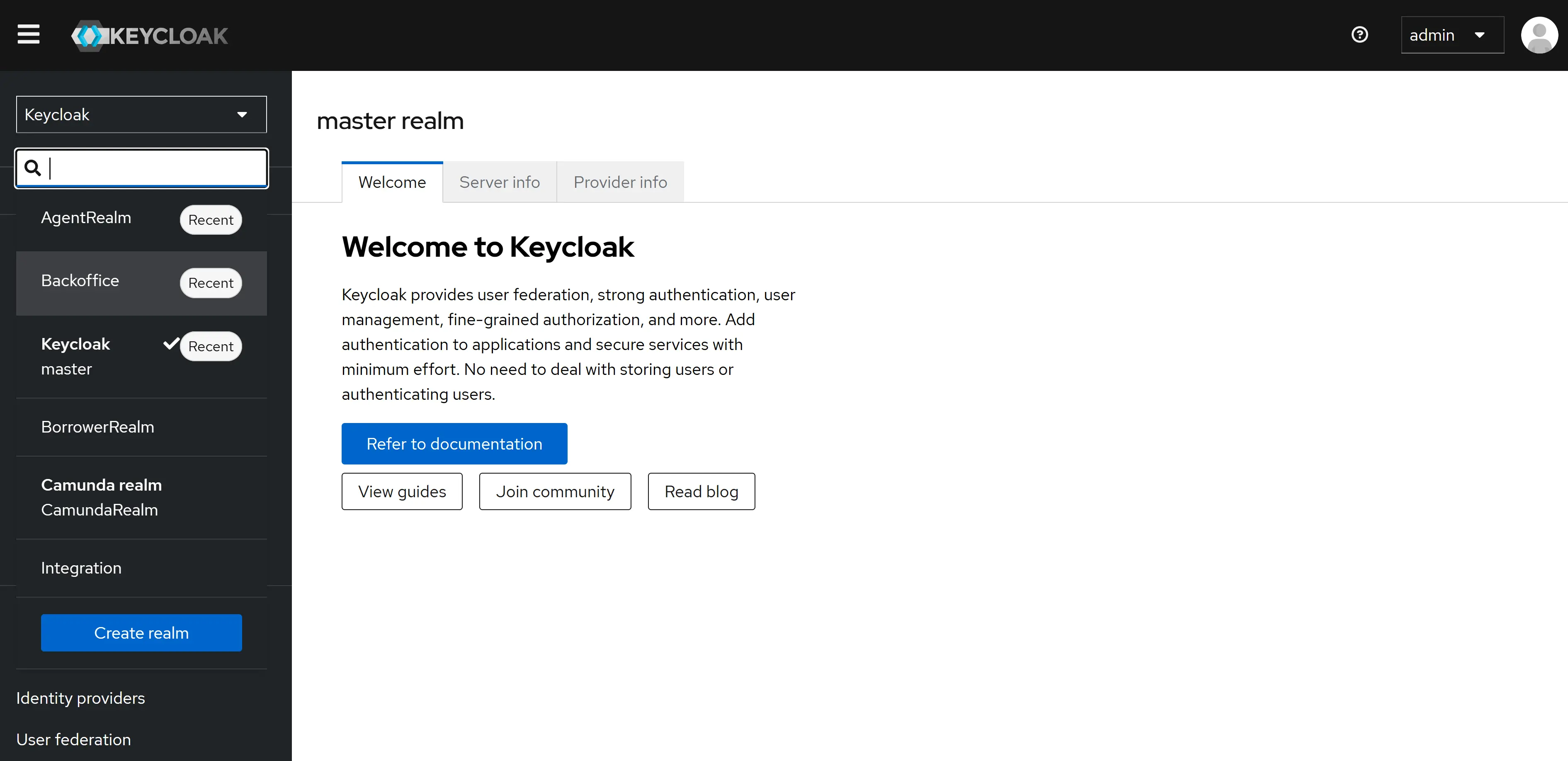
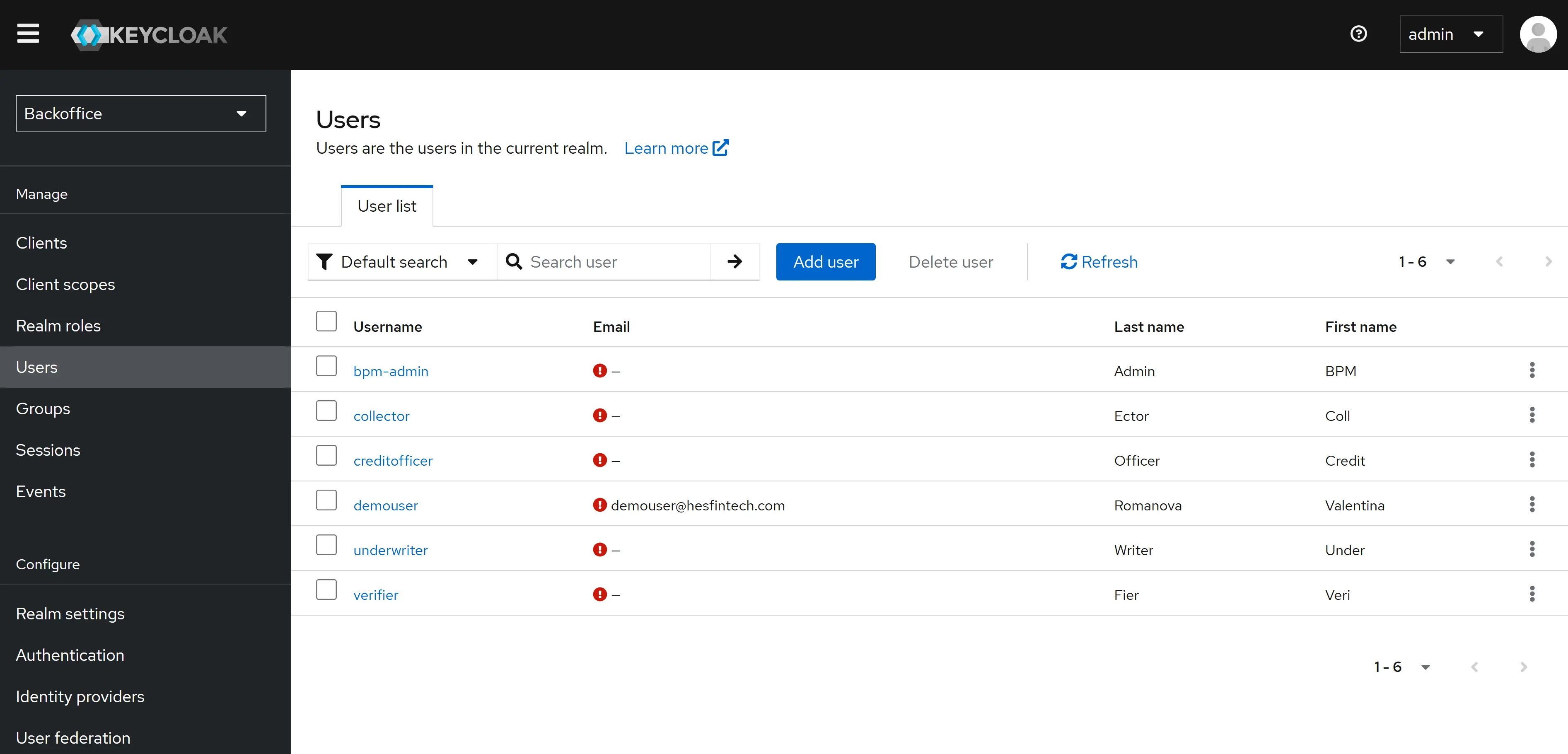
Step 2. Open the user list.
Navigate to Users → Add user.
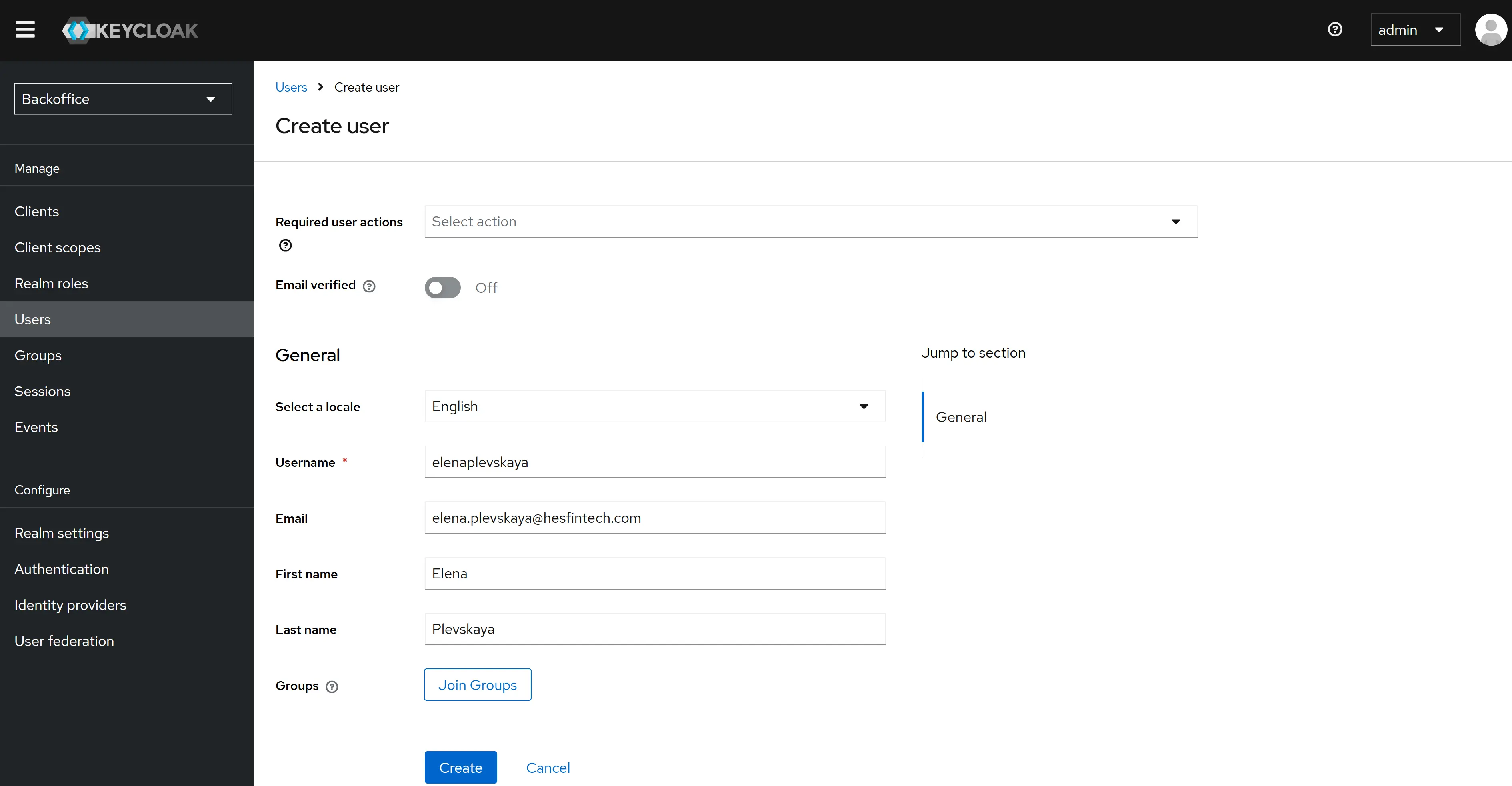
Step 3. Fill in the user fields.
Provide the basic user information:
- Username: the login the operator will use on the BackOffice Portal.
- Email, First name, Last name: used for display and notifications.
- Email verified / Enabled: typically set so the user can sign in immediately.
Step 4. Save the user.
Keycloak creates the account.
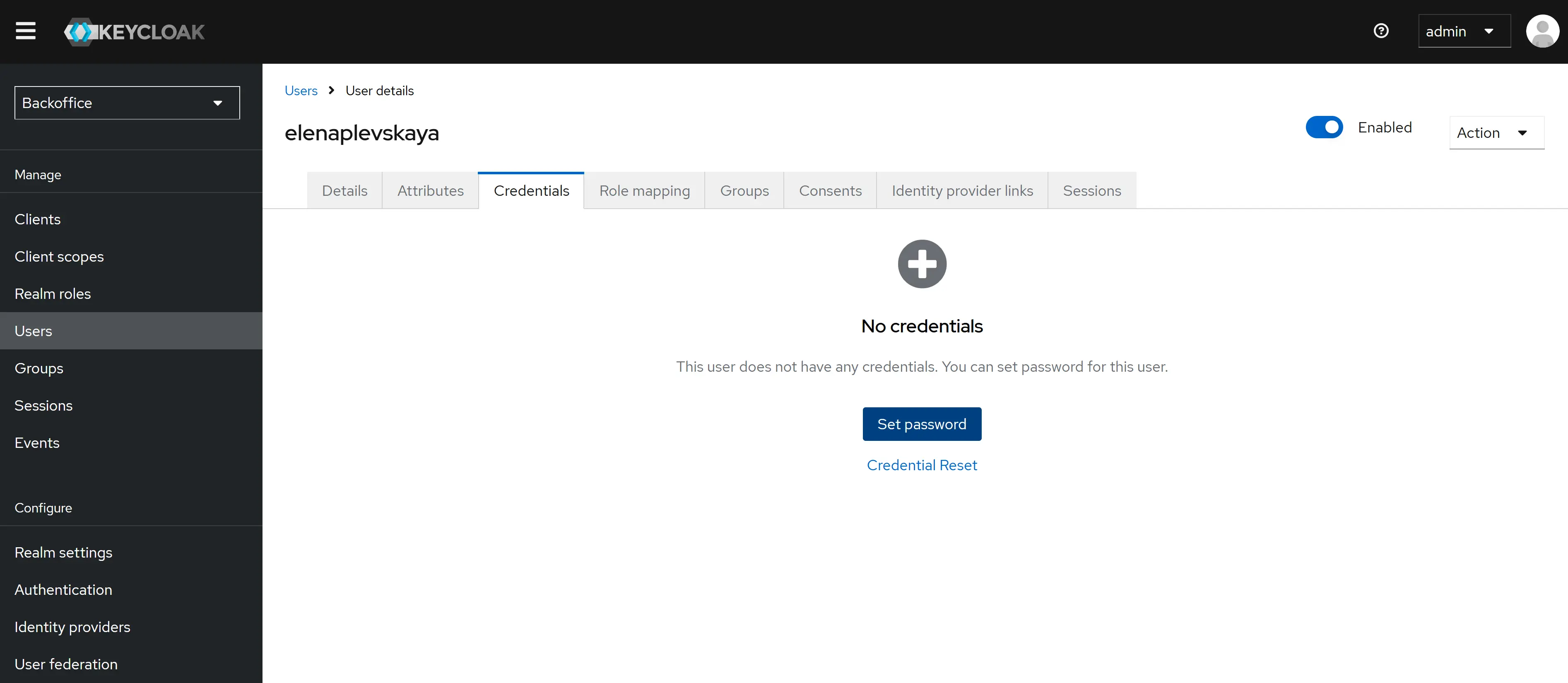
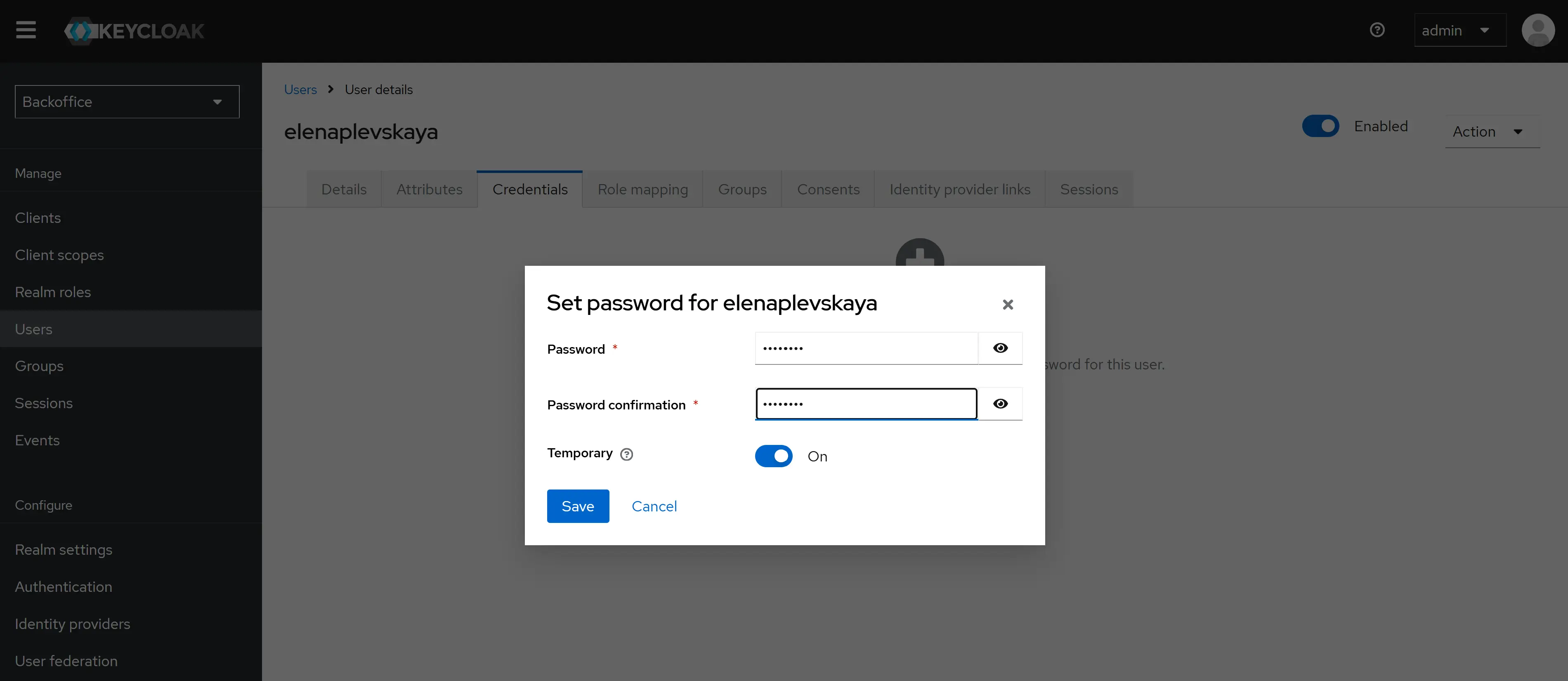
Step 5. Set the initial password.
Open the new user’s Credentials tab and set a temporary password. Toggle Temporary on so Keycloak forces the operator to change the password on first sign-in.
Step 6. Assign one or more roles.
Follow the role-assignment procedure described on the Assigning a role to a user page.
Step 7. The operator signs in.
The operator opens the BackOffice Portal, signs in via Keycloak, sets a permanent password, and lands on the BackOffice home screen.
Result: A backoffice user exists in the Backoffice realm with the assigned roles. The user can access the BackOffice Portal areas that the assigned roles permit.
BorrowerRealm
Borrower accounts are always created automatically by LoanBox. There are two creation flows; only one is active at a time, controlled by a platform setting
(KEYCLOAK_AUTH_BROWSER_FLOW): SMS or email.
Step 1. A new applicant appears.
A borrower starts a loan application from the Borrower Portal, or an agent invites a borrower from the Agent Portal, or a backoffice operator submits an application on a borrower’s behalf.
Step 2. The system checks whether the user already exists.
HES LoanBox looks up the phone number (SMS flow) or email address (email flow) in Keycloak. If a user with that username already exists, the existing account is reused and no new account is created.
Step 3a. SMS flow — the system creates a passwordless user.
A new user is created in the BorrowerRealm with the phone number as the username. Two attributes are stored on the user: phoneNumber and
phoneNumberVerified=true. The borrower will sign in later using a one-time code sent via SMS — no password is set.
Step 3b. Email flow — the system creates a user with a temporary password.
A new user is created in the BorrowerRealm with the email address as both the username and the email. The system generates an 8-character temporary password
(at least one lower-case letter, one upper-case letter, one digit, and one special character from !@#$%^&*) and assigns it to the new user.
The password is marked temporary — Keycloak forces the borrower to change it the first time they sign in.
Step 4. The borrower receives the invitation.
HES LoanBox sends the borrower a notification with the link to the Borrower Portal. For the email flow, the temporary password is delivered to the borrower in the same notification.
Step 5. The borrower signs in.
The borrower opens the Borrower Portal, completes the Keycloak login (one-time SMS code or temporary password followed by setting a permanent one), and is returned to the portal as an authenticated user.
Result: A borrower user exists in the BorrowerRealm and carries the Borrower role. The user can access the Borrower Portal
only.
AgentRealm
Agent accounts are created automatically by HES LoanBox when a Partner Manager invites a new agent from the BackOffice Portal.
Step 1. Open the invite form.
A Partner Manager opens “Invite agent user” in the BackOffice Portal and provides the agent’s username (email) and the partner record the agent belongs to.
Step 2. The system checks whether the user already exists.
If a user with that username already exists in the AgentRealm, the system updates the existing user’s temporary password instead of creating a new account.
Step 3. The system creates the user.
When no user exists, a new user is created in the AgentRealm with the email as the username. The partner identifier is stored as a partner_id
attribute on the Keycloak user. A temporary password is generated and assigned (same rules as the borrower email flow). The user is enabled.
Step 4. The agent receives the invitation.
HES LoanBox sends an email to the new agent with the link to the Agent Portal and the temporary password. The password is removed from the system right after the notification is sent.
Step 5. The agent signs in and completes onboarding.
The agent opens the Agent Portal, signs in, sets a permanent password, and is asked to fill in bank account details if the partner organisation does not already have them.
Result: An agent user exists in the AgentRealm with the partner identifier attribute and can access the Agent Portal scoped to their partner.