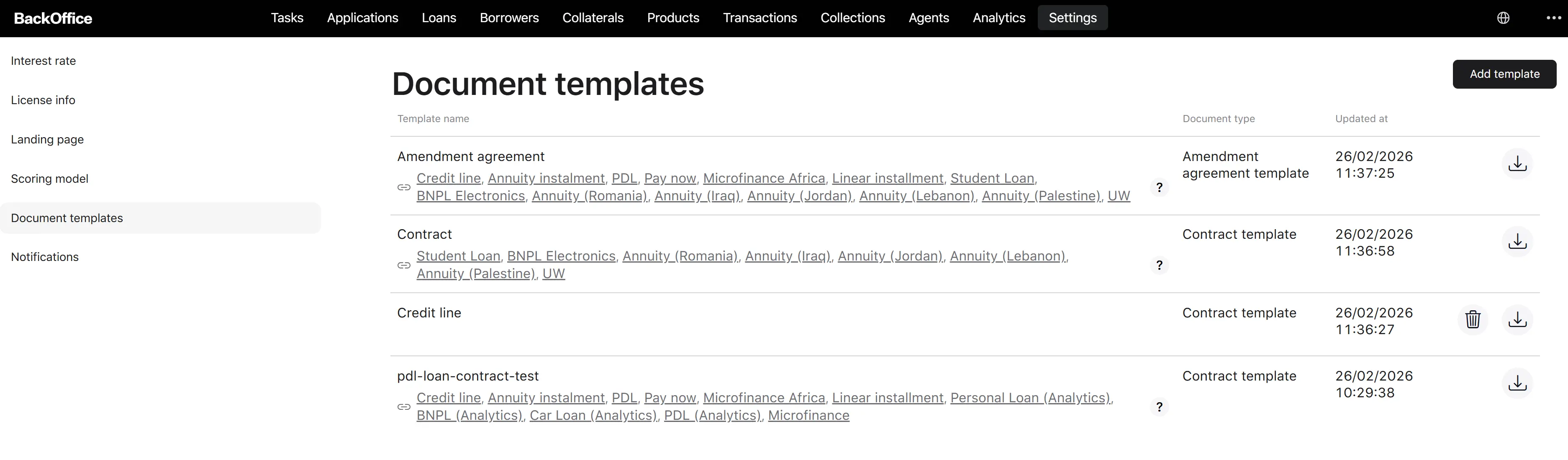
Document templates setting
The Document templates setting is the registry of document templates the platform uses to produce contracts and amendment agreements during the loan lifecycle. Each template is a .docx file with placeholders that the system fills in with real data (borrower name, loan amount, signing date, etc.) at the time of generation.
A template carries:
- Name—human-readable name of the template.
- Type—what the template is used for (see below).
- Updated at—when the template was last changed.
- Linked product groups—which product groups use this template (a small icon next to the name with the list of product group names).
- Template file—the underlying .docx.
Template types
| Value | Use |
|---|---|
| Contract template | Loan contract generated at origination. |
| Amendment agreement template | Document used to formalize loan adjustments after signing. |
Setting dependencies
Depends on: uploaded .docx files; the catalog of placeholders the platform supports.
Affects:
- Loan origination: when a borrower signs, the system generates the contract from the product group’s currently linked Contract template.
- Loan adjustments: when adjustments are formalized, the system generates an amendment agreement from the linked Amendment agreement template.
- Product group creation/editing: product groups can only link templates that exist in this registry.
Document templates
The Document templates page shows all registered templates as a paginated list (15 rows per page).
Columns shown:
| Column | Content |
|---|---|
| Name | The template name. Below the name, a small icon and a list of product group names that link this template (when any). |
| Type | Localized template type (“Contract template” or “Amendment agreement template”). |
| Updated at | The last update date and time. |
| Download | A download icon button exports the original .docx. |
| Delete | A trash icon button—only visible when the template is not linked to any product group. |
Page-level action:
- Add template (top-right)—starts the Add template process described below.
Available actions on a template:
| Action | Where | Condition |
|---|---|---|
| Add template | Top of the list | Always available to authorised users. |
| Download | Per-row | Always available. |
| Delete | Per-row | Only when the template is not linked to any product group. Shows a confirmation modal. |
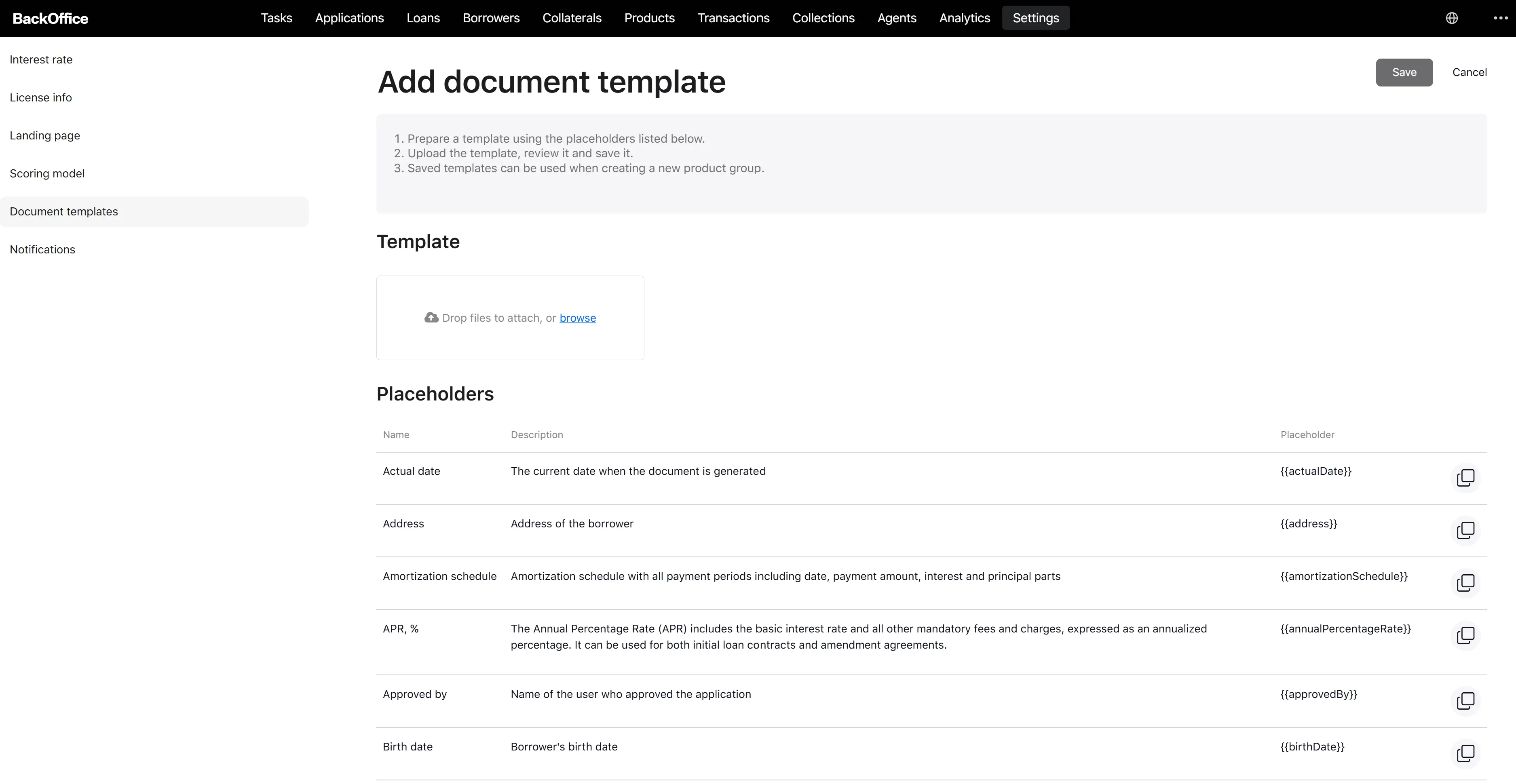
Add template
Step 1. Start the process
On the Document templates page, the user clicks Add template. → The system opens “Add document template”.
Step 2. Upload the template file
In the Template panel, the user uploads a single .docx file (max 10 MB).
- Allowed file pattern: .docx
- File size limit: 10 MB
As soon as the file is uploaded, the system:
- Validates the file and parses placeholders.
- Generates a sample document using test data.
Step 3. Review the validation result
-
If the template is valid:
- A preview of the generated sample document appears as a downloadable PDF link “generated-file.pdf”.
-
Two more fields appear and become required:
- Document type—dropdown with the two values listed above (Contract template, Amendment agreement template).
- Template name—free text.
-
If the template has problems, two red-bordered messages may appear:
- Unmapped placeholders—placeholders in the file that the system doesn’t recognize.
- Required placeholders—required placeholders that are missing from the file.
The Save button stays disabled until validation succeeds (a generated sample exists).
Step 4. Fill the metadata
The user enters the Template name and selects the Document type.
Step 5. Save
The user clicks Save. → The system creates the document template record, attaches the uploaded file, sets the type and name, and adds the new template to the registry. The user is returned to the Document templates list, which now shows the new row.
If the user clicks Cancel at any point, the upload is discarded, and they return to the templates list without changes.