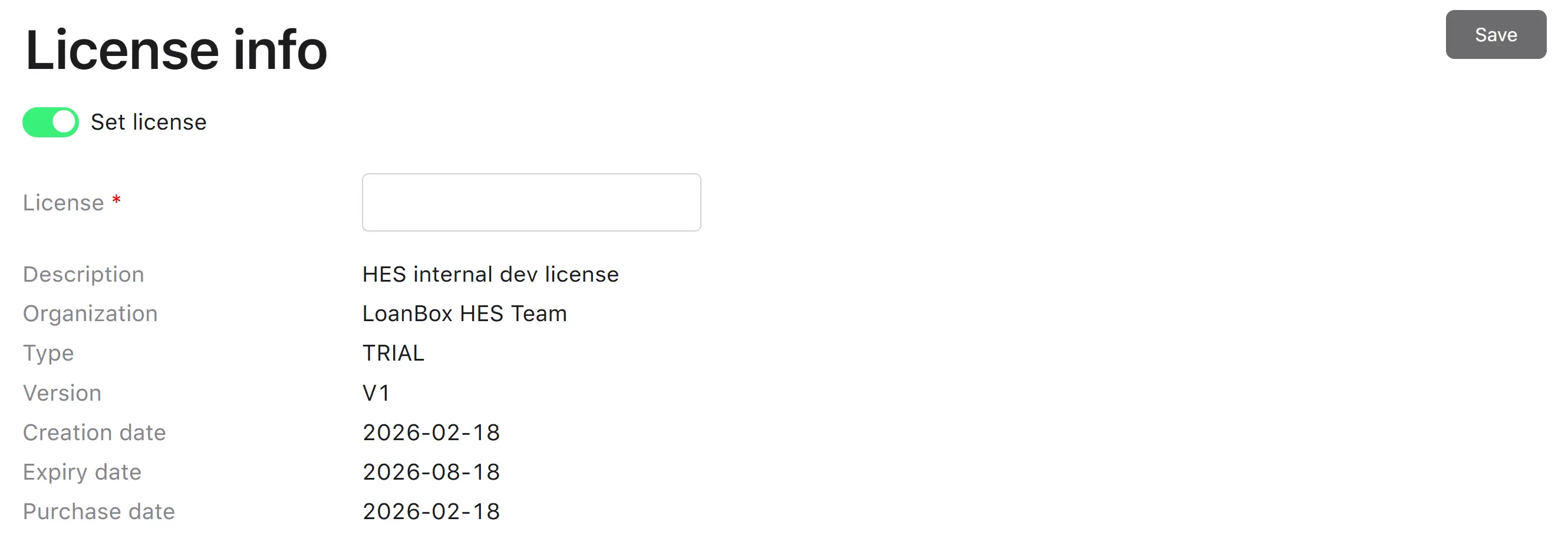
License info setting
The License info setting is the screen where the active platform license is registered and inspected. A platform license authorizes the deployment to operate (e.g., for a tenant, environment, or region) and carries the following:
- License key—the encoded license content (up to 1,000 characters).
- Description—human-readable description of the license.
- Organization—the organization the license is issued to.
- Type—license type.
- Version—license version.
- Creation date—when the license was created.
- Purchase date—when it was purchased.
- Expiry date—when it stops being valid.
All fields except the license key are read-only on the screen—they are decoded from the license content itself.
Setting dependencies
Depends on: the license file or key issued by the platform’s licensing authority (typically generated outside the system and provided to operations).
Affects:
- The platform’s overall operational status. An invalid or expired license can cause platform features to be unavailable.
- Visibility of license-restricted features.
How to view
The License page shows the active license attributes (description, organization, type, version, creation date, expiry date, and purchase date) in read-only fields.
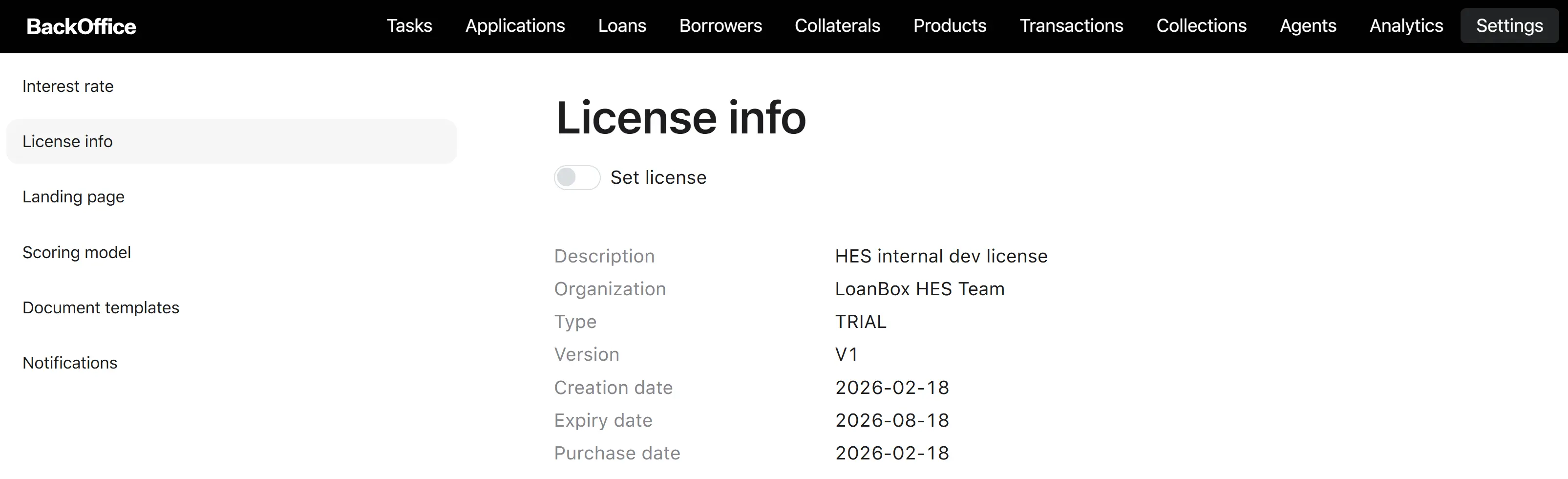
Edit process
The license is updated by replacing the active license key with a new one.
Step 1. Open the License page.
Step 2. Enable the license editor
The user ticks the Set license toggle. → The system reveals the License input field.
Step 3. Paste the new license key
| Field | Required when “Set license” is checked | Notes |
|---|---|---|
| License | Yes | Up to 1,000 characters. Receives the encoded license key provided by the licensing authority. |
Step 4. Save
The user clicks Save. → The system validates the key and, if valid, decodes it. The decoded description, organization, type, version, creation date, expiry date, and purchase date appear in the read-only block below. If the key is invalid, the system shows a validation error, and the previous license remains active.
After saving, the platform operates under the newly registered license.