
Tasks during the process
This page lists every task that can appear during the Loan Origination process: when it appears, who sees it, and all fields available on it.
1. Verify the Application (back-office verifier)
When it appears: Step 6, only when the product group Verification setting is Manual.
Who sees it: Back-office users with the Verifier role.
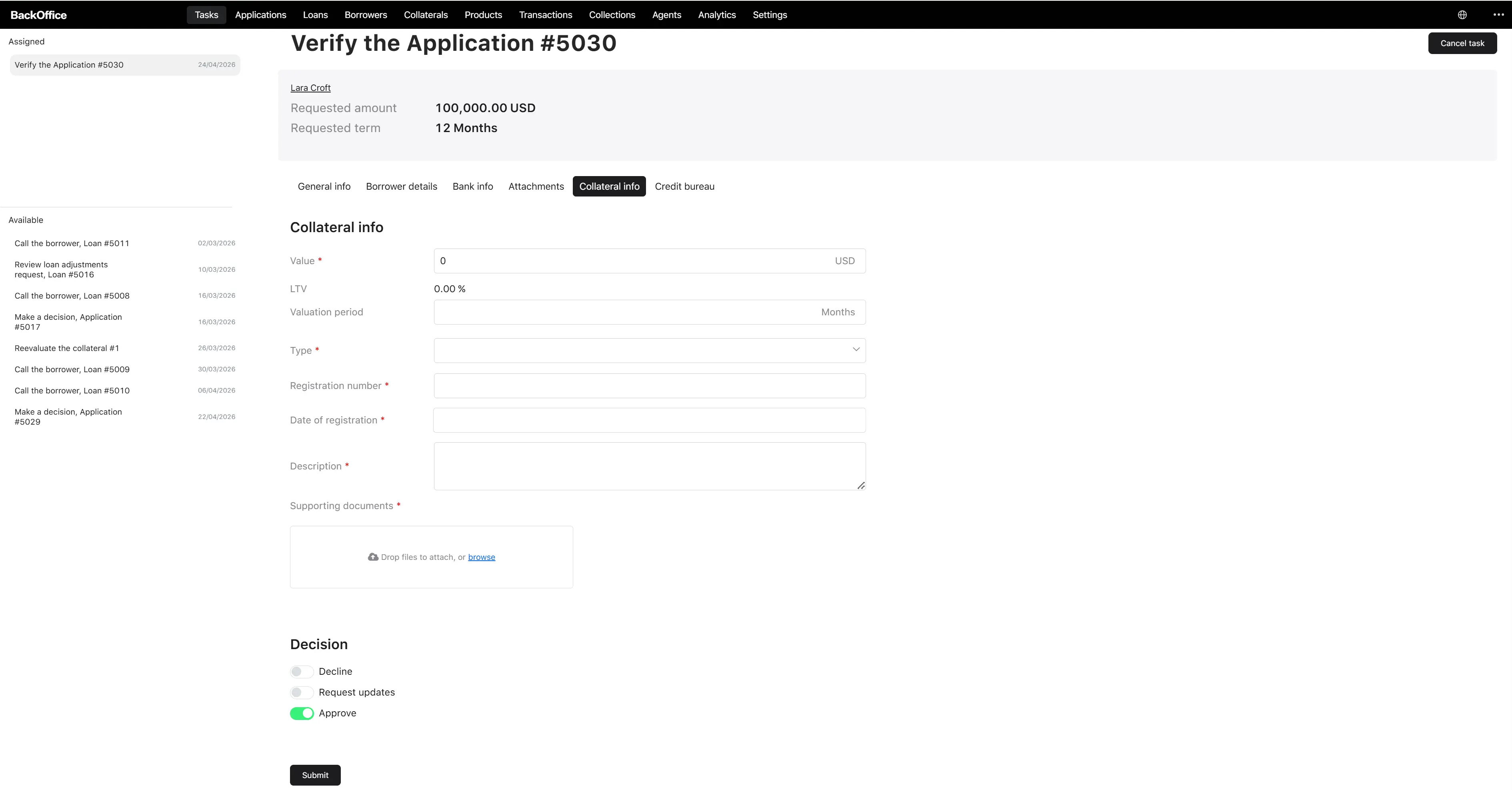
Task title in the back-office: Verify the Application #[application number].
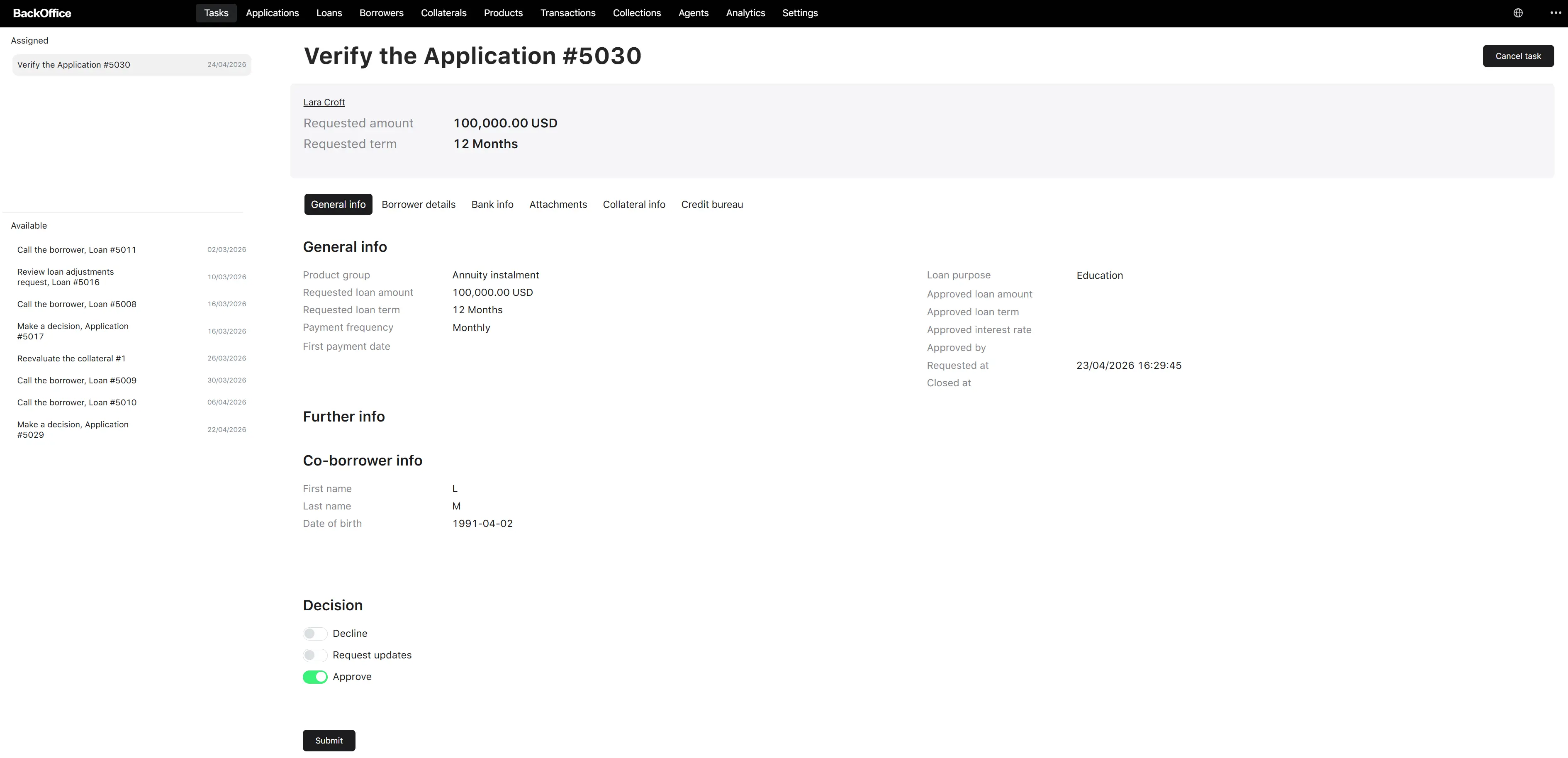
The screen has two parts: a read-only summary of the application and a decision section.
Read-only summary
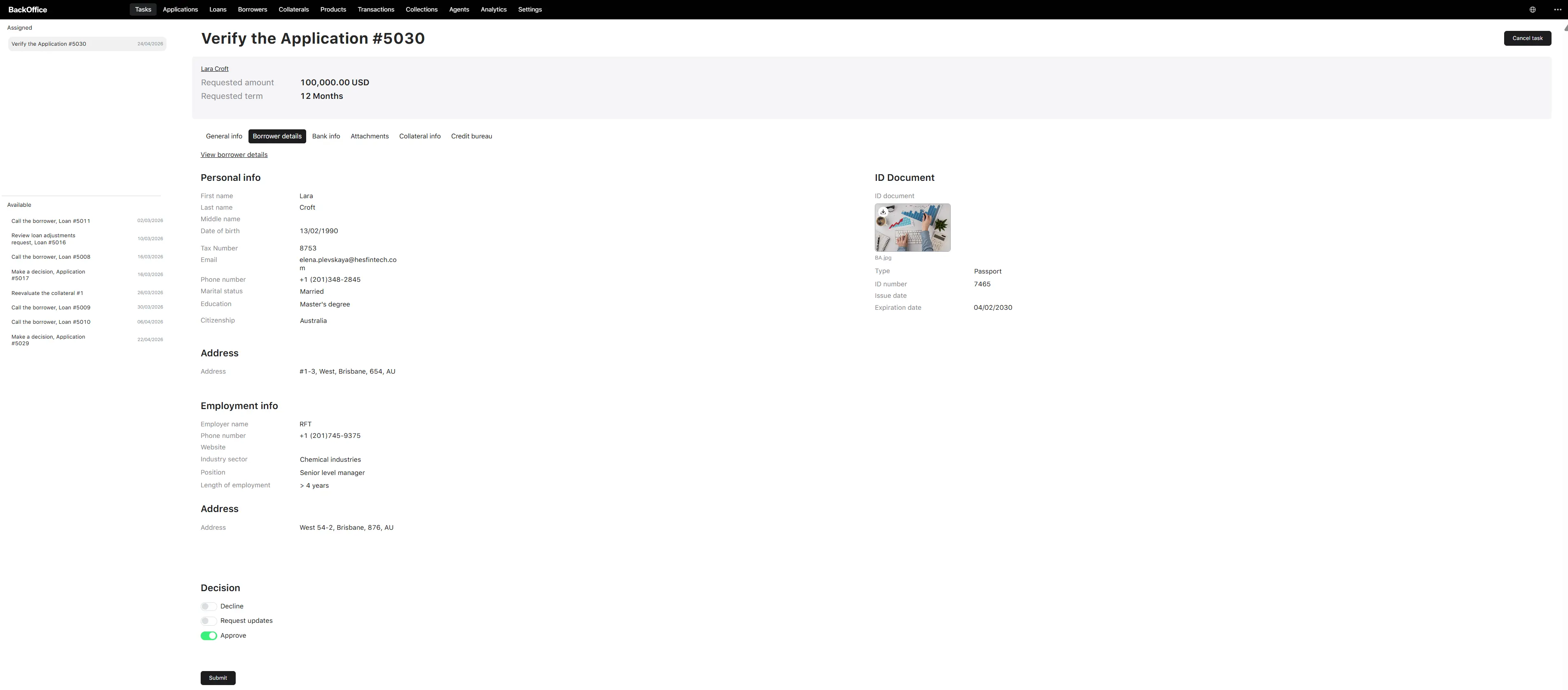
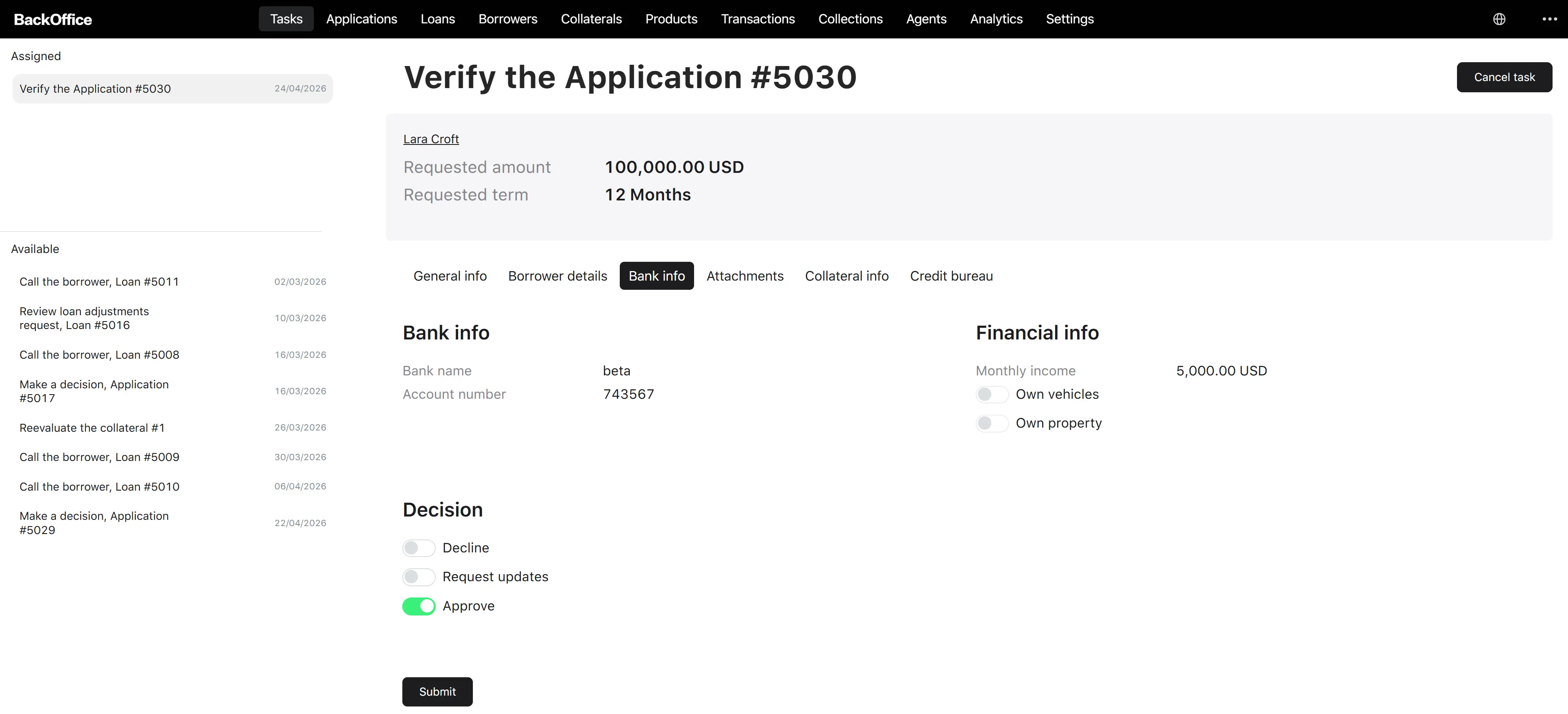
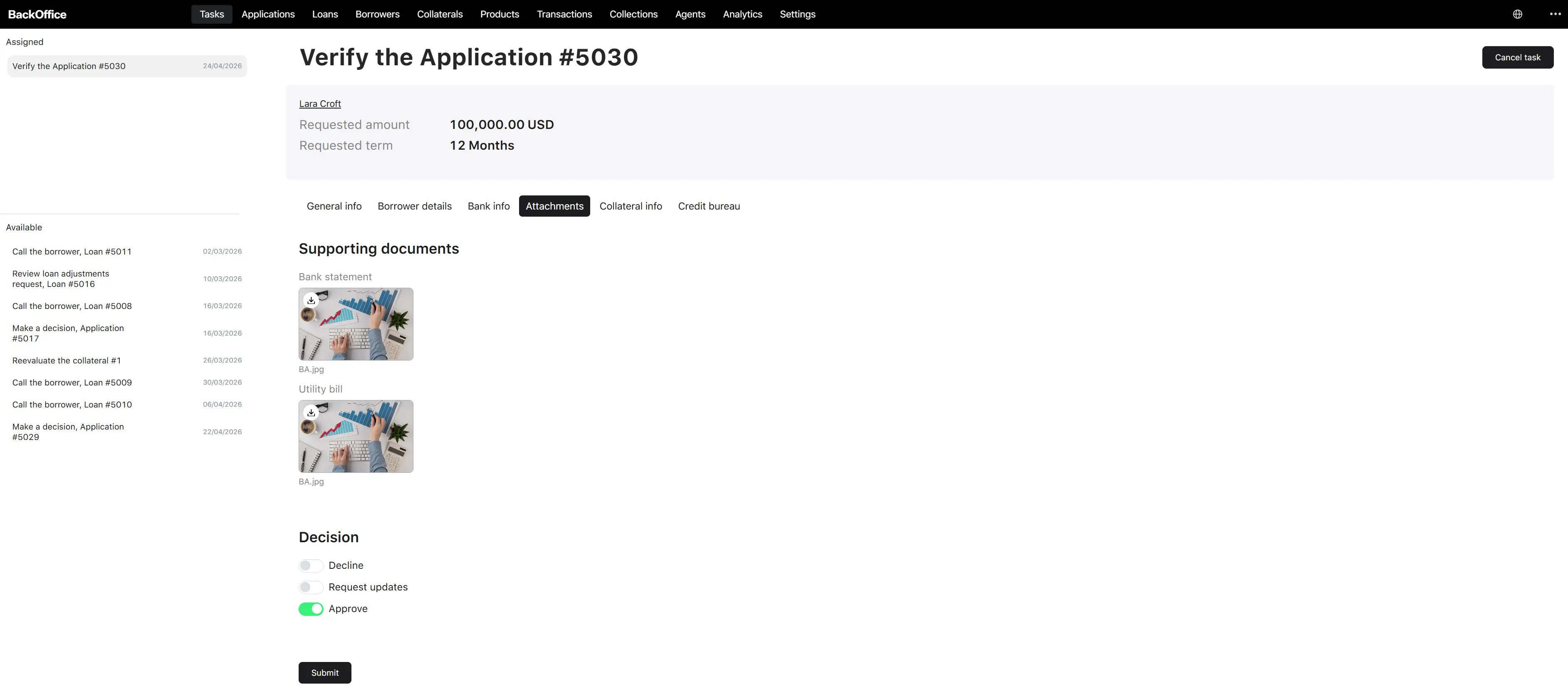
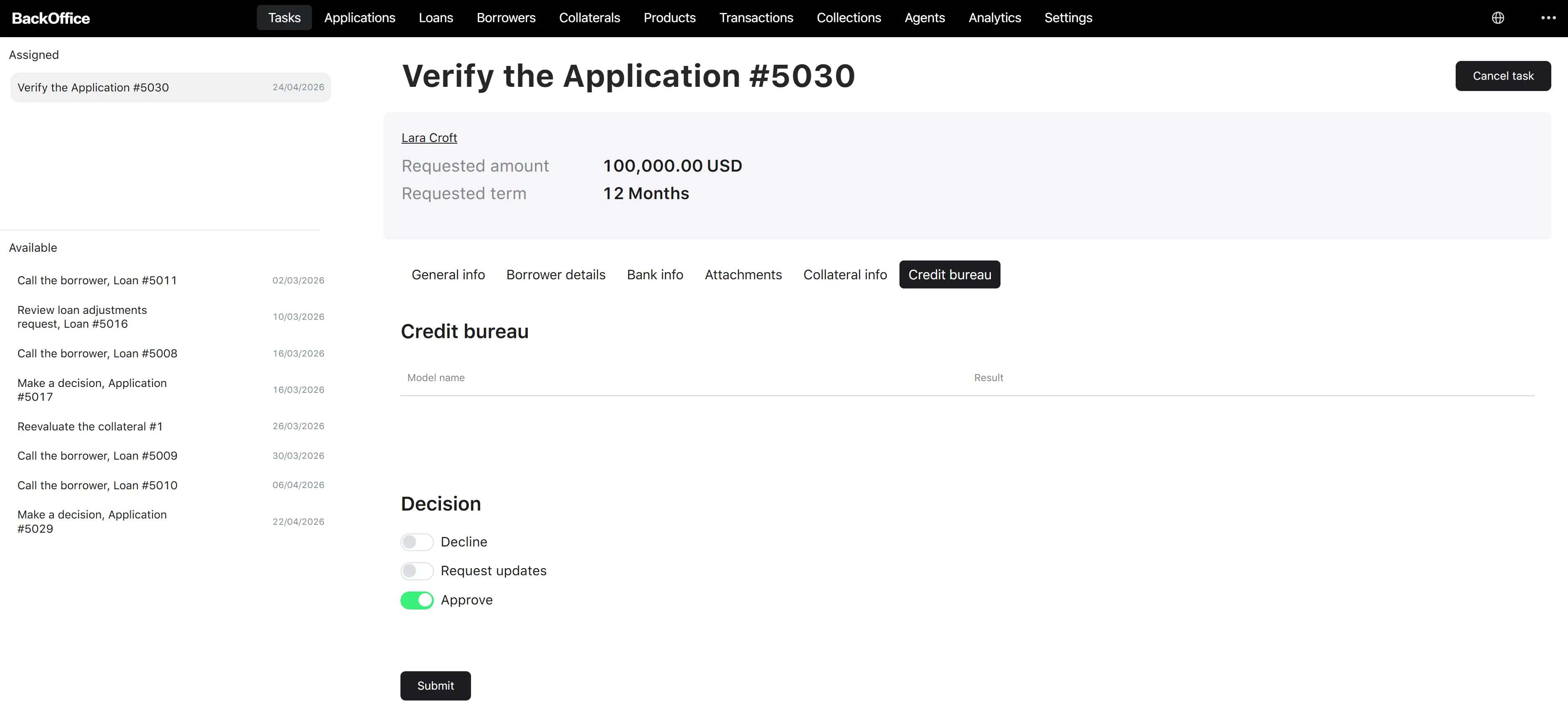
The verifier can review the application data through these tabs:
| Tab | Contents |
|---|---|
| General info | Loan application general information (requested amount, term, product group, etc.). |
| Borrower details | Personal or company details of the borrower. |
| Bank info | Bank account information, including the bank account verification result. |
| Attachments | Supporting documents uploaded by the borrower. |
| Collateral info | Collateral details (this tab is editable, so any missing collateral fields can be filled in). |
| Credit bureau | The credit bureau report retrieved earlier in the process. |
A small header above the tabs shows: borrower name (clickable link to the borrower profile), Requested amount, and Requested term.
If the application is being re-verified after an underwriter returned it, a read-only Return reason field is shown above the decision section.
Decision section
| Parameter | Description | Type | Required | Possible values | Default | Notes |
|---|---|---|---|---|---|---|
| Decision | The verifier’s decision on the application. | Radio (single choice) | Yes | See the Decision values table below. | — | Drives which extra fields are required next. |
| Decline reason | Reason for declining the application. | Dropdown | Yes when Decision = Decline | See the decline reason lists below — different for Person and Legal Entity. | — | The list shown depends on the borrower type. |
| Sections to update | Which sections of the application the borrower must update. | Dropdown (multi-select) | Yes when Decision = Request updates | See the sections-to-update lists below — different for Person and Legal Entity. | — | Only the selected sections are unlocked for the borrower. |
| Request reason | The reason for asking the borrower to update. | Dropdown | Yes when Decision = Request updates | See the Request reason values list below. | — | Same list for both borrower types. |
Note
Decision values
| Value | Description |
|---|---|
| Decline | The verifier rejects the application. |
| Request updates | The verifier asks the borrower to correct or add information. |
| Approve | The verifier confirms the application can move forward. |
Decline reason values — Person borrower
- Wrong images
- Low income
- Low age
- Junk application
- Homeless
Decline reason values — Legal Entity borrower
- Wrong images
- Low revenue
- Young company
- Junk application
Sections to update — Person borrower
| Value | Description |
|---|---|
| Application info | The general loan application data (amount, term, etc.). |
| Personal info | Borrower’s personal information. |
| Personal details | Additional personal details. |
| ID document | The borrower’s ID document. |
| Address | The borrower’s address. |
| Employment info | Employment information. |
| Bank info | Bank account information. |
| Financial info | Financial information. |
| Collateral info | Collateral information. |
| Further info | Additional borrower information. |
| Supporting documents | Uploaded supporting documents. |
Sections to update — Legal Entity borrower
| Value | Description |
|---|---|
| Application info | The general loan application data. |
| Company info | The company’s information. |
| Personal info | Personal information of the contact person. |
| ID document | ID document. |
| Company’s representative info | Information about the company’s representative. |
| Bank info | Bank account information. |
| Financial info | Financial information. |
| Collateral info | Collateral information. |
| Further info | Additional information. |
| Supporting documents | Uploaded supporting documents. |
Request reason values
The same list is shown for both borrower types:
- Incorrect ID number
- Poor image quality
- ID image and description do not match
- ID document expired
- Poor image quality of utility bill
- Poor image quality of Bank Statement
- Incorrect account number
- Update selected blocks
- Poor image quality of Registration Document
2. Provide financial data (back-office verifier)
When it appears: Step 7, only for Legal Entity borrowers, immediately after verification (or, if verification is skipped, immediately after the collateral valuation date is set).
Who sees it: Back-office users with the Verifier role.
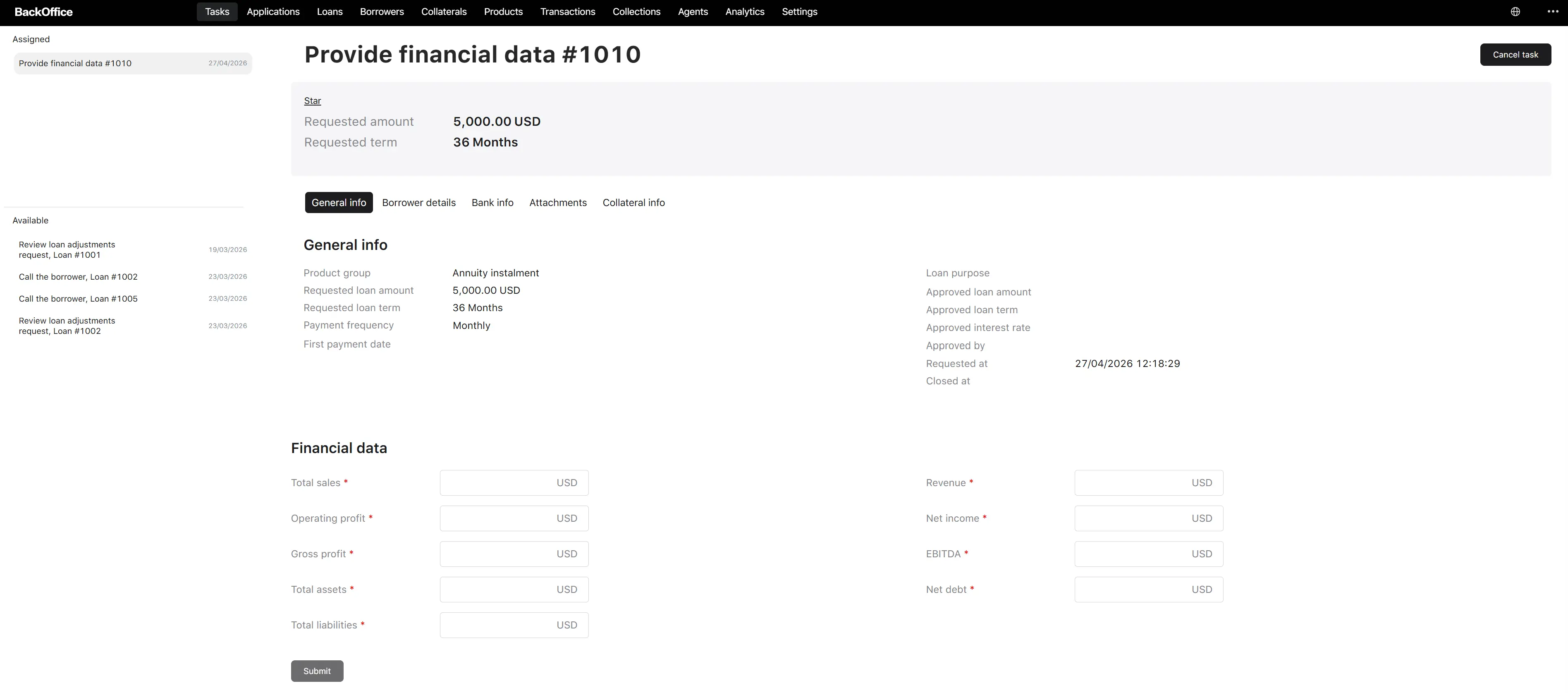
Task title in the back-office: Provide financial data #[application number].
The screen has the same read-only tabs as the verification screen (General info, Borrower details, Bank info, Attachments, Collateral info), plus the editable Financial data section.
For Person borrowers, this step does not exist — the platform proceeds directly to scoring.
Financial data fields
All fields below are entered by the verifier from the company’s financial documents.
| Parameter | Description | Type | Required |
|---|---|---|---|
| Total sales | The company’s total sales for the reporting period. | Number | Yes |
| Operating profit | The company’s operating profit. | Number | Yes |
| Gross profit | The company’s gross profit. | Number | Yes |
| Total assets | The company’s total assets. | Number | Yes |
| Total liabilities | The company’s total liabilities. | Number | Yes |
| Revenue | The company’s revenue. | Number | Yes |
| Net income | The company’s net income. | Number | Yes |
| EBITDA | The company’s EBITDA. | Number | Yes |
| Net debt | The company’s net debt. | Number | Yes |
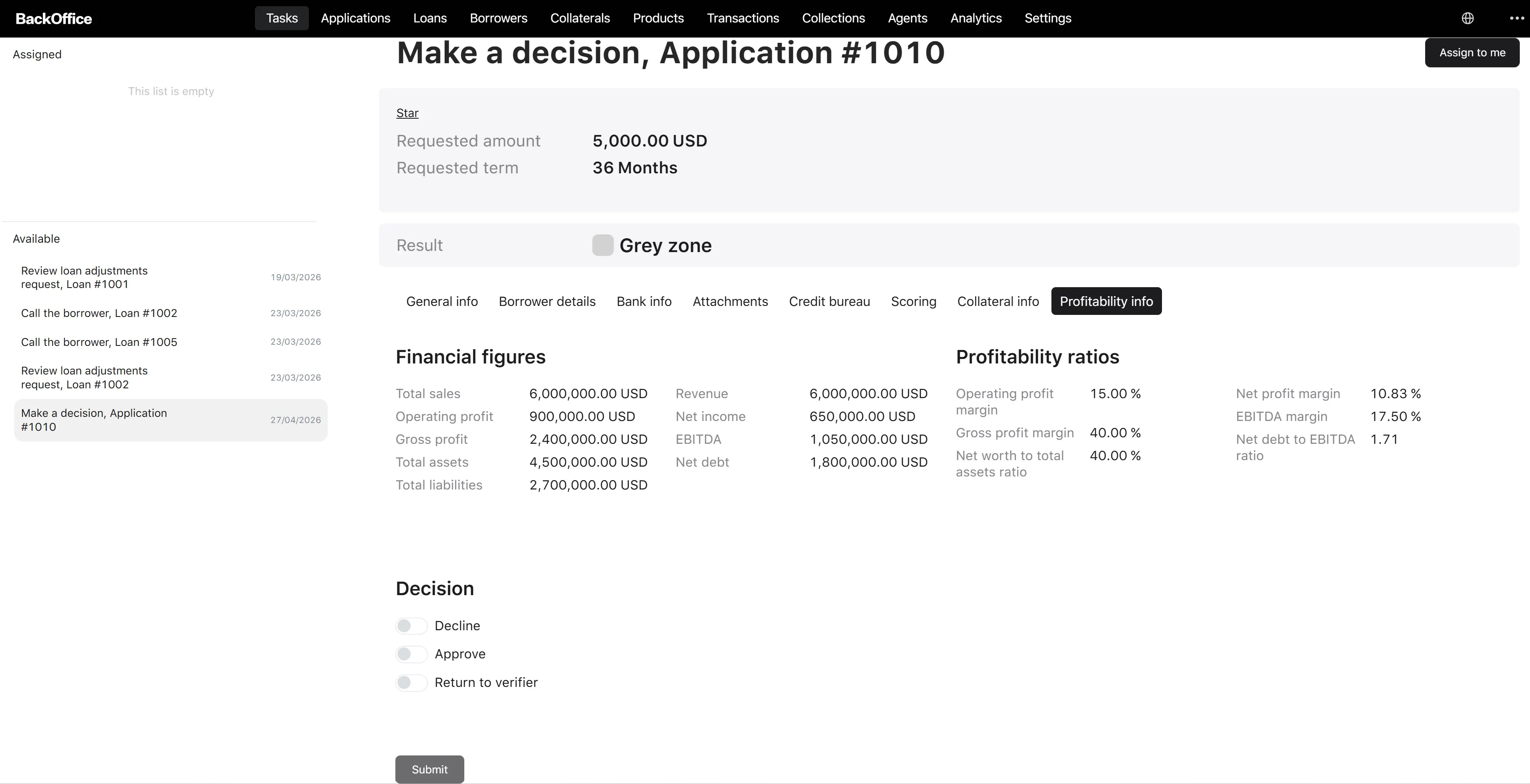
After the verifier submits, the platform automatically calculates the following profitability ratios and stores them on the application. They are not entered by the user; they are derived from the figures above:
- Gross profit margin
- Net profit margin
- Operating profit margin
- EBITDA margin
- Net worth to total assets ratio
- Net debt to EBITDA ratio
These ratios are later visible to the underwriter on the Profitability info tab of the underwriting screen.
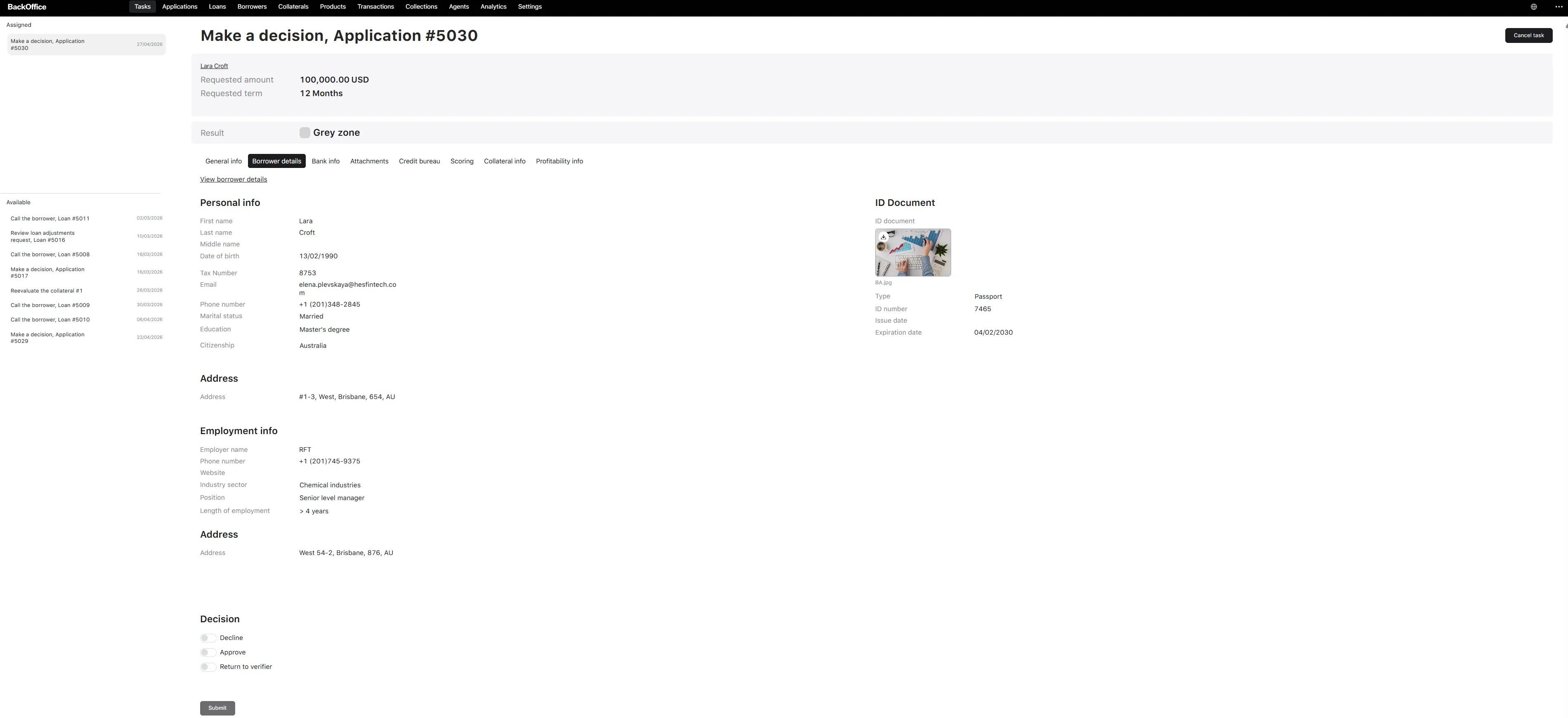
3. Make a decision on the application (back-office underwriter)
When it appears: Step 13, only when the underwriting decision must be made manually (the routing rules produced “Send to underwriting”).
Who sees it: Back-office users with the Underwriter role.
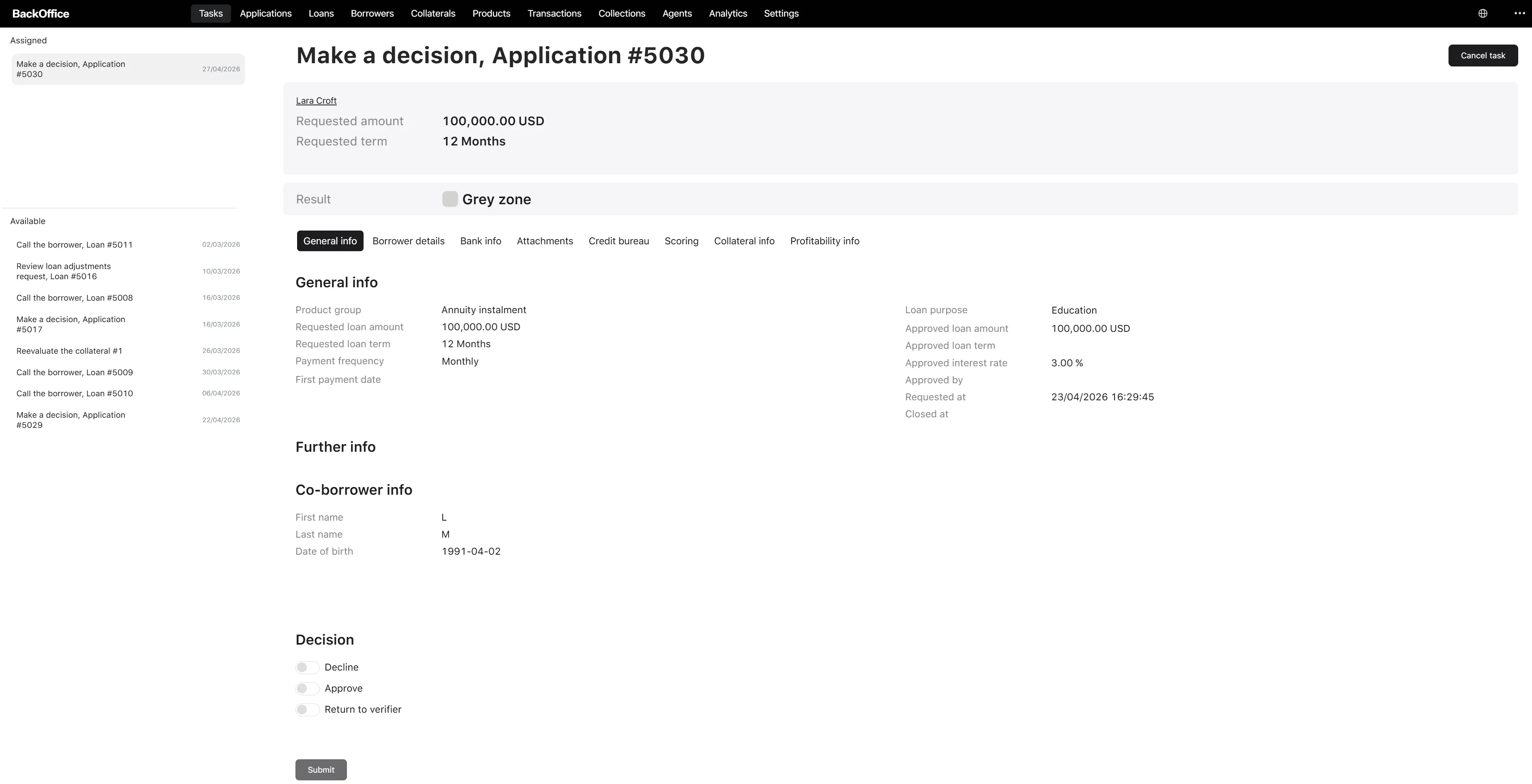
Task title in the back-office: Make a decision, Application #[application number].
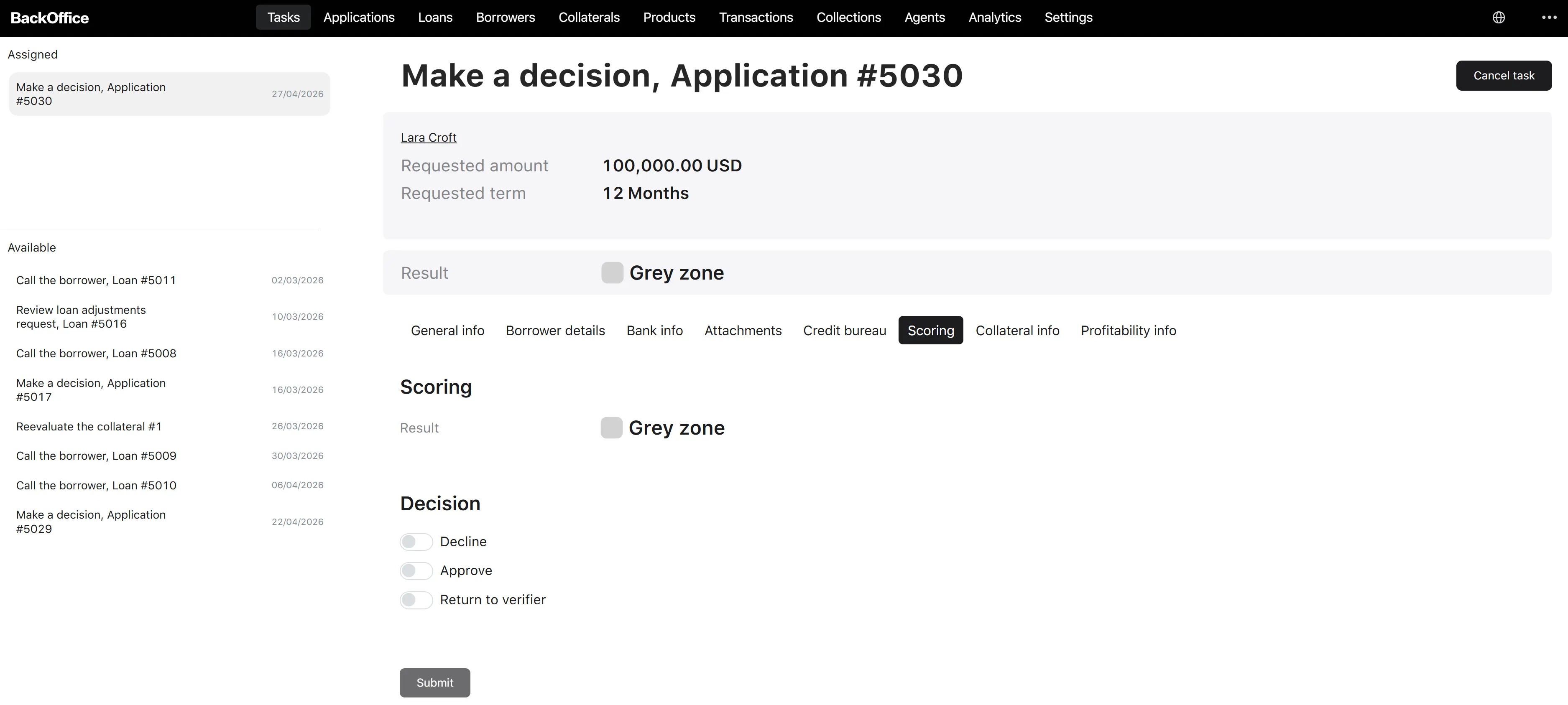
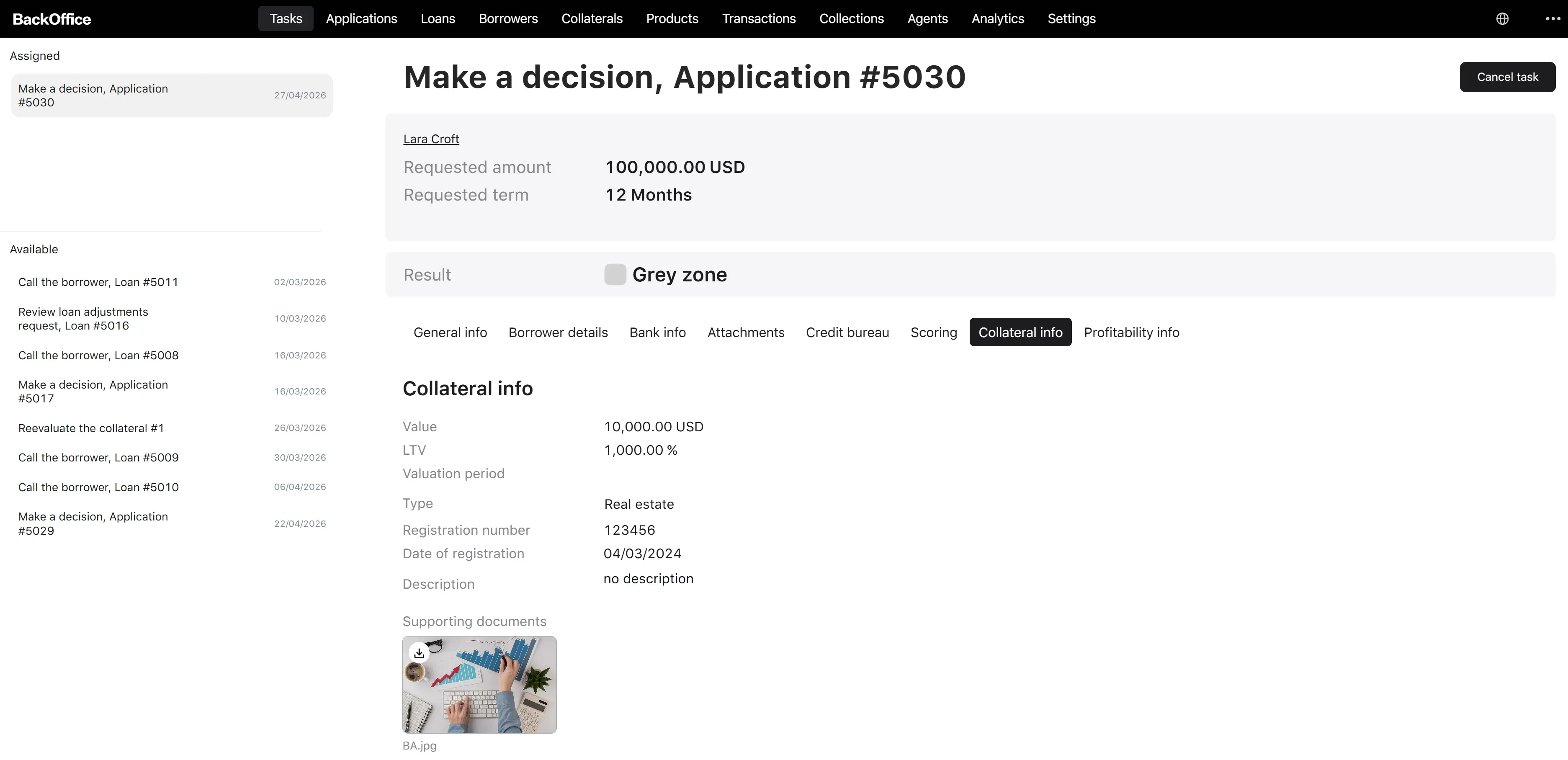
The screen has three parts: a scoring header, a read-only summary in tabs, and a decision section.
Scoring header
Above the tabs, the underwriter sees:
- Result — a visual indicator of the scoring zone (top / middle).
- Score — the numeric score from the scoring provider (shown only when the scoring provider returned a score).
Read-only summary (organised in tabs)
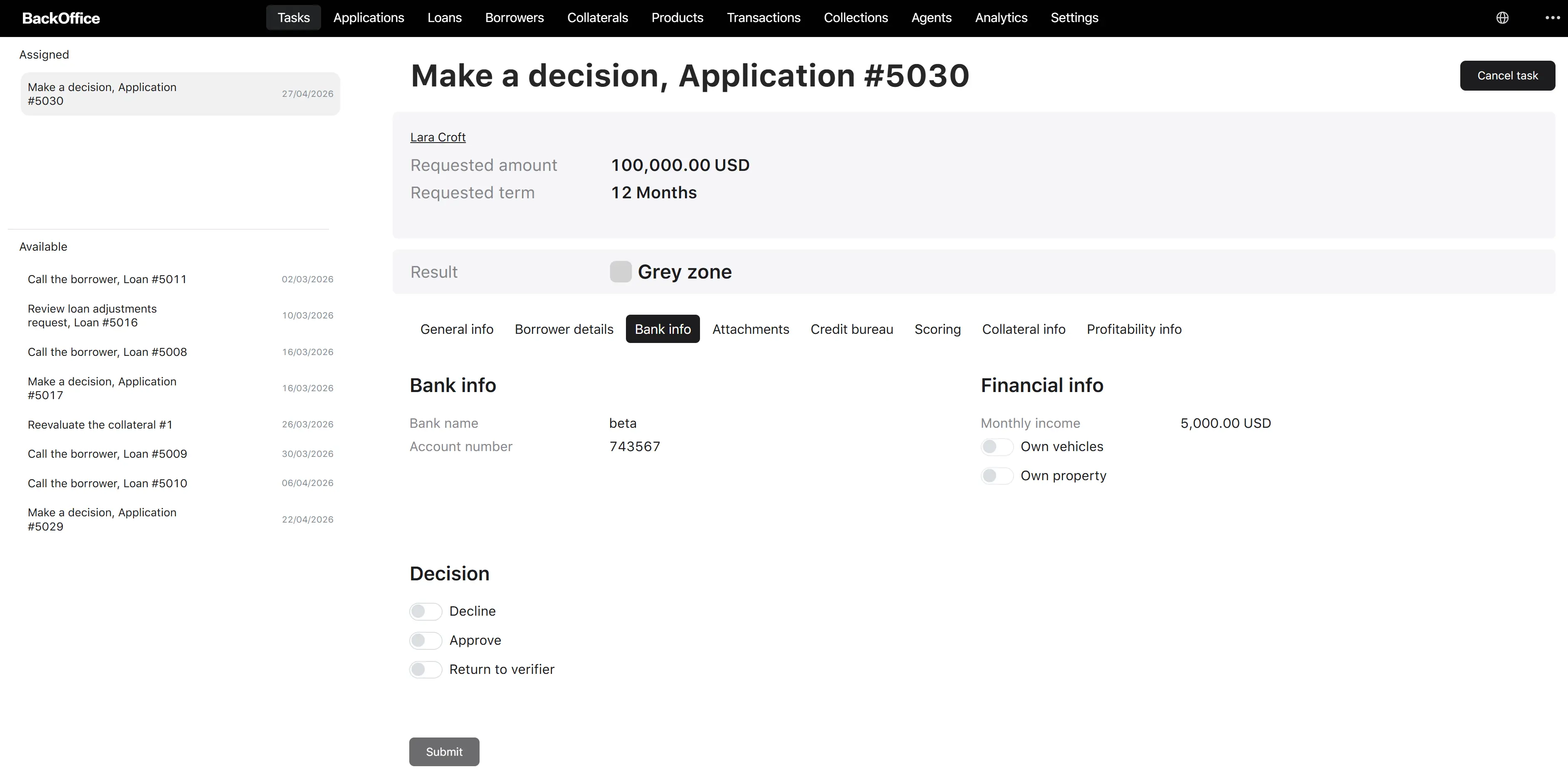
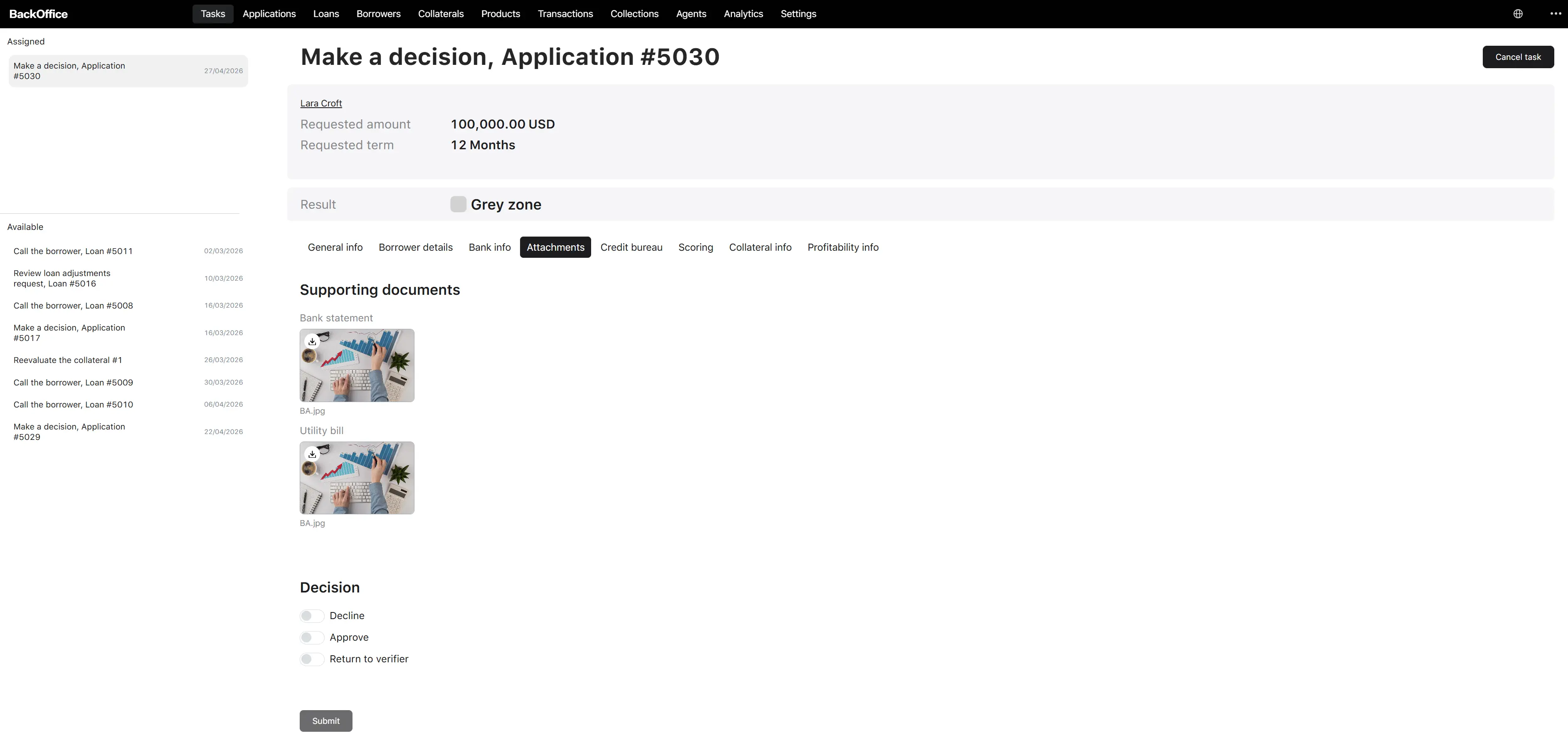
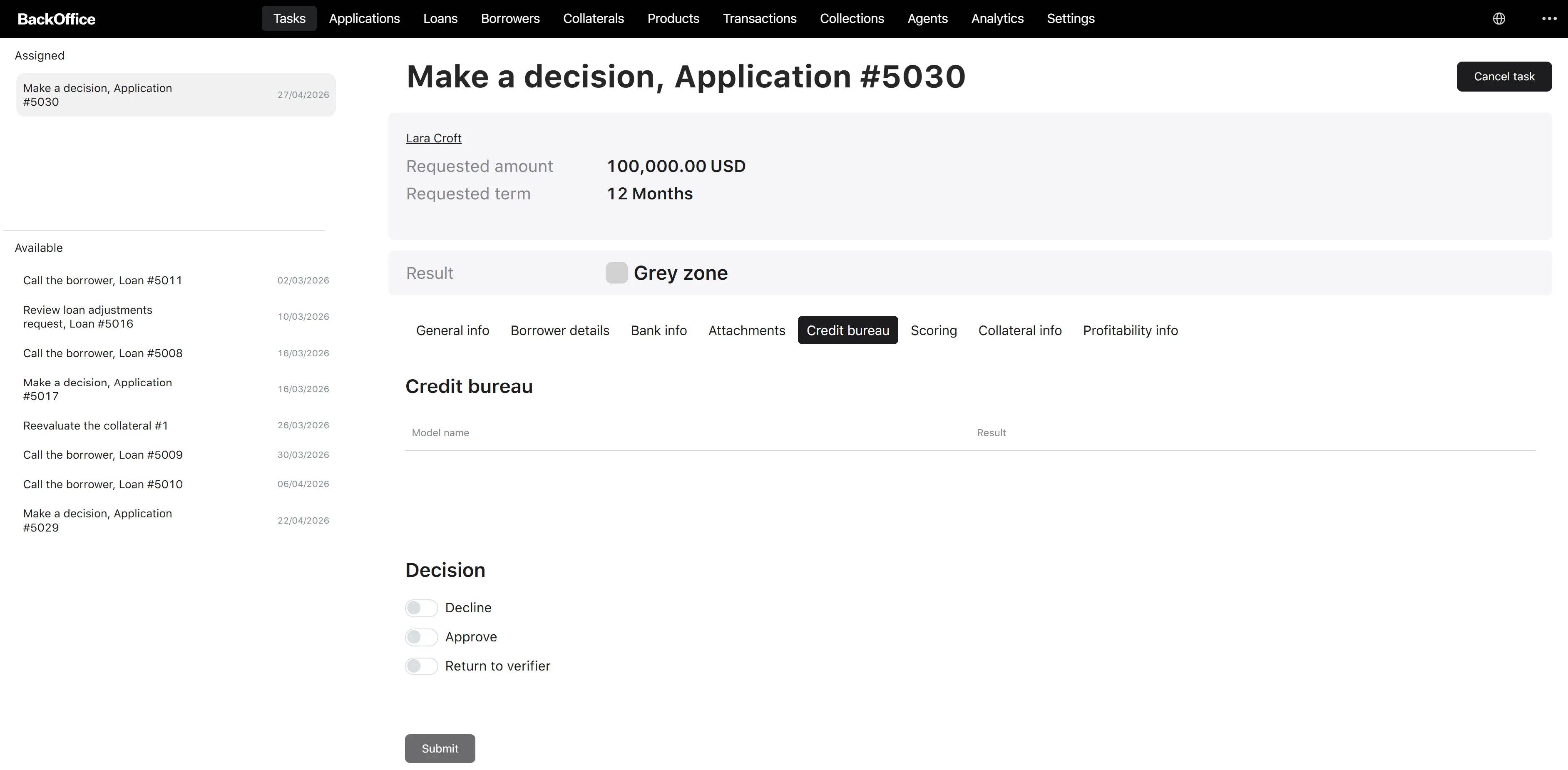
| Tab | When it is shown | Contents |
|---|---|---|
| General info | Always | Loan application general information. |
| Borrower details | Always | Personal or company details of the borrower. |
| Bank info | Always | Bank account information and the bank account verification result. |
| Attachments | Always | Uploaded supporting documents. |
| Credit bureau | Always | The credit bureau report. |
| Scoring | Always | Detailed scoring breakdown. |
| Collateral info | Only when the application has collateral | Collateral details. |
| Profitability info | Only for Legal Entity borrowers with calculated profitability ratios | Financial figures and the calculated profitability ratios. |
A small header above the tabs shows: borrower name (clickable link), Requested amount, and Requested term.
Decision section
| Parameter | Description | Type | Required | Possible values | Default | Notes |
|---|---|---|---|---|---|---|
| Decision | The underwriter’s decision on the application. | Toggle (single choice) | Yes | See the Decision values table below. | — | The Return to verifier option is available only when the product group’s Verification setting is Manual. |
| Decline reason | Reason for declining the application. | Dropdown | Yes when Decision = Decline | See the decline reason lists below — different for Person and Legal Entity. | — | The list shown depends on the borrower type. |
| Return reason | Free-text explanation for returning the application to the verifier. | Text area | Yes when Decision = Return to verifier | — | — | Maximum 300 characters. |
| Loan amount | The final approved loan amount. | Number | Yes when Decision = Approve | — | The borrower’s requested amount. | Minimum 0.01; maximum 9,999,999,999,999.99. Currency suffix is the platform default currency. |
| Loan term | The final approved loan term. | Number | Yes when Decision = Approve | — | The borrower’s requested term. | Minimum 1; maximum 1000. The unit (days / months / years) is taken from the product group. |
| Approved interest rate | The final approved interest rate (as a percentage). | Number | Yes when Decision = Approve | — | — | Minimum 0; maximum 999. Suffix %. |
| First payment date | The date of the first repayment. | Date | Yes when Decision = Approve and the product group has “Configurable first payment date” turned on and the loan type is not Credit line or PDL | — | — | Allowed range: from 3 days from today, up to 3 days plus the product group’s “Range of days for first payment date” setting. |
| Loan product | The specific loan product that will be applied to the application. | Dropdown | Yes when Decision = Approve | The list is filtered live by the chosen amount, term, and interest rate, and by the application’s product group. | — | If the system pre-selected a product (and it still matches the underwriter’s chosen amount / term / rate), it is shown by default. |
The screen also displays calculated read-only fields under the loan term inputs, which refresh whenever the underwriter changes the amount, the first payment date, or the loan product:
- LTV — only shown when the application has collateral and the LTV is available.
- Total to pay — the total amount the borrower will repay over the life of the loan.
- Total interest — the total interest the borrower will pay.
- First payment — the value of the first scheduled payment (shown only when the product group has a configured payment frequency).
A submit button labelled Submit is enabled only when all required fields for the chosen decision are valid.
Decision values
| Value | Description |
|---|---|
| Decline | The underwriter rejects the application. |
| Approve | The underwriter approves the application on the entered terms. |
| Return to verifier | The underwriter sends the application back to the verifier for re-checking. Available only when the product group requires manual verification. |
Decline reason values — Person borrower
- Not a resident
- Job instability
- Suspicion of fraud
- Existing non-performing loan
- Previous conviction
- Lives or works from abroad
- Declined applications in the last 30 days
- Incorrect data
Decline reason values — Legal Entity borrower
- Not a resident
- Suspicion of fraud
- Incorrect data
- Declined applications in the last 30 days
- Existing non-performing loan
4. Update the application (borrower)
When it appears: Step 6a, only after the verifier selected Request updates.
Who sees it: The borrower (and back-office or agent users acting on behalf of the borrower — see “Where the form is shown” below).
Task title in the borrower portal: Update the application #[application number].
The screen header shows the message: “You need to update some of the fields in your loan application by [deadline], otherwise your application will be declined”. The deadline is set automatically to 72 hours from the moment the verifier requested the updates.
The screen displays the application in editable form, but only the sections selected by the verifier are unlocked. The rest are read-only. The available sections are:
- Requested conditions
- Personal info
- ID document
- Personal details
- Company info (Legal Entity only)
- Company’s representative info (Legal Entity only)
- Address
- Employment info (Person only)
- Bank info
- Financial info
- Collateral info
- Further info
- Supporting documents
The screen has two action buttons:
- Submit — sends the updated application back to the verifier.
- Cancel application — opens a confirmation dialog (“Are you sure you want to cancel this application?” — Yes / Back). If confirmed, the application is canceled.
If the borrower does not submit within 72 hours, the application is declined automatically.
Where the form is shown
The same Update the application task can be shown in three different portals depending on which portal originally submitted the application:
| Portal | Who works there |
|---|---|
| Borrower Portal | The borrower fills in the update directly. |
| Back Office Portal | A credit officer fills in the update on the borrower’s behalf. |
| Agent Portal | An agent fills in the update on the borrower’s behalf. |
The fields and the behaviour are the same in all three portals.
5. Track verification status (borrower)
When it appears: Throughout the entire Loan Origination process (until it ends), except while the borrower is filling in the Update the application task.
Who sees it: The borrower.
Task title in the borrower portal: Track verification status.
This is a read-only screen that lets the borrower follow the progress of their application. It auto-refreshes every 10 seconds.
The screen contains:
| Section | Description |
|---|---|
| Status | The current application status: Account verification, Verification, Update requested, Underwriting, Approved, Declined, or Canceled. |
| Requested conditions | The amount, term, and other conditions the borrower requested. |
| Supporting documents | The list of documents the borrower previously uploaded. |
| Note | A reminder that the final loan conditions in the contract may differ from the requested ones. |
| Cancel application button | Opens the cancel confirmation dialog. |
Cancellation flow: the borrower clicks Cancel application, then confirms in the dialog (“Are you sure you want to cancel this application?” — Yes / Back). If confirmed, the application is canceled.