The Agent Portal
The Agent Portal is the web application used by employees of the agent organization. After logging in (using the credentials provided in the invitation email), the user has access to data scoped strictly to their agent: they can only see leads, applications, and loans that belong to their organization.
The portal is organized into the following modules.
Module: Tasks
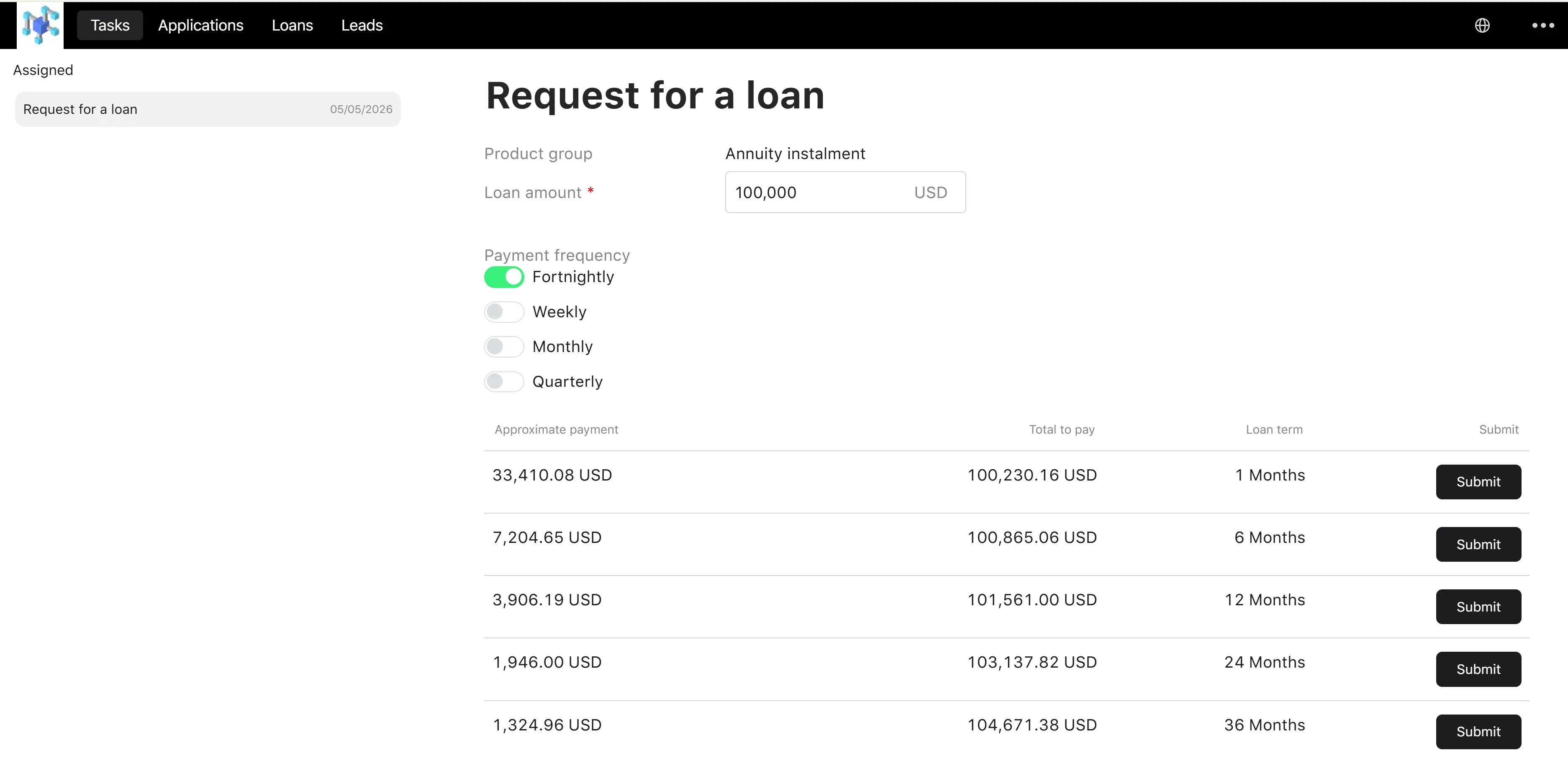
Purpose. A unified to-do list of every step the system is currently waiting for the agent user to complete.
What appears here. Any user task assigned to the agent user by an active business process. The most common ones are:
- Fill in bank account details — appears at the end of the invitation process when the agent does not yet have bank account information.
- Fill / continue a loan application — when a lead has been invited, but the application data still needs to be completed by the agent on behalf of the borrower.
- Provide additional borrower information — when a running application needs more borrower data (personal info, address, employment, company info, collateral, etc.) and the agent is the channel responsible for collecting it.
- Confirm loan conditions or review pending application — interactive checkpoints inside the origination flow.
- Manual KYC / manual bank details input — operational checkpoints when an external check could not be performed automatically.
Each task entry shows its title (a human-readable name like “Fill bank account details”), the entity it relates to (the agent itself, a specific lead, or a specific application), and the date it was created. Clicking a task opens the corresponding form so the user can complete the work.
When the user submits the form, the task is removed from the list, and the underlying process continues.
Module: Applications
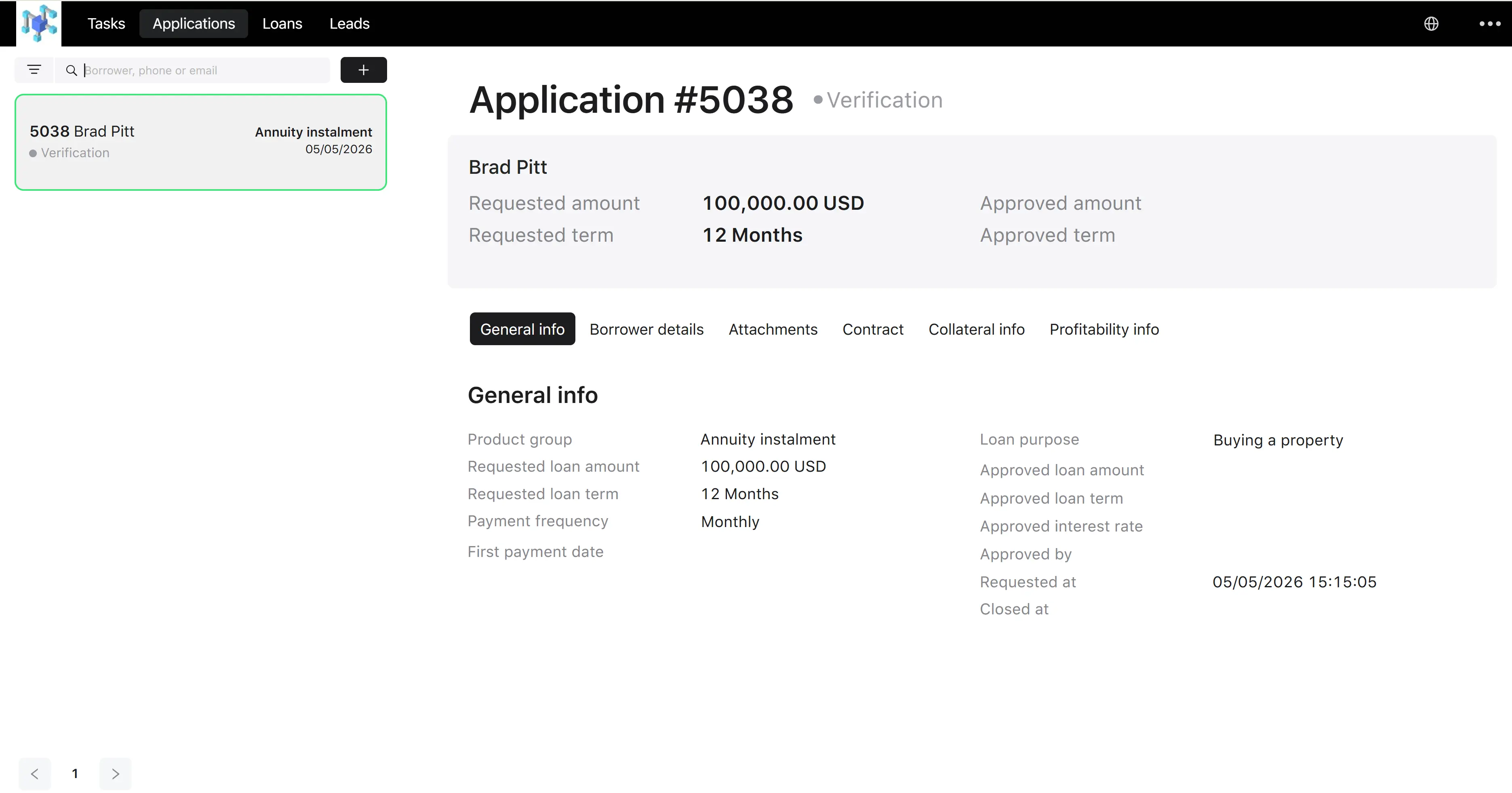
Purpose. A list of every loan application originated by this agent, with full filtering and the ability to drill down into a single application.
Filters available:
| Filter | Type | Notes |
|---|---|---|
| Statuses | Multi-select | Filters by one or more application statuses |
| Requested from | Date / time | Lower bound on the request timestamp |
| Requested to | Date / time | Upper bound on the request timestamp |
| Search | Text | Matches application number or borrower’s full name, phone, or email |
Sorting and pagination:
- Default sort: by request date and time, newest first.
- The list is paginated; the user can navigate pages and choose page size.
Each row shows the application number, borrower name, current status, product group, and request date.
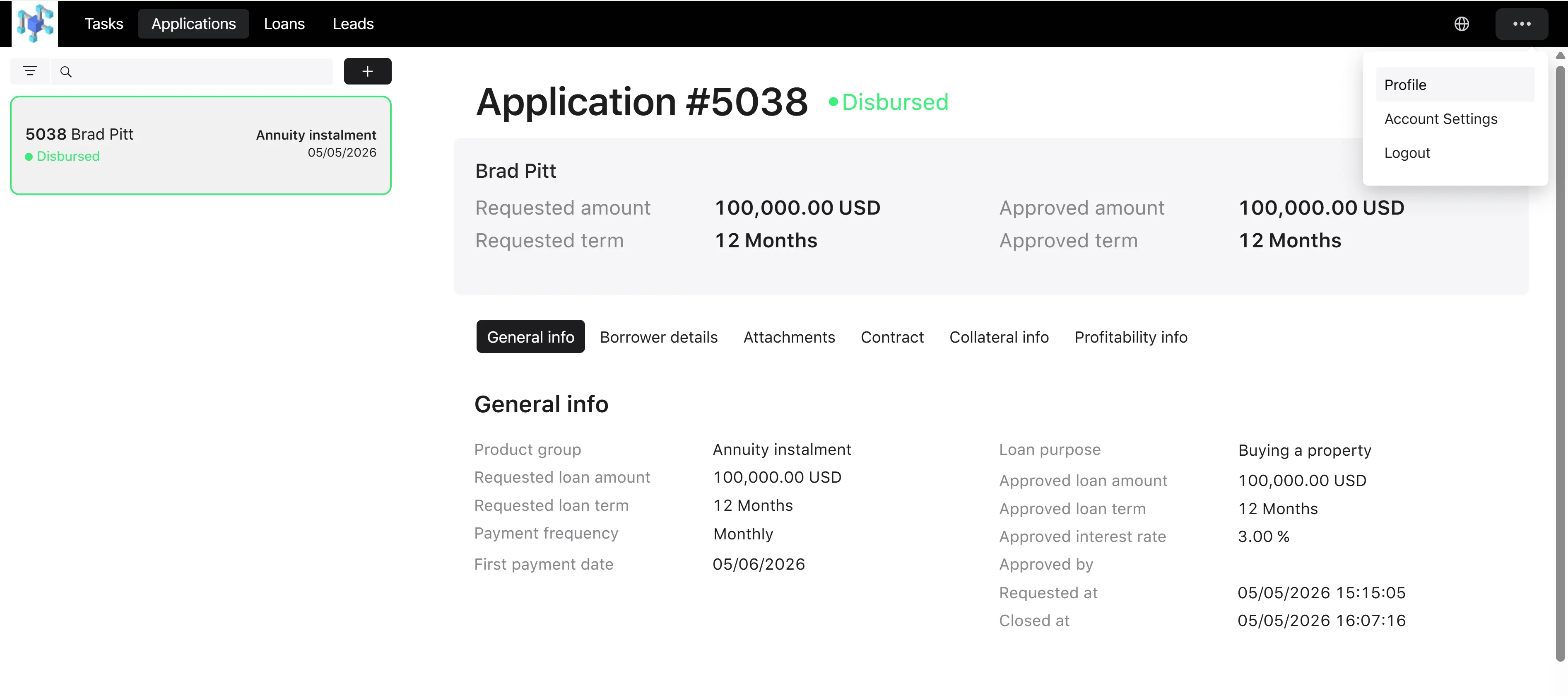
Detail view. Clicking a row opens the Loan application detail page. This page shows the application number, current status, borrower details, requested vs. approved loan parameters, and the full origination history. The agent can review every stored field but cannot modify a submitted application — additional information is gathered through tasks.
Module: Loans
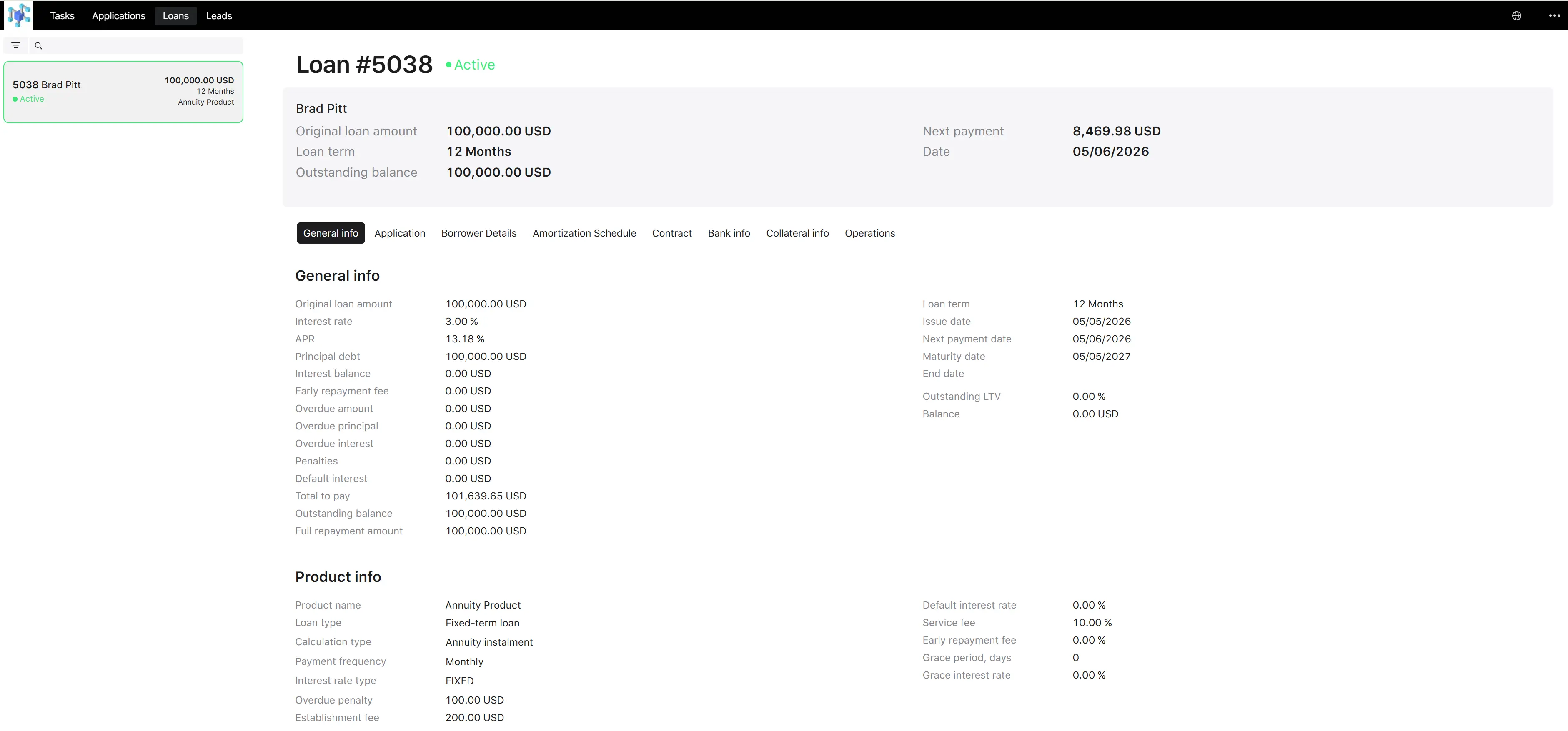
Purpose. A list of every loan that originated from this agent’s applications, along with the operational history of each loan.
Filters available:
| Filter | Type | Notes |
|---|---|---|
| Statuses | Multi-select | Filters by one or more loan statuses |
| Issue date from | Date | Lower bound on the loan issue date |
| Issue date to | Date | Upper bound on the loan issue date |
| Search | Text | Matches loan number or borrower’s full name, phone, email, or product code |
| Loan types | Multi-select | Two values: Fixed-term loan and Credit line |
Sorting and pagination:
- Default sort: by creation date, newest first.
- The list is paginated.
Each row shows the loan number, borrower name, status, amount, term, and product group.
Loan detail view. Clicking a row opens the loan card. The layout depends on the loan type:
- For a fixed-term loan, the page shows general loan info, the amortization schedule, contract details, and operations.
- For a credit line, the page shows credit-line-specific information (limit, used and available amounts, billing cycles, etc.).
The agent can read loan data but cannot edit it through this module.
Module: Leads
Purpose. Manage prospective borrowers — register them, edit their contact details, and turn them into a loan application.
List screen. A paginated list of every lead belonging to the agent, with a free-text search across the lead’s full name, phone, and email.
Each row shows first name, last name, phone number, and email address.
Available actions on the list:
- Create lead — open the create-lead form.
- Open a lead — click a row to navigate to the lead’s detail page.
Create a lead
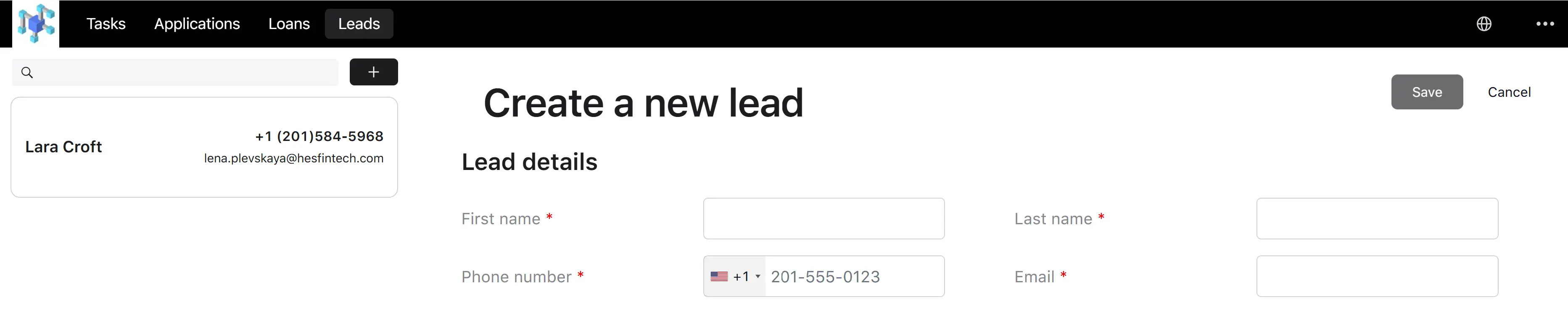
Step 1. Open the form. The user clicks Create lead.
Step 2. Fill in the lead’s details. The user fills in:
| Parameter | Description | Type | Required | Notes |
|---|---|---|---|---|
| First name | Lead’s first name | Text | Yes | Up to 84 characters; multiple spaces are collapsed |
| Last name | Lead’s last name | Text | Yes | Up to 84 characters; multiple spaces are collapsed |
| Phone | Lead’s phone | Phone | Yes | Digits only; optional leading + |
| Lead’s email | Yes | Up to 132 characters; lowercased; must match a standard email pattern |
Step 3. Save. The user clicks Save. The system validates the fields, checks that the phone+email pair is not already used by another lead of the same agent, and stores the lead.
Validation: phone and email together must be unique within a single agent’s leads (different agents may have leads with the same contacts).

Lead detail screen
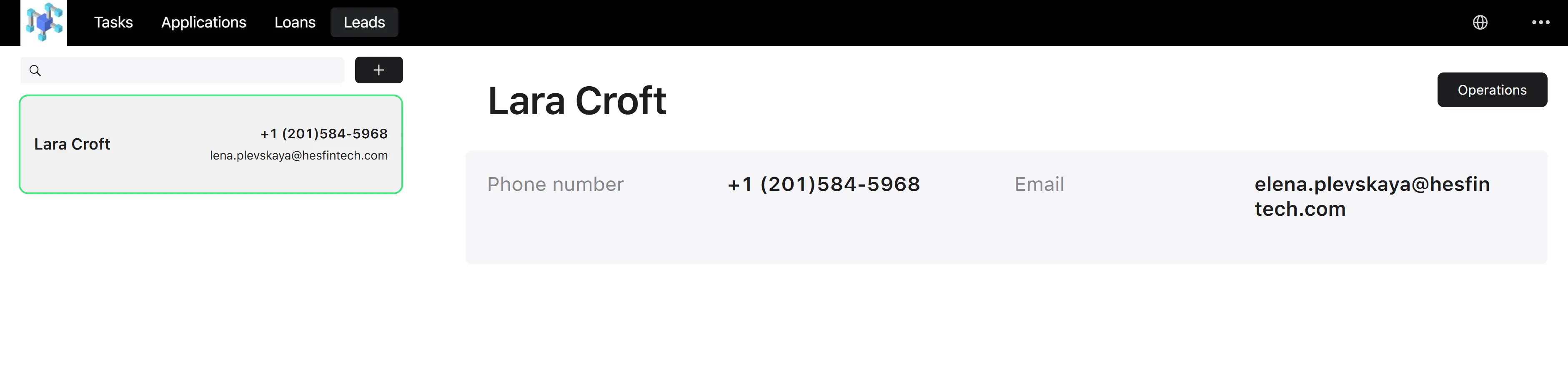
The detail screen displays the lead’s full name (header), phone, and email.
Available actions:
- Send application — start the loan application process for this lead (described below).
- Edit — open the edit-lead form.
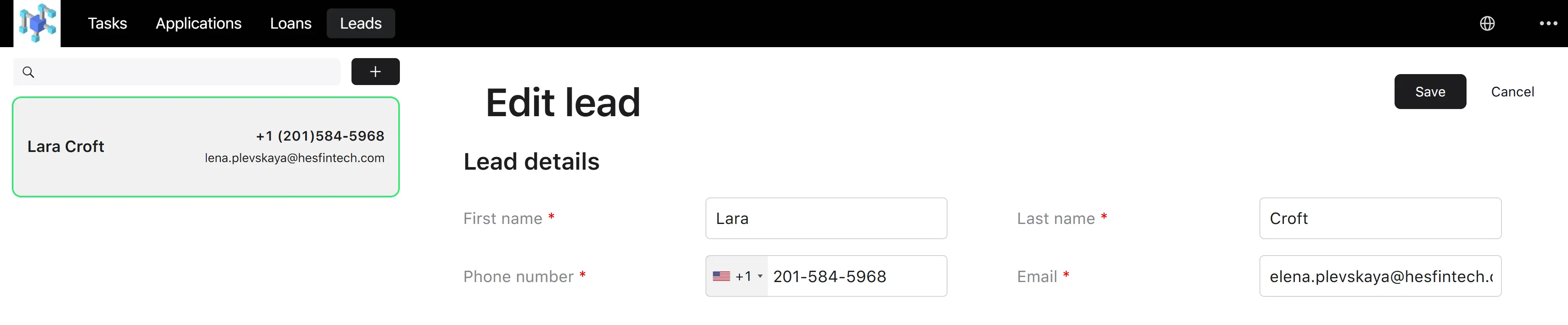
Edit a lead
The user can change their first name, last name, phone number, and email address. The same uniqueness rule applies (phone+email must remain unique within the agent).

Send loan application from a lead
See the Agent Invitation to a Lead section.
Module: Profile
Purpose. Enables the agent user to view and update their agent organization’s profile.
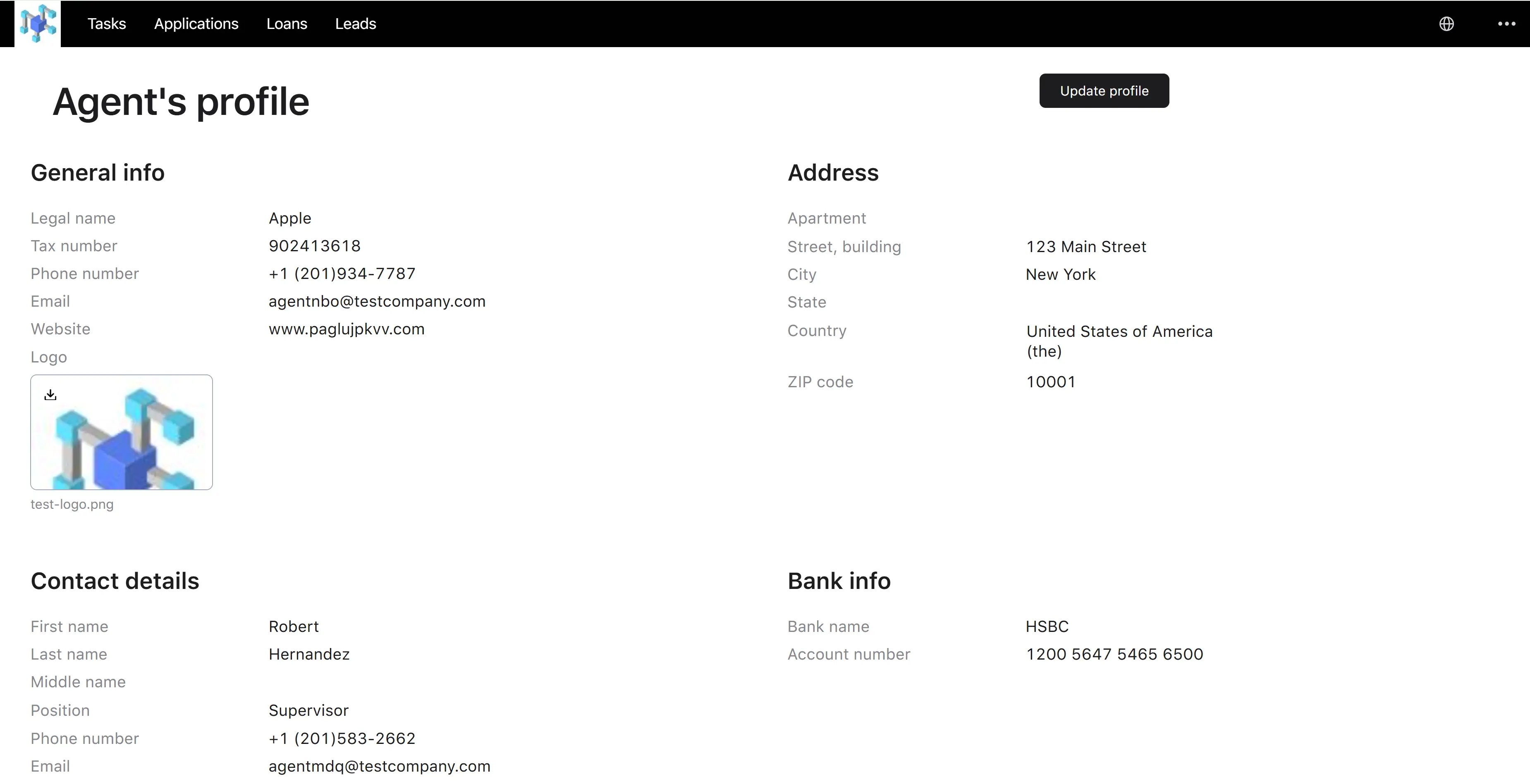
View screen. Displays the agent’s general info (legal name, tax number, phone, email, website, logo), address, contact details, and bank info. Read-only.
Available action:
- Edit — open the update-profile form.
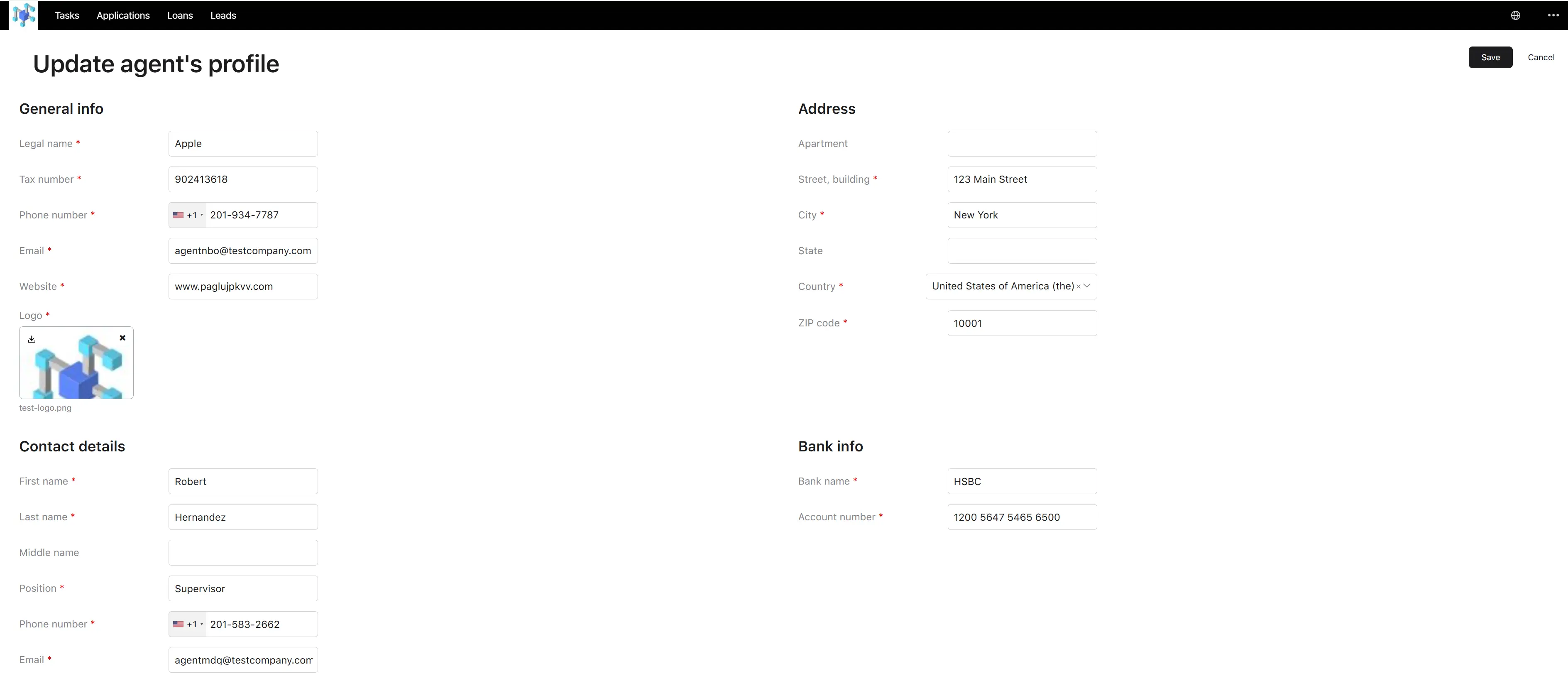
Update profile. The form contains the same panels as the view (general info, address, contact details, bank info). The user changes any field, then clicks Save. The system enforces:
- The same validation rules as the Backoffice create/edit forms (legal name uniqueness, tax number normalization, email pattern, etc.).
- An ownership check: the agent user can only update their own agent — a profile belonging to another agent cannot be modified through self-service, even if its identifier is included in the request.
The user can click Cancel to discard changes.